SETTING UP AND CONFIGURING THE DEVICE
Conduit
®
Cat 4 for EU/UK MTCDT-L4E1 Hardware Guide 19
ATTENTION: Risque d’explosion si vous remplacez la batterie par un modèle incompatible. Jetez
les piles usagées selon les instructions.
Connecting to the Debug Interface
You need:
Phillips screwdriver
Standard USB Micro B cable
To connect the debug cable:
1. Disconnect power to the Conduit, if it is connected.
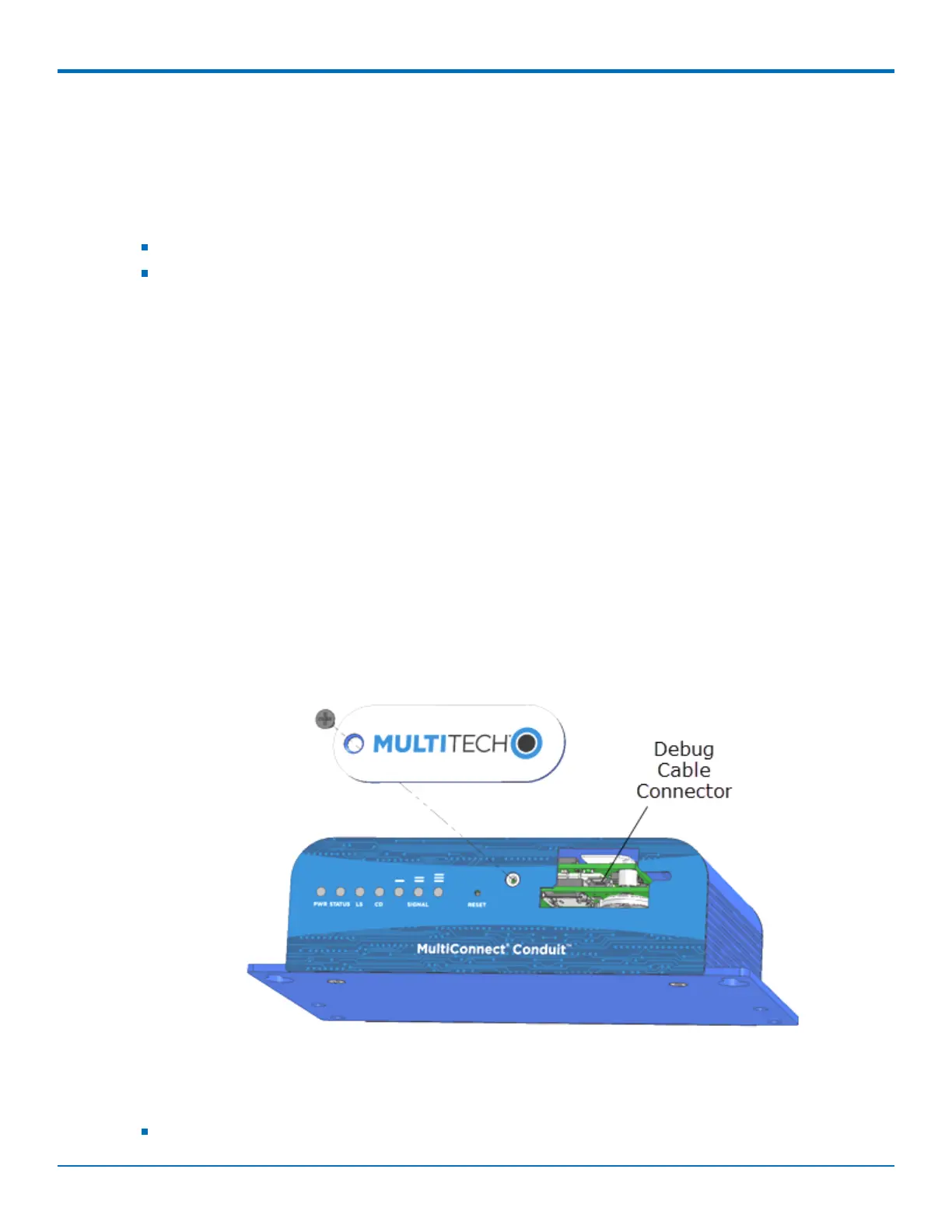
2. At the front of the Conduit housing, remove the screw that secures the MultiTech nameplate to the
housing.
3. Locate the USB debug cable connector in the center of the opening.
4. Connect the USB Micro B cable to the debug connector.
5. Connect the Type A end of the USB cable to the host.
6. From the host, use an application such as TeraTerm with a baud rate of 115,200. If the USB driver does
not automatically install, do the following:
a. Unplug the USB cable.
b. Go to the following web site to download and install the appropriate USB driver:
https://www.maxlinear.com/support/design-tools/software-drivers
c. Plug the USB cable back into the housing.
7. From the host, access the Conduit's USB COM port.
Restoring User Defined Settings
You need:
A pin, paperclip, or similar thin object that can fit into the reset hole.


 To Next Page