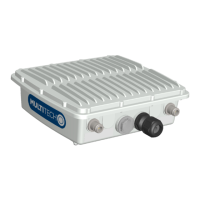
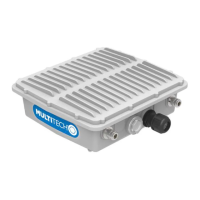
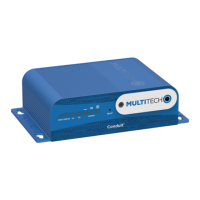
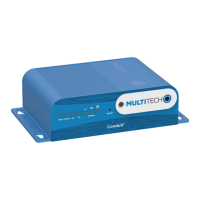
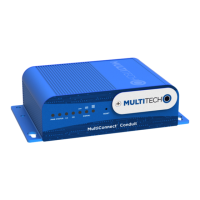
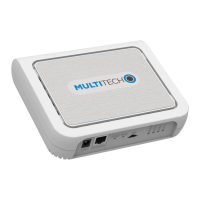
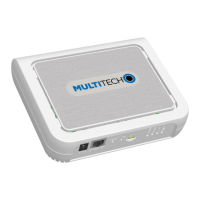
The MultiTech Conduit Edge Microserver is a powerful component designed to integrate with the ThingWorx architecture, facilitating rapid deployment of connections between the ThingWorx platform and associated data reporting devices. It minimizes design requirements for the user, providing an "always-on" connection to the platform and opening a local web server that interacts with the REST API available on the platform. This guide specifically details its installation and usage with the MultiTech MultiConnect Conduit device.
Function Description:
The MultiTech Conduit Edge Microserver acts as a bridge, enabling seamless M2M (Machine-to-Machine) connectivity. It leverages an open Linux environment, specifically tailored for the MultiConnect Conduit, to manage various wireless interfaces and facilitate data exchange with the ThingWorx platform. The core function is to allow devices to report data to the ThingWorx platform and receive commands, thereby enabling remote monitoring, control, and data analysis. The Edge Microserver ensures a persistent connection, which is crucial for real-time data applications and reliable system operation. It simplifies the process of bringing edge devices online and integrating them into a comprehensive IoT solution, reducing the complexity typically associated with such deployments.
Important Technical Specifications:
The MultiConnect Conduit is a multi-port programmable gateway device. While the manual does not list specific processor speeds, memory, or storage capacities, it emphasizes its Linux-based operating environment, which is capable of running the Edge Microserver Linux distribution. The device supports various wireless interfaces, although the specific types are not detailed in this document. Connectivity to a local computer is achieved via a standard Ethernet cable, and it requires a power source. The default IP address for the MultiConnect device is 192.168.2.1, with a default SSH port of 22. The default username and password for SSH access are "root" for both. The Edge Microserver software itself, specifically thingworx-ems_5.2.0.15-r0.3_arm926ejste.ipk and thingworx-ems-lua_5.2.0.15-r0.1_arm926ejste.ipk, is designed for ARM926EJSTE architecture, indicating its compatibility with embedded systems often found in gateway devices. The software relies on the Open PacKaGe (opkg) utility for installation. The config.json file, which is central to its operation, defines connection parameters such as the HTTP server host and port (defaulting to 127.0.0.1:8000), WebSocket server host and port (e.g., 192.168.2.30:80), an application key (appKey), and resource path (/Thingworx/WS). It also includes logger settings (e.g., DEBUG level) and WebSocket connection parameters like encryption (e.g., none), verbosity (true), and message timeout (1000). The system is compatible with ThingWorx Platform Version 6.0.1 and operates on Windows 7, Service Pack 1 for the setup computer.
Usage Features:
The setup process involves several key steps:
- Initial Setup: Requires inserting an activated and valid SIM card into the MultiConnect device. The guide assumes a Microsoft Windows operating system for the local computer used for setup.
- Connecting to a Local Computer: The MultiConnect Conduit is connected to a local computer via an Ethernet cable. The computer's Ethernet Adapter device needs to be configured with a static IP address within the same range as the MultiConnect device (e.g., 192.168.2.30 if the MultiConnect is 192.168.2.1).
- SSH Access: Users connect to the MultiConnect device via SSH using clients like PuTTY or Cygwin, using the default IP address (192.168.2.1), port 22, username "root," and password "root."
- Software Installation: Two essential packages,
thingworx-ems and thingworx-ems-lua, are installed on the MultiConnect device using the opkg install command. These packages are first copied to a directory such as /opt/thingworx/ on the device using utilities like WinSCP or scp.
- Configuration: The
config.json file, located in /opt/thingworx/etc/, must be modified to match the connection parameters of the user's ThingWorx instance. This includes specifying the ThingWorx platform's IP address and port, as well as the appKey. A config.json.complete file is provided for reference.
- Executable Management: The
wsems executable file, which may be installed in /usr/bin, needs to be copied to the same top-level directory as the EMS installation (e.g., /opt/thingworx/).
- Running the Microserver: The
wsems file must be made executable using chmod 777 wsems. The Edge Microserver is then started by executing ./wsems. The console output should indicate "Successfully connected" and "Sending Ping" messages, confirming proper operation.
- Verification on ThingWorx Platform: The connection is verified on the ThingWorx platform by navigating to "Monitoring" > "Subsystems" > "WS Communications" in the Composer. An active websocket should be listed. Additionally, checking "Remote Things" > "Unbound" should display the MultiConnect device with the identifier specified in the
config.json file (e.g., "MyGateway").
Maintenance Features:
The document outlines several troubleshooting steps that double as maintenance guidelines:
- Connectivity Issues: If the MultiConnect device cannot be connected from a local computer, users should ensure the Ethernet Adapter in Windows is active and manually configured with a correct IP address. Resetting the MultiConnect device by holding the RESET button for 5 seconds while powered on is also recommended.
- Software Installation Problems: If EMS and Lua packages fail to install, users should verify that the Open PackaGe utility is installed on the device, ensure the installation command is run from the correct directory where the
.ipk files are located, and try installing the files in a different directory if necessary.
- Connection Failures to ThingWorx Platform: If
wsems fails to connect, users should check the version number of the installed package to ensure it matches the command used. Verifying that wsems is executable and reading error messages are crucial. Double-checking the config.json for syntax errors and correct parameters is essential, with a recommendation to start from the example text provided in the guide. As a last resort, attempting to connect to a ThingWorx Platform instance on the local machine (connected to the device) rather than over the internet can help isolate network issues.
- Locating
wsems file: The guide clarifies that wsems is an executable included in the package, and if not found, it might need to be copied to the device for installation.
- Document Revision History: The document includes a revision history, with Version 1.0 released on August 12, 2015, indicating initial release, which is a standard practice for tracking updates and changes for maintenance purposes.


 To Next Page

 General