MultiTech Conduit Edge SDK Installation and Setup Guide
Install the ThingWorx Edge MicroServer
Included in this Starter Kit are two packages you will need to install on the MultiConnect Device to get
started using the ThingWorx Edge MicroServer (EMS). Locate the following two files in this package:
•
thingworx-ems_5.2.0.15-r0.1_arm926ejste.ipk
•
thingworx-ems-lua_5.2.0.15-r0.1_arm926ejste.ipk
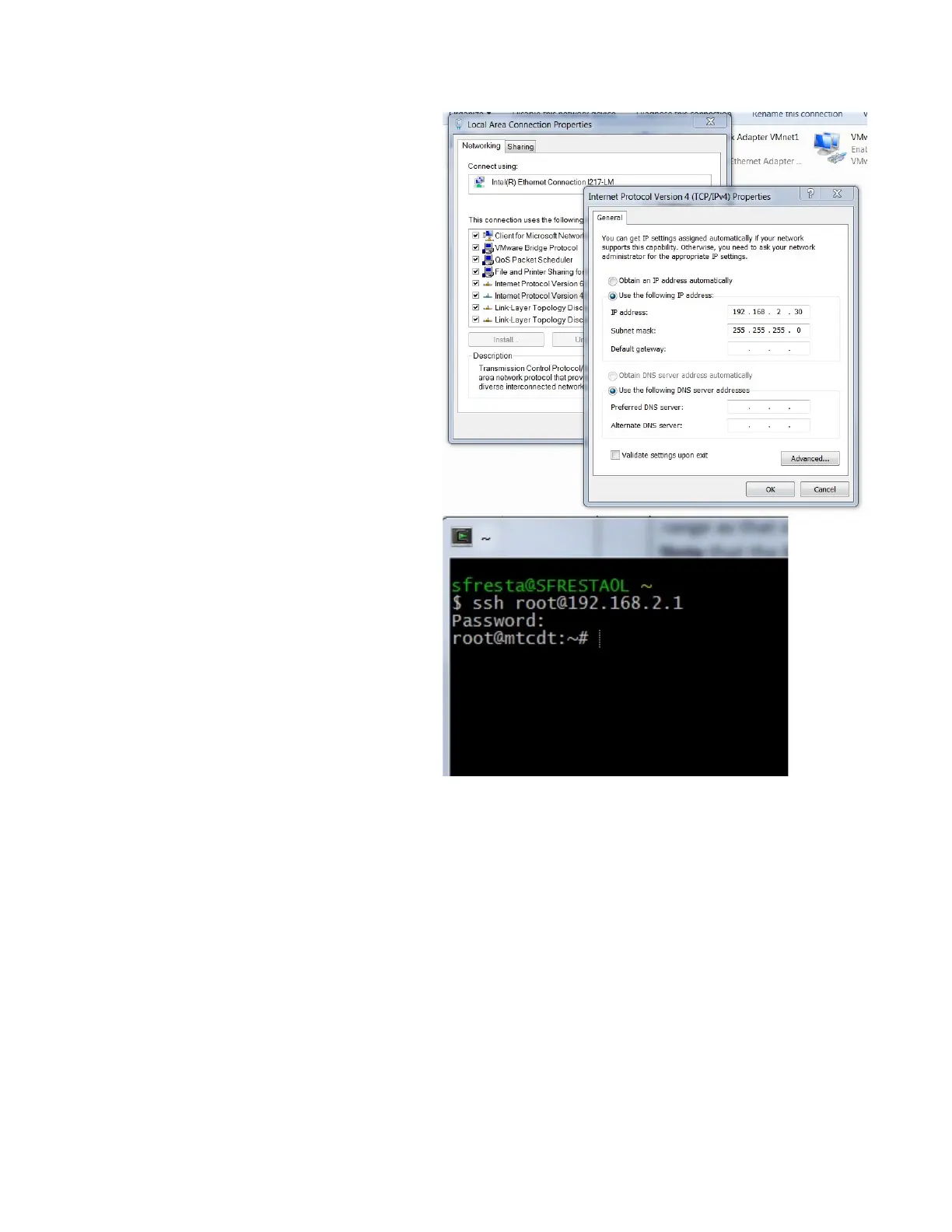
Assign your computer’s Ethernet Adapter
device to an IP address on the same IP
range as that of the MultiConnect device.
Note that the MultiConnect device’s
default IP address is 192.168.2.1
A recommended IP address for your
computer is 192.168.2.xx in this case,
where xx is any valid number in range,
such as 30.
Connect to the device via SSH using a
client such as PuTTY or Cygwin for
Windows.
Connect to the device at 192.168.2.1,
(default port 22), using the username
“root” and password “root”.
Note that these are the default credentials
for the device.
At this point, you should be logged into
the device as an administrative user (your
connection terminal should look like the
window in the previous screenshot).


 To Next Page