SENDING FAXES
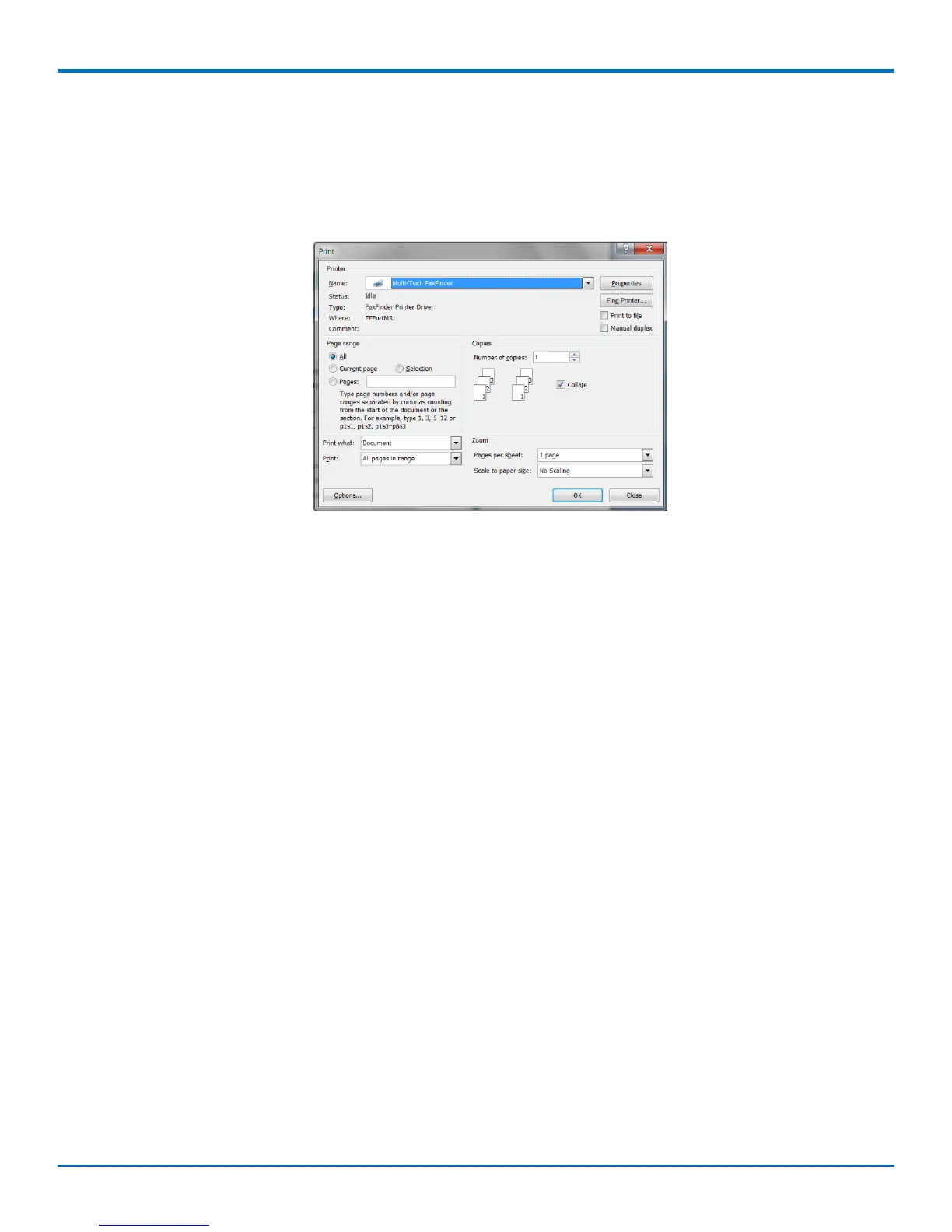
To send a fax through another program:
1. Create the document that you want to fax and save it.
2. Select Print.
3. Select Multi-Tech FaxFinder as your printer and click OK (or Print depending on the program). The
FaxFinder New Fax window opens. Refer to Sending a Fax with the Client for help using this window.
Using the Mac Print Plug-in to Send a Fax
Mac client software installation included a print plugin workflow that use OS X’s built-in PDF support. This plugin
allows you to send documents to FaxFinder from applications that support printing, such as Preview, Pages, MS
Word, TextEdit, and LibreOffice.
To send a document to FaxFinder from an application:
1. In the application, go to File > Print... .
2. Configure print options as though you are sending the document to a printer. Use the following settings:
■ Copies to 1.
■ Orientation to Portrait.
■ Pages per Sheet to 1. (Fax resolution is limited; sending multiple pages per sheet may result in unreadable
faxes.)
8 FaxFinder
®
User Guide



 To Next Page