Chapter 3 – Using Your Wireless Modem
Multi-Tech Systems, Inc. MultiModem GPRS Wireless Modem User Guide 23
Internet Access
You can setup Internet access in Windows Dial-Up Networking (DUN) of the computer that the wireless
modem is serving. Setup procedures vary according to the type of wireless service provider used.
To access Dial-Up Networking on your PC, go to Start > Settings > Network Connections.
● For GSM-without-GPRS, a circuit-switched data connection is used. The user can set up DUN to
make a conventional V.32 modem connection to any terminating modem at the other end. The
phone number specified in DUN can be one supplied by the wireless service provider or another
phone number related to a different dialup modem service (e.g., a dialup modem service phone
number from any commercial or private dialup network).
● For GSM-with-GPRS, a single DUN number is generally used by all of a wireless provider’s
subscribers throughout its area of coverage; regional, nationwide, continental, etc. Rather than
being a literal phone directory number, as in conventional DUN, this is a code that gives the modem
Internet access.
Connecting to the GPRS Network for Internet Access
After you have inserted the SIM card and the modem is ready for use, you can establish an Internet
connection through a Windows dial-up session.
Note that your wireless provider will charge you for data usage.
Requirements
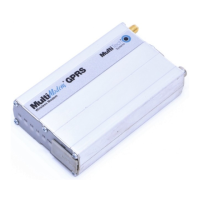
● One Multi-Tech wireless GPRS modem
● The GPRS modem should have an active SIM card and must have GPRS services
● The modem must be getting a proper signal and be showing a network registration through the
wireless provider’s network
● A PC running Windows XP or 2003 with the Multi-Tech drivers installed for your particular model
The following instructions are for Windows XP SP2 and Windows 2003. Every PC may have slight
differences which may cause the instructions to be different. Use these instructions as a guide to help
you understand what is required to set up an Internet connection through your wireless service provider
for all operating systems.
Note: Cellular providers provide Internet services as part of your service plan. Multi-Tech recommends
that if you plan on using large amounts of data, to sign up for an unlimited data service plan with your
provider. Multi-Tech Systems, Inc. will not be responsible for any charges on your cellular bill. If you
have any questions about billing, service plans, service charges, etc., please contact your provider for
more information.
Set the Access Point Name (APN) into the Modem’s Properties on Your PC
In order for your GPRS wireless modem to connect to your provider’s network, you must tell the modem
the Access Point Name (APN) to which it will connect. The APN is a server name that your account is
setup on with your provider. Your APN will be given to you by your provider. Here are some well-known
APNs:
● AT&T: PROXY, or INTERNET, or PUBLIC
● T-Mobile: INTERNET2.VOICESTREAM.COM, or INTERNET3.VOICESTREAM.COM, or
WAP.VOICESTREAM.COM
● Rogers AT&T of Canada: INTERNET.COM
To set the APN:
1. Click the Windows Start button, then select Control Panel.






 To Next Page