Chapter 2 – Activation and Installation
16 Multi-Tech Systems, Inc. MultiModem GPRS Wireless Modem User Guide
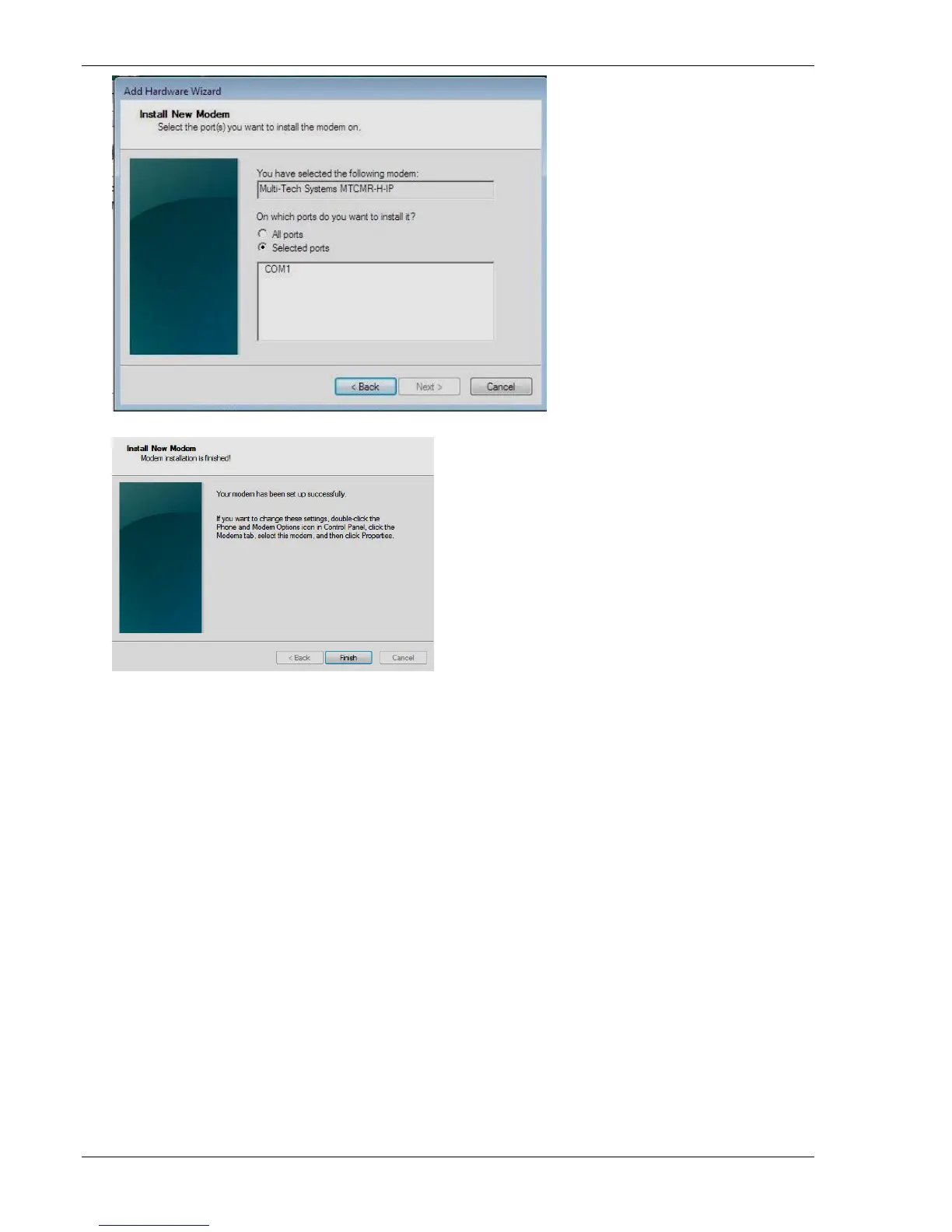
12. Click Next.
13. To finish the install, click Finish.
You have successfully installed the MultiModem driver.
Verifying That Your Modem Has Been Installed Successfully
1. After installing the Multi-Tech modem driver, you return to the Phone and Modems Options window.
2. Make sure that the modem is listed in the Modem column. Also ensure that the correct COM port is listed in
the Attached To column.
3. Highlight the modem. Click Properties.
4. A Properties window opens. Select the Diagnostics tab.
5. Click Query Modem. Windows queries the Multi-Tech modem.
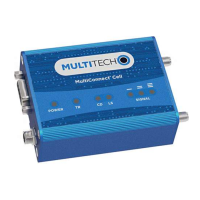
6. To make sure that the modem is correctly being queried, check the modem’s LED lights.
● The TR light should be on.
● The TD and RD lights should flicker.
7. If the query works, the second box shows the columns Command and Response.
The modem is properly installed and ready for use.
8. To close the modem Properties window, click OK.
9. To close the Phone and Modem Options window, click OK.






 To Next Page