Windows Settings
After installation of the MUTEC USB Audio Class 2.0 Driver for Windows is successfully completed, you can connect your
MC-3+USB to one of your computer’s USB ports by using the USB cable included in the scope of delivery. Switch on your
MC-3+USB and it should be automatically recognoized by your computer‘s operating system.
Attention
The direct interconnection between your MC-3+USB and your computer is best with regards to signal perfermance. We recom-
mend to not use USB hubs within the signal chain. Some USB3.0 host controllers may not work correctly, in this case, use a
standard USB2.0 port.
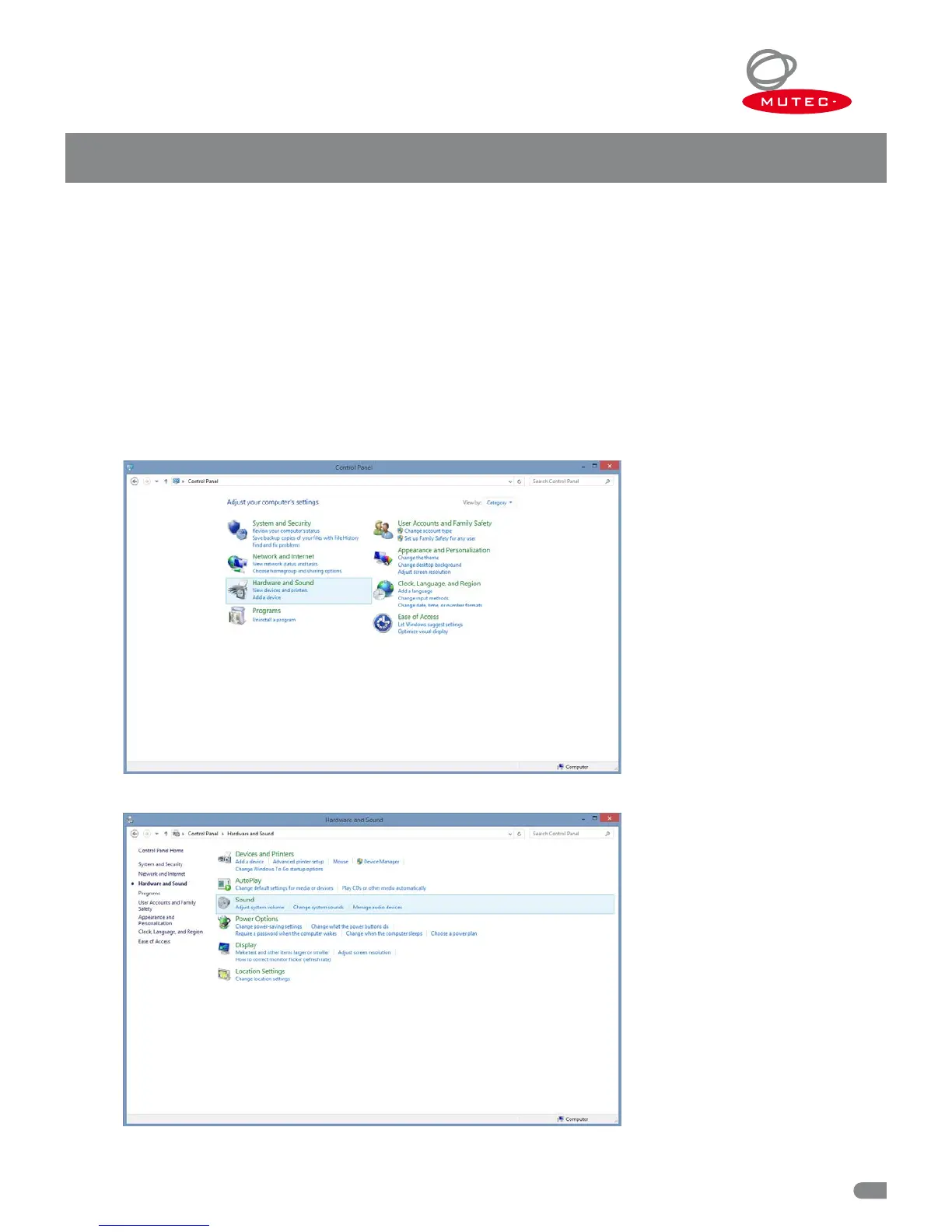
You now have to set your MC-3+USB as standard sound device. Click on the »Start Menu« button and select »Control Panel«.
USB Driver Installation & Windows Settings
17
In Control Panel select »Hardware and Sound«.
Click on »Sound«.


 To Next Page