13
13
i
8. NOTIFICATIONS
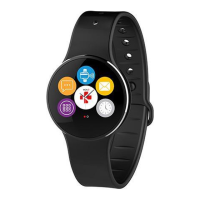
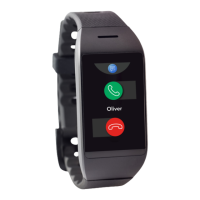
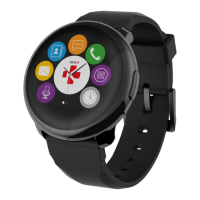
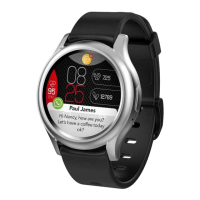
ZeCircle shows notifications of incoming and missed calls, SMS, email, social media
activity, calendar events and anti-lost alert*. Open ZeCircle App, tap Settings >
Notifications to select the notifications you want to receive onto your ZeCircle. If you
wish to disable certain notifications, swipe the selection button to the left. A single
tap on your ZeCircle can dismiss the notification. If not dismissed, the notification
will reappear next time you wake up the screen.
Setting up notifications for iOS users:
I
Go to “Settings” of your iOS device
I
Tap “Notification Center”
I
Select which type of notifications you wish to receive on ZeCircle
I
Enable ”Show in Notification Center” to receive the notification on ZeCircle
Caller ID supports latin character only. For more languages support, please contact support@
mykronoz.com. *Windows Phones may not support those features, please contact support@
mykronoz.com.for more information.


 To Next Page