EXECUTING MACRO
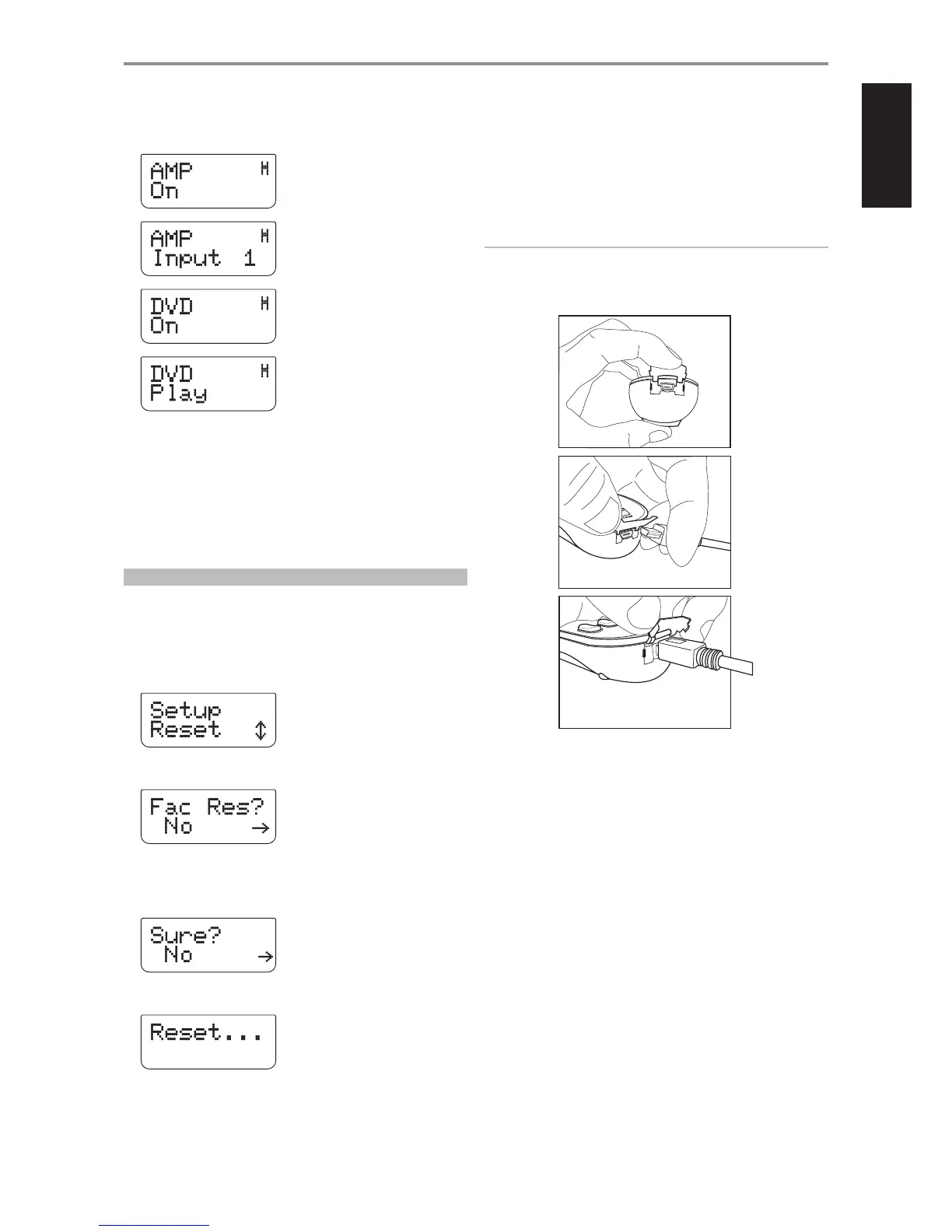
To execute the above macro example, press [MACRO] and then [0].
The corresponding macro will run; the display will show each step/
command as the macro is executed. Pressing any other HTRM key while a
macro is executing will abort the macro.
By default, when a macro is executed, the currently selected device will be
returned to what it was before the macro was executed. However, if the
very last button pressed while recording a macro is a DEVICE SELECTOR key,
the device will be changed at the end of executing the macro.
RESET
Selecting this option and answering “Yes” to both conrmations will reset
all HTRM options to the factory default. All user congurations, macros, and
custom device programming will be erased.
1 Press [AMP] in the DEVICE SELECTOR page.
2 Press and hold [TUNER (10+/SETUP)] and [ENTER] buttons. Use [ 6 ] to
scroll to “Reset”.
3 Press [ENTER].
4 Use [ 3/4 ] to select between “No” (HTRM will not be reset) and “Yes”
(HTRM will be reset to its factory defaults). When you select “Yes”,
another prompt display will be shown.
5 Select “Yes” to reset the HTRM and complete the process.
USB INTERFACE
The HTRM allows one to upload and download the conguration through
a Windows® PC and NAD’s Proprietary HTRM programming software. Use
a USB A male to mini USB B male 5-pin cable (not supplied) between your
Windows® PC and the HTRM. See illustration below on how to connect a
USB A male to mini USB B male 5-pin cable to the HTRM.
NOTE
Pleaselogontowww.nadelectronics.comforthelatestHTRMinterface
controlsoftware.Yourcustominstallerordealercanassistyouinthe
propersetupandcongurationoftheminiUSBinterfaceandsoftware.
OPERATION
USING THE HTRM REMOTE CONTROL
39
ENGLISHFRANÇAISESPAÑOLITALIANODEUTSCHNEDERLANDSSVENSKAРУССКИЙ


 To Next Page