EasyManua.ls Logo

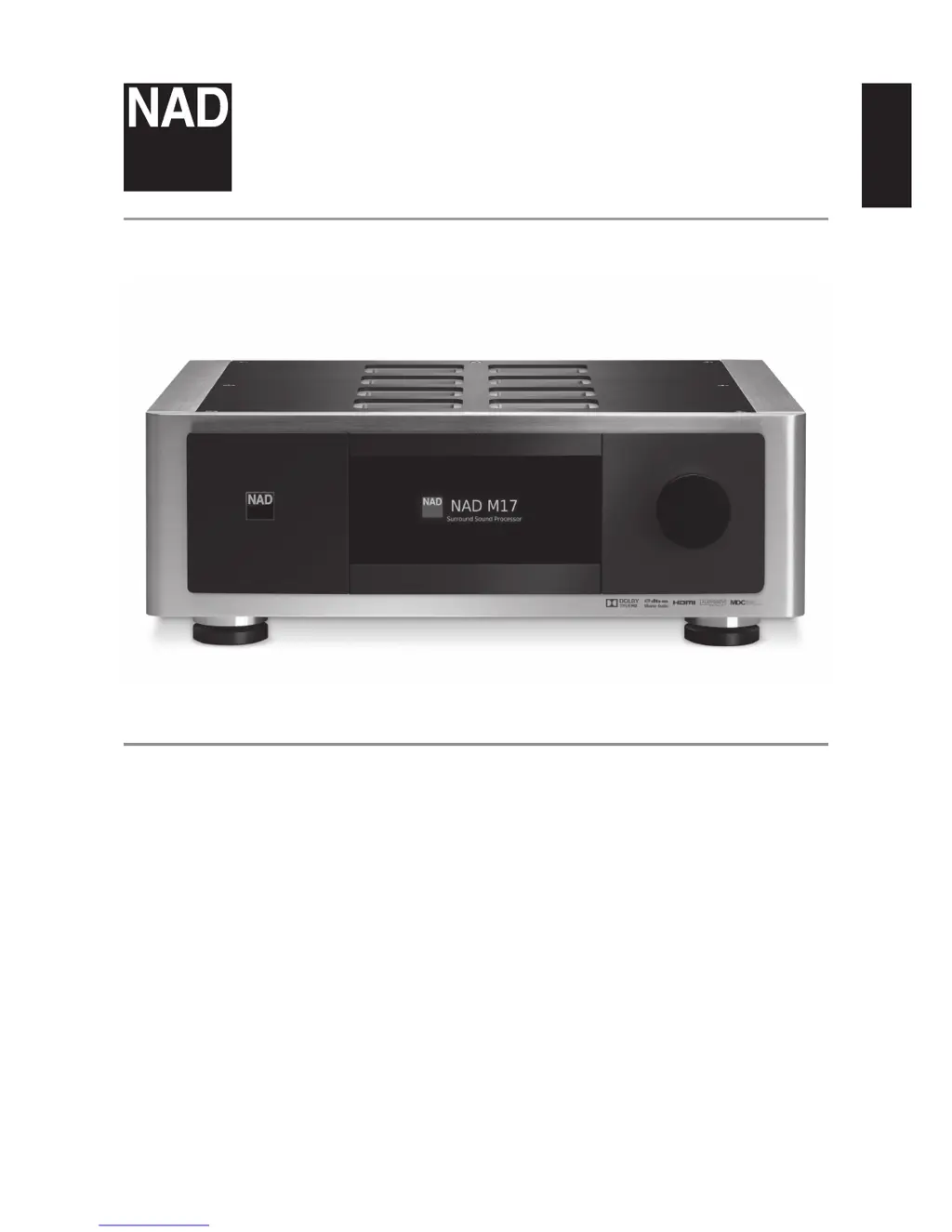
NAD M17 - User Manual

NAD M17
38 pages
Print Icon
To Next Page IconTo Next Page
Loading...
ENGLISHFRANÇAISESPAÑOLITALIANODEUTSCHNEDERLANDSSVENSKAРУССКИЙ
®
Owners Manual
M17
AV Surround Sound Preamp Processor

Other manuals for NAD M17

Questions and Answers

  • S
    Sydney BlackwellJul 26, 2025
    What to do if NAD Computer Hardware M17 does not respond to the remote?
    • K
      Kristina MurphyJul 26, 2025
      If your NAD Computer Hardware M17 does not respond to the remote, first check the batteries to ensure they are not flat or incorrectly inserted. Next, verify that there is a clear line-of-sight between the remote and the M17 by checking for any obstructions in front of the IR transmitter window on the remote or the IR A/V Receiver window on the M17. Also, reduce bright sunlight or ambient light that may be interfering with the M17 front panel.
  • A
    Aaron MckayJul 30, 2025
    How to fix no Dolby Digital/DTS sound on NAD Computer Hardware M17?
    • M
      Mary MontgomeryJul 30, 2025
      If you are not getting any Dolby Digital/DTS sound on your NAD Computer Hardware M17, first check the connections to ensure that the source's digital output is correctly connected to a digital input on the M17. Additionally, verify that the source component is properly configured for multichannel digital output.
  • C
    Christina WeberAug 4, 2025
    What to do if there is no sound from some channels on NAD Computer Hardware?
    • O
      osampsonAug 4, 2025
      If you have no sound from some channels on your NAD Computer Hardware, begin by checking the cables to ensure they are properly connected. Then, access the “Speaker Configuration” menu to confirm that the affected channel(s) are not set to “OFF”. Finally, inspect the power amplifier and cabling for any faults.
  • V
    Victor AlexanderAug 8, 2025
    Why is there no sound from the subwoofer of my NAD Computer Hardware?
    • K
      Karen DiazAug 8, 2025
      If you are experiencing no sound from the subwoofer on your NAD Computer Hardware, you should: 1. Power up the subwoofer and check its AC outlet and connections. 2. Check the “Speaker Configuration” menu to ensure the subwoofer is not set to “OFF”. 3. Check if the sub level isn't set too low on “Speaker Levels” menu.
  • T
    Tammy MackAug 12, 2025
    How to troubleshoot no sound from the center channel on NAD Computer Hardware?
    • S
      scottjenniferAug 12, 2025
      If you're not getting any sound from the center channel on your NAD Computer Hardware, first ensure that the source material is a 5.1-channel recording. If it is not, you can select Dolby Pro Logic IIx Music mode. Also, check the “Speaker Configuration” menu to make sure the center channel is not set to “OFF”.
  • K
    Kenneth JohnsonAug 16, 2025
    What to do if there is no sound from surround channels on NAD Computer Hardware?
    • R
      Rebecca UnderwoodAug 16, 2025
      If you have no sound from the surround channels on your NAD Computer Hardware, first ensure that an appropriate surround listening mode is engaged. Then, check the “Speaker Configuration” menu to confirm that the surround channels are not set to “OFF”.
  • J
    Jennifer BrewerAug 20, 2025
    How to fix NAD Computer Hardware M17 that cannot power up and is always at standby mode?
    • N
      nicole79Aug 21, 2025
      If your NAD Computer Hardware M17 is stuck in standby mode and cannot power up, it might be due to the +12V TRIGGER IN (OFF/AUTO) switch being set to AUTO. Try setting the +12V TRIGGER (OFF/AUTO) switch to OFF. If the +12V TRIGGER IN (OFF/AUTO) switch is set to AUTO, check that the “Auto Trigger In” setting in the “Trigger Setup” menu is set to Zone 2, Zone 3, or Zone 4.

Summary

IMPORTANT SAFETY INSTRUCTIONS

General Operating and Safety Guidelines

Covers reading, retaining, heeding, and following all safety and operating instructions.

Product Usage and Environmental Safety

Details precautions for cleaning, attachments, environment, power, ventilation, and liquid/object entry.

Service, Parts, and Disposal

Addresses service checks, replacement parts, battery disposal, and environmental protection.

INTRODUCTION

Getting Started Overview

Introduces initial setup, what's in the box, and choosing a location for the M17.

Default Source Settings and Factory Reset

Explains default source configurations and how to restore factory default settings.

IDENTIFICATION OF CONTROLS

Front Panel Controls and Display

Describes the buttons, indicators, and display options on the M17's front panel.

Rear Panel Connections and Ports

Details all input/output connections and switches located on the rear panel of the M17.

OPERATION

Using the M17 - Main Menu

Explains navigation and use of the M17's main menu options like Listening Mode, DSP, Tone, and Zone.

Using the M17 - Setup Menu

Guides through configuring system settings like Control, Source, Speaker, Trigger, Listening Mode, Display, and A/V Presets.

Using the HTRM 2 Remote Control

Covers operation, learning, macros, and customization of the HTRM 2 remote.

Using the ZR 7 Remote Control

Explains the functionality and usage of the ZR 7 remote for Zone 2 control.

REFERENCE

Troubleshooting Common Issues

Provides solutions for common operational problems and error conditions with the M17.

Technical Specifications

Lists detailed technical specifications for the M17, including performance and dimensions.

NAD M17 Specifications

General IconGeneral
Bandwidth- MHz
Signal-to-Noise Ratio (SNR)90 dB
Total Harmonic Distortion (THD)0.005 %
Weight and Dimensions IconWeight and Dimensions
Depth386 mm
Width435 mm
Height156 mm
Weight10900 g
Package weight17500 g

Related product manuals