No Video (Monitor)
Ÿ Make sure the camera’s power plug is pushed all the way in.
Ÿ Make sure the monitor has enough battery power and is turned on.
Ÿ Restart your camera, please unplug power adapter and replug. The
camera will finish reboot in 25 seconds.
Ÿ If the power LED ison but only voice signal input is detected,
the monitor can be in audio onlymode or VOX mode. Press the
Menu button to turn on the screen.
Noise interference on your monitor
Ÿ There is at least 5 feet (1.5m) between camera
and 2.4GHz products, such as Wi-Fi router,
Bluetooth or microwave ovens.
Ÿ Make sure thecamera and the monitor are within range of each
other.
8
1
2
3
4
5
6
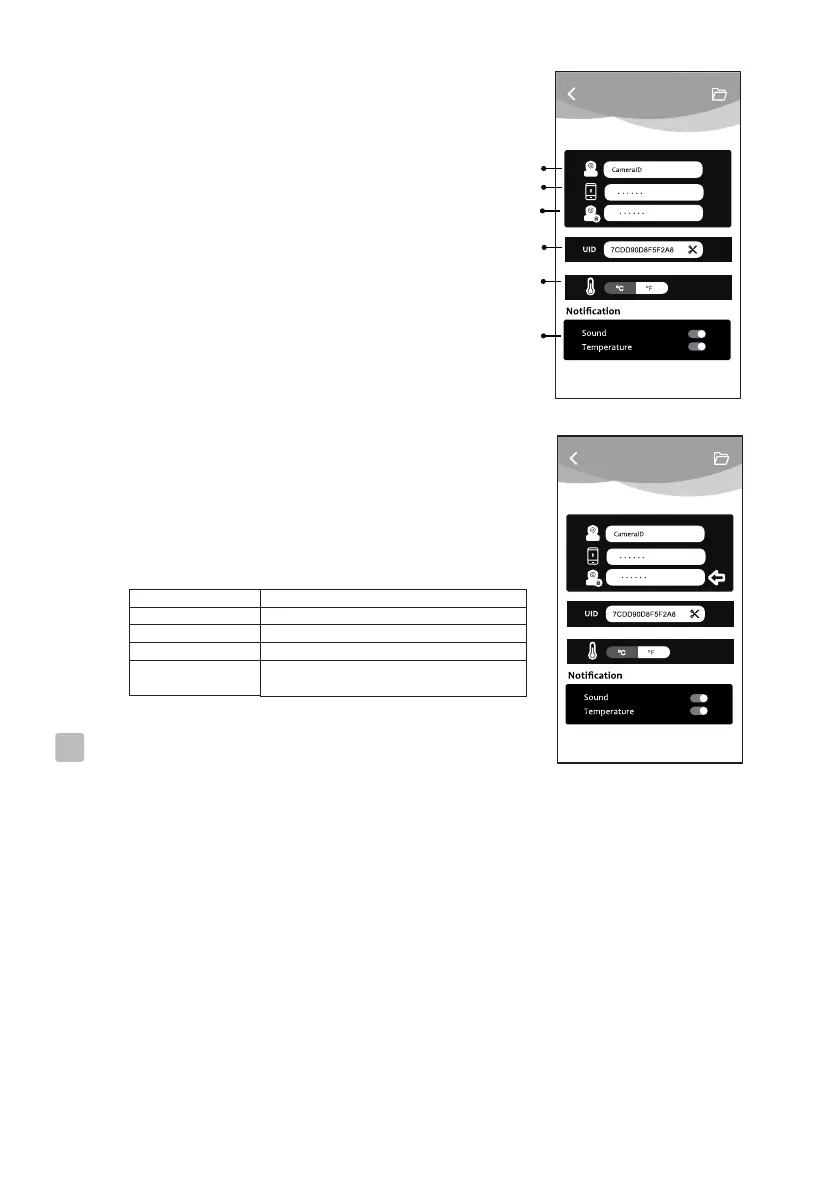
A11
6.8
LED indicator (Camera)
Troubleshooting
7
7.1
7.2
Indication Status
Blinking Green Camera is ready for pairing
Solid Green Camera is linked to the Internet
Solid Orange Lost connection to the Internet
Solid Red
Lost connection to the Wi-Fi router
(refer to troubleshooting 7.5)
A12
1.Name: Camera's name, tap it to change camera's
name.
2. Password: Enter the correct password to access
the camera (See A11)
3. Change Password: User can change the camera
password in local area network (LAN). The
camera default password is “12345678”, it is
mandatory to change the default password after
the setting. (See A12)
4. UID: Each camera has a unique (UID) and you
can share live video with your friend by UID.
5. Temperature: Tap icon to change ℃/℉
6. Notification: Tap icon to activate Sound and
Temperature .You will receive push notification
once the sound reaches the level that you have
set on monitor.


 To Next Page