© 2015 nbn co ltd | ABN 86 136 533 741
In the event any of the services provided through your nbn
™
connection box
stop working (e.g. internet, IPTV or phone) the first step is to check the following:
1. Power check
Is everything plugged in and turned on?
• nbn
™
connection box
• Power Supply with Battery Backup or standard power supply
• All cables and power points
• Your own equipment
2. External fibre optic cable check
Has the fibre optic cable connection from the street been damaged?
For example, a fallen branch may have damaged the cable. If you think this may
be the case, do NOT try to remove it or repair the cable yourself. Contact your
service provider immediately.
3. Indicator light check
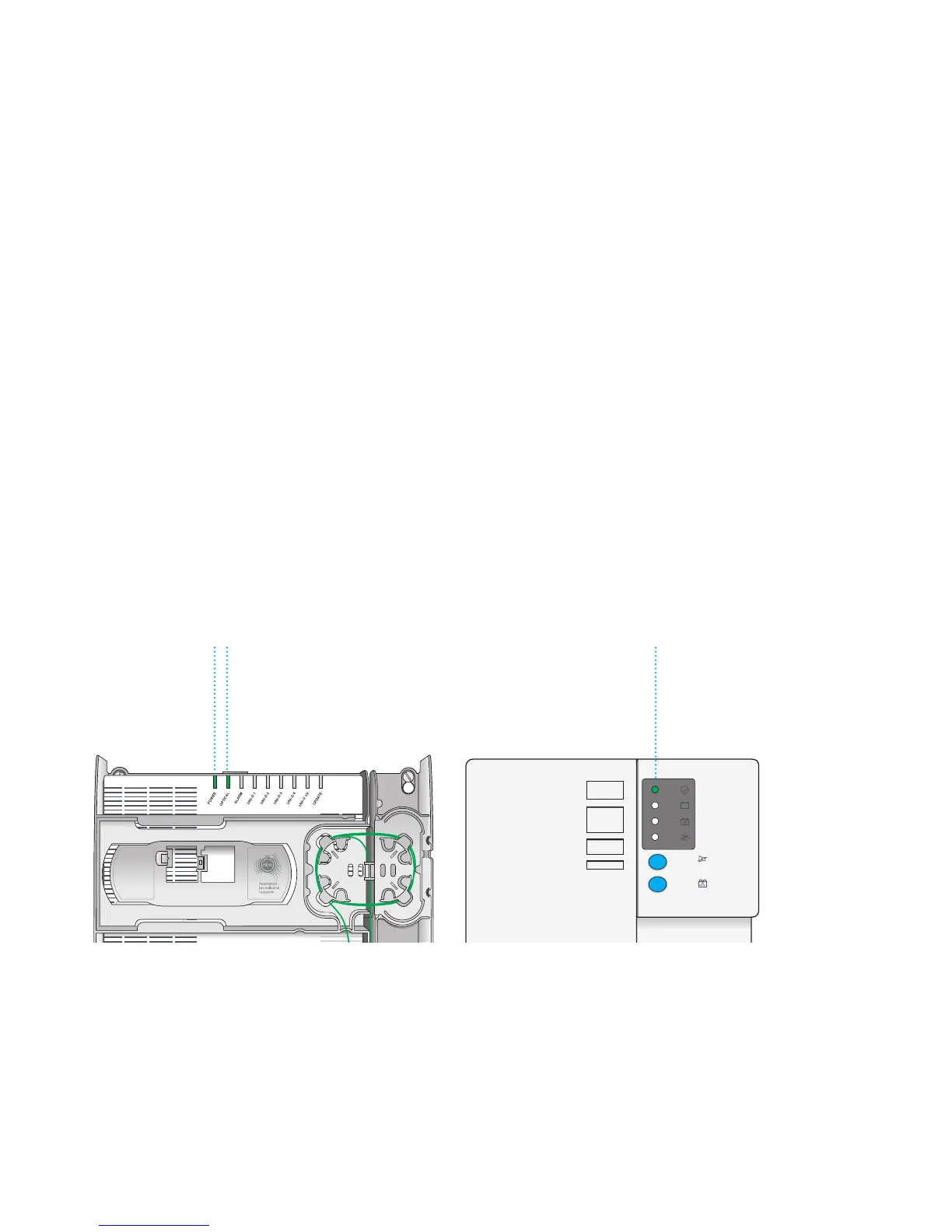
Check the indicator lights on your Power Supply with Battery Backup and
nbn
™
connection box.
If you remove the cover from your nbn
™
connection box and the lights on your
nbn
™
connection box or Power Supply with Battery Backup (if installed) do
not match those shown in this diagram, then refer to the lights and indicators
sections of this guide on pages 14–15 and 25.
Still can’t identify the problem or the solution?
Please note down which lights are glowing and contact your service provider
for further advice.
Power Supply
with Battery
Backup
System Status
light is ON
nbn
™
connection box
Power and Optical
lights are ON
SYSTEM
STATUS
BATTERY
POWER
REPLACE
BATTERY
ALARM
SILENCE
ALARM
SILENCE
BATTERY
EMERGENCY
USE
SYSTEM
STATUS
BATTERY
POWER
REPLACE
BATTERY
ALARM
SILENCE
ALARM
SILENCE
BATTERY
EMERGENCY
USE
Contact your service provider for
assistance with this equipment
Property of NBNCo - Do not Remove
Contact your service provider for
assistance with this equipment
Property of nbn
™
- Do not Remove
Contact your service provider for
assistance with this equipment
Property of NBNCo - Do not Remove
Contact your service provider for
assistance with this equipment
Property of nbn
™
- Do not Remove
Property of NBNCo - Do not Remove
Contact your service provider for
assistance with this equipment
Property of nbn
™
- Do not Remove
SYSTEM
STATUS
BATTERY
POWER
REPLACE
BATTERY
ALARM
SILENCE
ALARM
SILENCE
BATTERY
EMERGENCY
USE
Property of NBNCo - Do not Remove
Contact your service provider for
assistance with this equipment
Property of nbn
™
- Do not Remove
SYSTEM
STATUS
BATTERY
POWER
REPLACE
BATTERY
ALARM
SILENCE
ALARM
SILENCE
BATTERY
EMERGENCY
USE
SYSTEM
STATUS
BATTERY
POWER
REPLACE
BATTERY
ALARM
SILENCE
ALARM
SILENCE
BATTERY
EMERGENCY
USE
SYSTEM
STATUS
BATTERY
POWER
REPLACE
BATTERY
ALARM
SILENCE
ALARM
SILENCE
BATTERY
EMERGENCY
USE
Contact your service provider for
assistance with this equipment
Property of NBNCo - Do not Remove
Contact your service provider for
assistance with this equipment
Property of nbn
™
- Do not Remove
Contact your service provider for
assistance with this equipment
Property of NBNCo - Do not Remove
Contact your service provider for
assistance with this equipment
Property of nbn
™
- Do not Remove
Property of NBNCo - Do not Remove
Contact your service provider for
assistance with this equipment
Property of nbn
™
- Do not Remove
SYSTEM
STATUS
BATTERY
POWER
REPLACE
BATTERY
ALARM
SILENCE
ALARM
SILENCE
BATTERY
EMERGENCY
USE
Property of NBNCo - Do not Remove
Contact your service provider for
assistance with this equipment
Property of nbn
™
- Do not Remove
SYSTEM
STATUS
BATTERY
POWER
REPLACE
BATTERY
ALARM
SILENCE
ALARM
SILENCE
BATTERY
EMERGENCY
USE



 To Next Page