NAVIGATION
Additional Maps and Upgrades – Please visit www.ndrive.com
Technical Help – Please contact the helpline on 0844 557 9677
5.5.4.2 Changing an Itinerary
Select an itinerary from the list.
To edit the itinerary’s name and description, click Edit/Rename and alter the fields as
described in “Creating an itinerary”.
To delete the itinerary, click Delete .
To view the whole itinerary on the map, click View On Map . Only the route between the
itinerary waypoints will be calculated and shown. To calculate the route from your current GPS
location select Navigate .
The first waypoint is represented by a green flag and the last one by a chequered flag. The
waypoints in between are marked with orange flags.
To edit the itinerary’s waypoints, click Show Waypoints . You can then add a new waypoint as
described in “Creating an itinerary”.
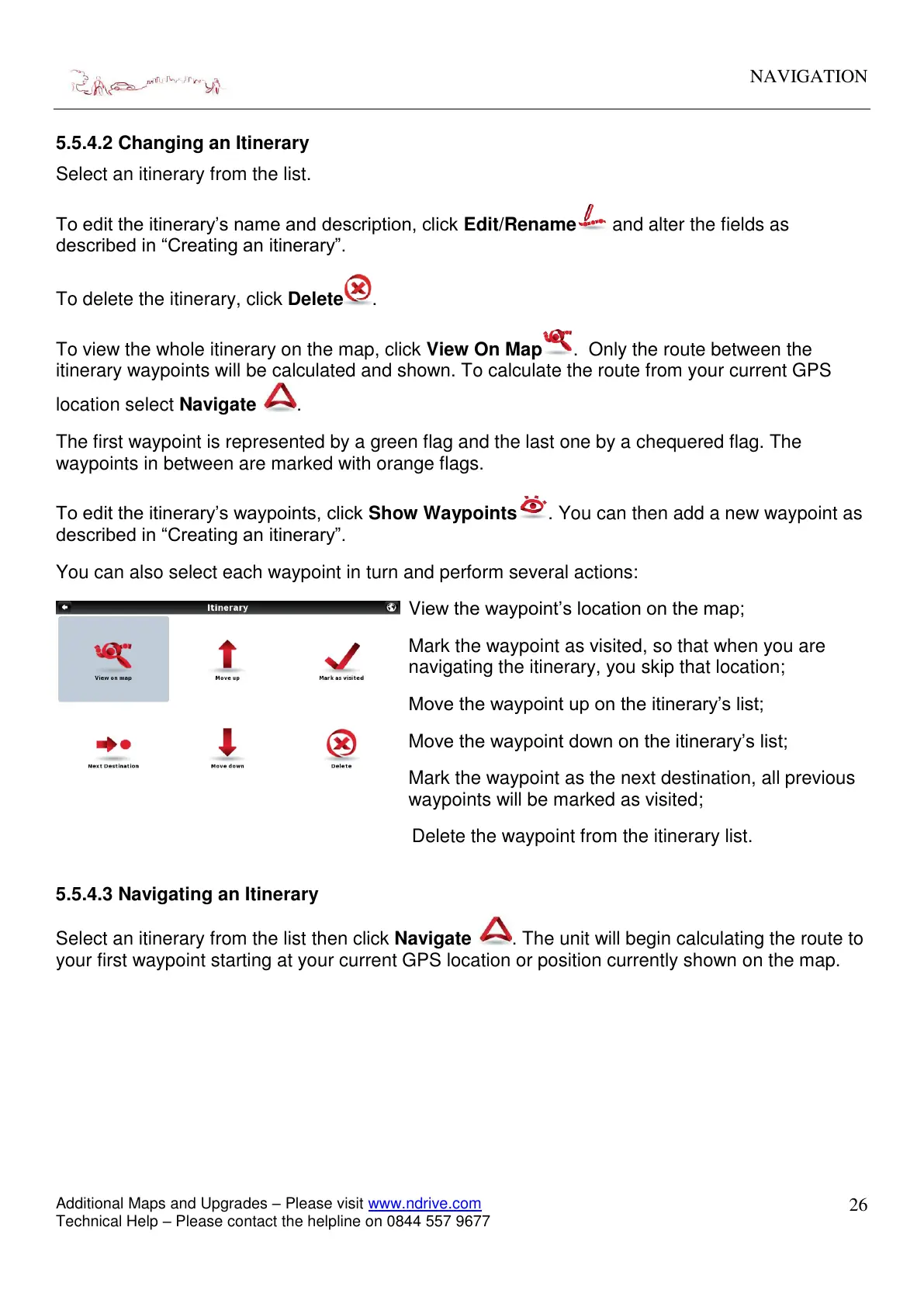
You can also select each waypoint in turn and perform several actions:
View the waypoint’s location on the map;
Mark the waypoint as visited, so that when you are
navigating the itinerary, you skip that location;
Move the waypoint up on the itinerary’s list;
Move the waypoint down on the itinerary’s list;
Mark the waypoint as the next destination, all previous
waypoints will be marked as visited;
Delete the waypoint from the itinerary list.
5.5.4.3 Navigating an Itinerary
Select an itinerary from the list then click Navigate
. The unit will begin calculating the route to
your first waypoint starting at your current GPS location or position currently shown on the map.


 To Next Page