EasyManua.ls Logo

NEC AT-35 - User Manual

NEC AT-35
20 pages
Print Icon
To Next Page IconTo Next Page
Loading...
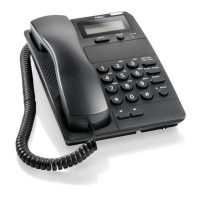
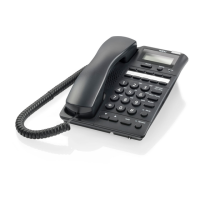
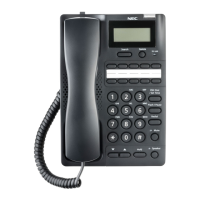
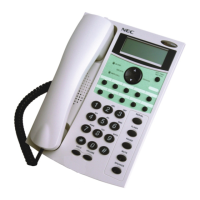
Caller ID Handsfree Business Telephone
AT-35
U
SER GUIDE
DISCLAIMER
The material contained herein is subject to change without prior
notice at the sole discretion of NEC Business Solutions Ltd.
NEC Business Solutions Ltd.

Other manuals for NEC AT-35

Questions and Answers

  • N
    Nicole OlsonJul 30, 2025
    How to fix NEC AT-35 Telephone when there is no dial tone?
    • J
      justin18Jul 30, 2025
      If your NEC Telephone doesn't dial out or you're not getting a dial tone, start by checking that the hookswitch isn't depressed and the line cord is properly connected. If you're using the speakerphone, ensure the SPEAKER key LED is lit. Also, verify that the Dialling Mode Switch is in the correct position. As a last resort, try unplugging the phone, waiting 30 seconds, and then plugging it back in.
  • T
    tiffanymaxwellAug 5, 2025
    Why is my NEC AT-35 not ringing?
    • N
      Nicholas MartinAug 5, 2025
      If your NEC Telephone isn't ringing, try disconnecting any additional devices connected to the DATA port. Also, make sure there are no other devices connected to the same line, as this can sometimes interfere with the ringing function.
  • C
    Carl MccoyAug 11, 2025
    What to do if there is no display on NEC AT-35 LCD?
    • M
      Michael SkinnerAug 11, 2025
      If there is no display on the LCD screen of your NEC Telephone when the phone is idle, check that batteries are properly fitted and in good condition. This will ensure the LCD screen receives power and can display information.
  • K
    kellyturnerAug 17, 2025
    What to do if nobody can hear me on my NEC AT-35?
    • K
      Kaitlyn TuckerAug 17, 2025
      If you can't be heard by the other party on your NEC Telephone, first ensure that both the phone cord and the handset curly cord are securely plugged in. Also, check that the MUTE key LED is off, as this indicates whether the microphone is muted.
  • J
    James PittmanAug 23, 2025
    How to troubleshoot one-touch dialling on NEC Telephone?
    • J
      Joseph GutierrezAug 23, 2025
      If you're unable to use the one-touch dialing feature on your NEC Telephone, first verify that a number has been correctly stored under the one-touch key. If a row of dashes “-“ is displayed, it indicates that the one-touch key is empty and no number is stored.

Summary

Important Safety Instructions

Location of Controls

Visual Ring Indicator;Message Waiting Lamp

Indicates incoming calls and message waiting status. Flashes for incoming calls and may indicate received messages.

LCD Display

The main screen for displaying information such as time, call status, and Caller ID.

SET TIME; PBX DIAL Key

Used for entering clock setting mode and for PBX dialling.

Multi-function Key

Provides search, delete, up, and down functions for memory dialling and Caller ID review.

Installation

Installing the Batteries

Instructions on how to insert and replace the AA batteries for power.

Connecting the Telephone

Steps for connecting the handset, line cord, and placing the handset.

Wall Mounting

Instructions on how to mount the telephone set onto a wall using screws.

Initial Setup

Selecting the Dialling Mode

Setting the telephone to Pulse (DP) or Tone (MF) dialling based on PBX requirements.

Setting the Flash Time

Configuring the hookflash timing to meet PBX system requirements.

Setting the PBX DIAL Code

Programming the trunk access code for making external calls via a PBX.

Basic Operation

Making a Call using the Handset

Step-by-step guide to making calls using the telephone handset.

Making a Call using Speakerphone

Instructions for initiating and conducting calls using the speakerphone feature.

Features

Call Hold Functionality

How to place calls on hold and retrieve them, including melody selection.

One-Touch Dialling Programming

Storing and dialling frequently used numbers using one-touch keys.

Caller ID (CLI) Information

Details on displaying, reviewing, and dialling back Caller ID information.

Troubleshooting

Troubleshooting Common Problems

Guide to diagnose and resolve issues like no dial tone, no ring, or call clarity problems.

NEC AT-35 Specifications

General IconGeneral
Caller ID receiverFSK (type I) or DTMF
Caller ID informationCLI number with date and time stamp
DTMF and Decadic diallingYes (DP/MF switch)
Caller ID review, delete, dial backYes
Last number redial keyYes (32 digits)
One-touch key memories10 (21 digits each)
Call duration timerYes
Selectable hook flash timing95/100/120/180/300/600ms (default=100ms)
Pause keyYes (3.6 sec)
Automatic insertion of trunk access codeYes (selectable 0~9)
Caller ID storage90 (21 digits)
Last number redial storage30 (21 digits)
Date and time displayYes (24 hour)
Message waiting lampYes
Visual ring indicatorYes
In-use indicationYes
New call indicationYes (LED and LCD)
Repeat call indicationYes
Adjustable LCD contrastYes (5 levels)
Music on hold with selectable tonesYes (2 melodies)
Mute key (handset and handsfree)Yes (with LED indication)
Speakerphone (Handsfree)Yes (half duplex)
Speakerphone receive volume controlYes (8 levels)
Handset receive volume controlYes (slide switch, 3 levels)
Adjustable ring volumeYes (3 levels)
Adjustable ring toneYes (3 pitches)
Data port (parallel connection)Yes
Telephone line interface2-wire analogue centre pair
Battery for memory backup3 x AA batteries
Low battery indicationYes
Weight and Dimensions IconWeight and Dimensions
Wall mountableYes (in-built)

Related product manuals