4
User Manual
•
Neogen ANSR reader and software
5.2 Installing the software
The ANSR reader software comes pre-installed on the computer pro-
vided in the start up system.
5.3 Using the software
5.3.1 Launching the software
1. Open the reader program by double clicking on the
T16 ISO desktop icon.
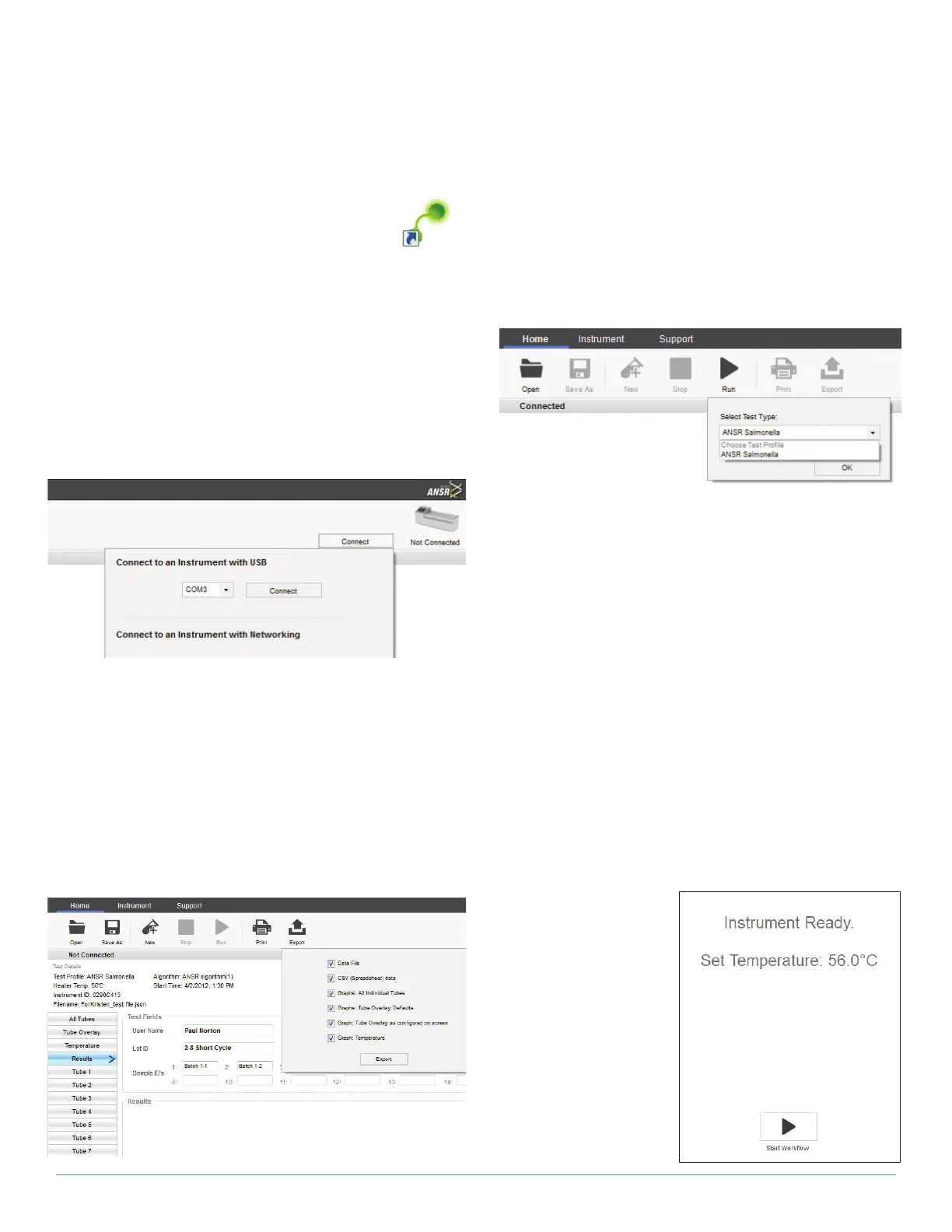
2. Before running tests, the computer must be connected to the
reader. To do this, click the Connect icon in the upper right
corner of the software window. Select either USB or Network-
ing, depending on the cable used to connect the reader to the
computer. Select the appropriate choice and hit Connect. The
circle in the upper right corner will turn green and indicate the
reader is connected. NOTE: Users also may use the Locate but-
ton, which is in the Connect menu to ensure the reader is con-
nected. Clicking Locate will cause the reader to emit a beep.
This feature only is available when the reader is connected via a
networking cable.
5.3.2 Software utilities
Open: To open a previously saved file, click Open and select the ap-
propriate .json file. NOTE: The reader does not need to be connected
to the computer in order to use the software.
Print: Allows users to print a summary report and/or tube graphs.
Export: Allows users to export all files associated with the test or only
desired files. Click Export and select which files to export by check-
ing or unchecking boxes located next to the options. Click Export
once all selections are made. See example below.
Save as: Allows the user to select the location where they would like
the data saved.
Support: This button displays a copy of the user manual.
Instrument: This button displays software and firmware version in-
formation.
5.4 Running a test (with computer)
1. Once the reader is set up and connected to the software, tests
can be run. IMPORTANT: Do not open the reader’s lid when the
test is running.
2. To begin a test, click Run and select which test the reader will
perform (e.g., ANSR Salmonella) from the drop-down menu.
3. The screen will read, “Please wait. Setting temperature.” It
also will display the target temperature of 56°C and the instru-
ment’s current temperature. During this time, users may enter a
user name, lot number and sample identification numbers. Us-
ers may manually type in sample identification numbers or may
use the Autofill option, which is activated by entering a sample
ID in the first field and clicking the drop-down arrow. Autofill
then will fill all 16 ID fields with sequential IDs. Numbers also
can be added by copying and pasting fields from Microsoft Excel.
NOTE: If no sample ID is entered, the result will not be displayed.
Also note that user name, lot number and sample IDs cannot be
edited after the test run has started. The sample ID must have a
number at the end to use Autofill.
4. Once the instrument is ready, the window will display, “Instru-
ment ready”. After placing the samples in the reader, press the
Start workflow button near the bottom of the screen to begin
the test. NOTE: For instructions on preparing samples and re-
agents, and on loading them into the reader, see the instructions
that came with the
ANSR test kit. Wait to
add samples until the
reader reaches 56°C.
Ensure the permanent
caps are placed onto
the tubes to avoid
contamination.
5. During the test, the
user can select from
a range of real-time
graphs on the left side
of the program win-
dow. Individual tubes


 To Next Page
 Loading...