9
Questions? Call Neogen at 800/234-5333 or 517/372-9200
5.6.4 Sync Server Operation (Incoming Connection)
Once a server is added, the desktop software is now ready to receive
test results.
Only 1 Sync server (Incoming Connection) configuration can be set up
and active at any time. It’s important to note that the sync server will
only run as long as the desktop software is open; if it is closed, any
profiles which are configured to transfer results to it, will be unable
to do so.
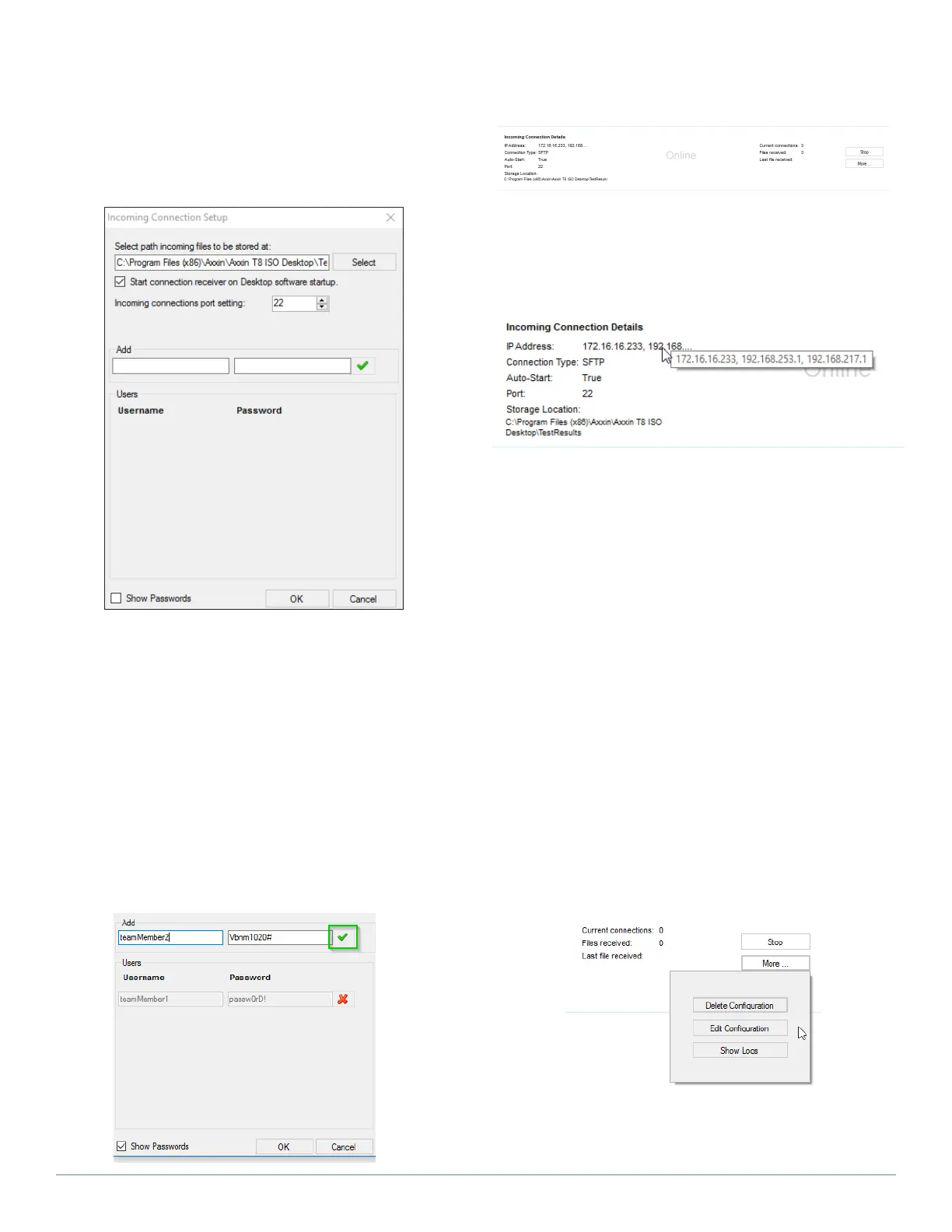
A server is set up and running on these IP addresses.
The following pieces of information are displayed to the user:
• The local IP address(es) on which the server can be connected
to. (Note: if attempting to connect from a computer that is not on
a local network, use your global IP address instead.)
• The Connection Type – the server type is SFTP
• Auto-start – Whether the server will automatically start once
the desktop software starts
• Port – the port on which data can be transmitted
• Storage Location – The folder in which received data will be
stored.
• Server state – Online or Offline
• Current Connections – The number of users currently connect-
ed to the server
• Files Received – The total number of files received for the dura-
tion of the server session (i.e.: from the last time the desktop
software was opened).
• Last File Received – The filename of the last file transmitted.
• Start Server on Instrument Startup – If this is checked, the
server will be online and ready to receive files, as soon as the
desktop software is powered up.
• Connection Port – Specify the port number over which results
can be received.
• User management – At least 1 user needs to be created before
a server can be set up. (see section below)
5.6.3.1 Configuring Users
To create a user, enter a user name between 5 and 20 characters.
Enter a password for this user. The password must:
• be between 6 and 20 characters
• contain at least 1 capital letter
• contain at least 1 number
• contain at least 1 non-alphanumeric character (eg: #, $, @)
• not match the username.
Click on “Show Passwords” at the bottom of the panel to simplify
user creation.
To delete a user, click on the red “X” next to their entry.


 To Next Page