8
User Manual
•
Neogen ANSR reader and software
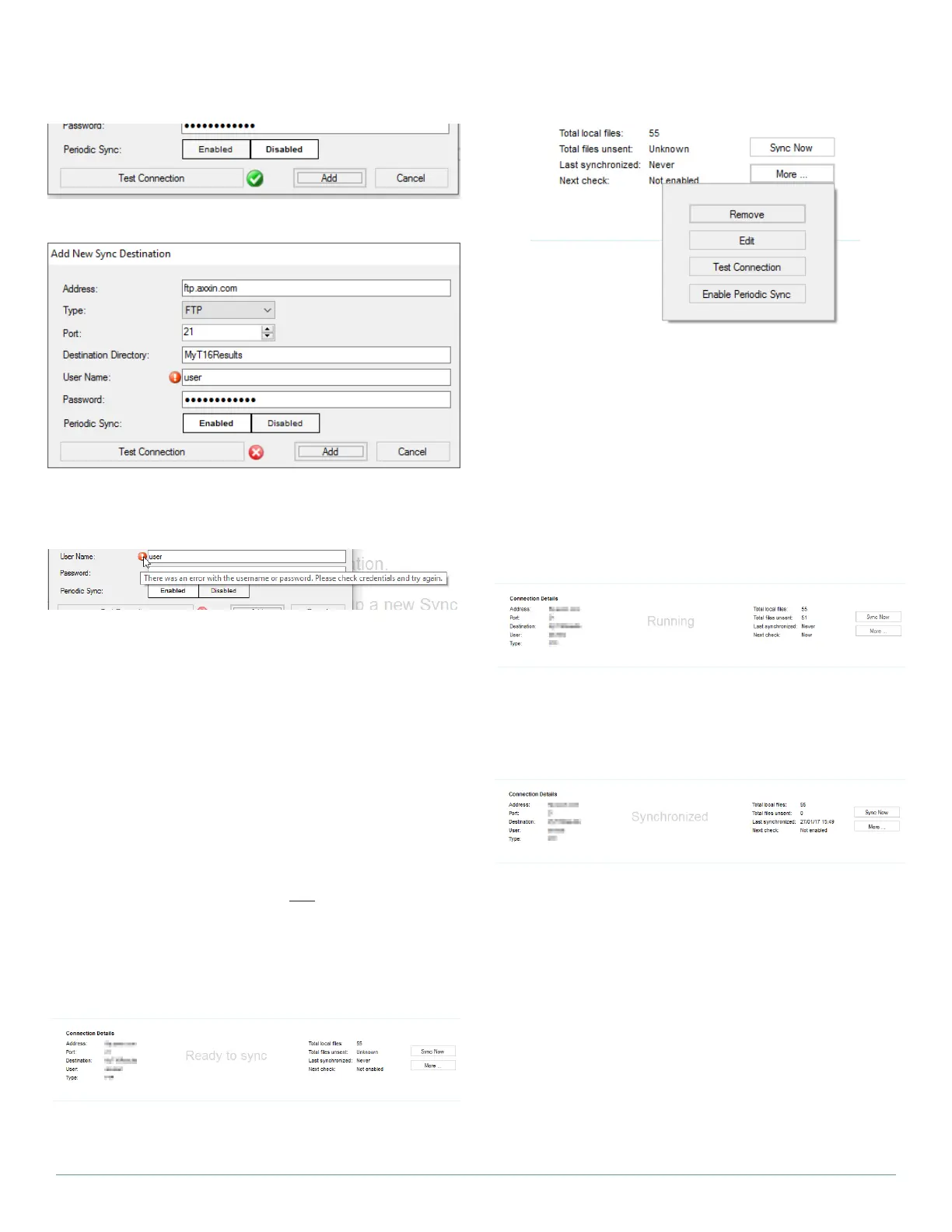
Click Test Connection to confirm that with a valid username and pass-
word, a connection can be made to the server. If successful, a green
‘success’ icon will be displayed:
If unsuccessful, the software will indicate which field was invalid.
In the above screenshot, the login credentials were incorrect.
Hovering over the red exclamation icon will provide more information
about the error.
5.6.2 Sync Operation (Outgoing Connections)
Two outgoing connection profiles can be configured for use. It’s im-
portant to note that while a test is running, no Sync operations will
be performed.
The \TestResults folder is the ‘root’ folder which the Sync function
will search through to find files. Additionally, the Sync function will
search 3 levels deep through subfolders for other files to transmit. It’s
important to note that test results are saved in \TestResults\Records
by default.
As an example, any files that have been saved in \TestResults\Re-
cords\SubFolder will be transmitted, however, data in \TestResults\
Records\SubFolder\AnotherFolder will be ignored.
NOTE: Sync is restricted to transmitting only .csv files, the main file
format exported/saved by the T8 desktop software. Other files in the
\Records folder (if any) are not transferred.
NOTE: Result files larger than 5Mb will not be transferred. During
normal operation, it is unlikely that a result file larger than 5Mb will
be generated.
Clicking on the ‘Sync Now’ button will force the desktop software to
connect and transmit data to the server.
Clicking on the ‘More’ button will display additional profile options:
• Remove – Will remove the sync profile.
• Edit – This will allow the user to edit the sync parameters for the
profile, as in Figure 61.
• Test Connection – Test the current connection parameters. If
the connection was successful, a green tick icon will be dis-
played next to the test connection button. If unsuccessful, a red
error icon is displayed.
• Enable/Disable Periodic Sync – Toggle between Periodic Sync
being enabled or disabled. Once enabled, the Sync process will
begin immediately to transmit any unsent results.
While files are being transmitted, the sync profile displays the text
‘Running’ and begins counting down the number of files remaining
to be pushed to the server. The user cannot trigger a manual sync
or modify the contents of the sync profile while a Sync is in progress.
Once all files have been successfully pushed to the server, the User
Interface will display ‘Synchronized’. If periodic send is enabled, the
time the last transmission was successful will be displayed along
with the time the next Periodic Sync will happen.
5.6.3 Add Incoming Connection (Server)
The software can be configured as a server, to receive data transmit-
ted by a sync profile (outgoing connection) from another instance of
desktop software on a separate computer.
Click Add Incoming Connection:
The following fields need to be filled out by the user:
• File Storage Path – The location where received results will be
saved.


 To Next Page
 Loading...