7
Questions? Call Neogen at 800/234-5333 or 517/372-9200
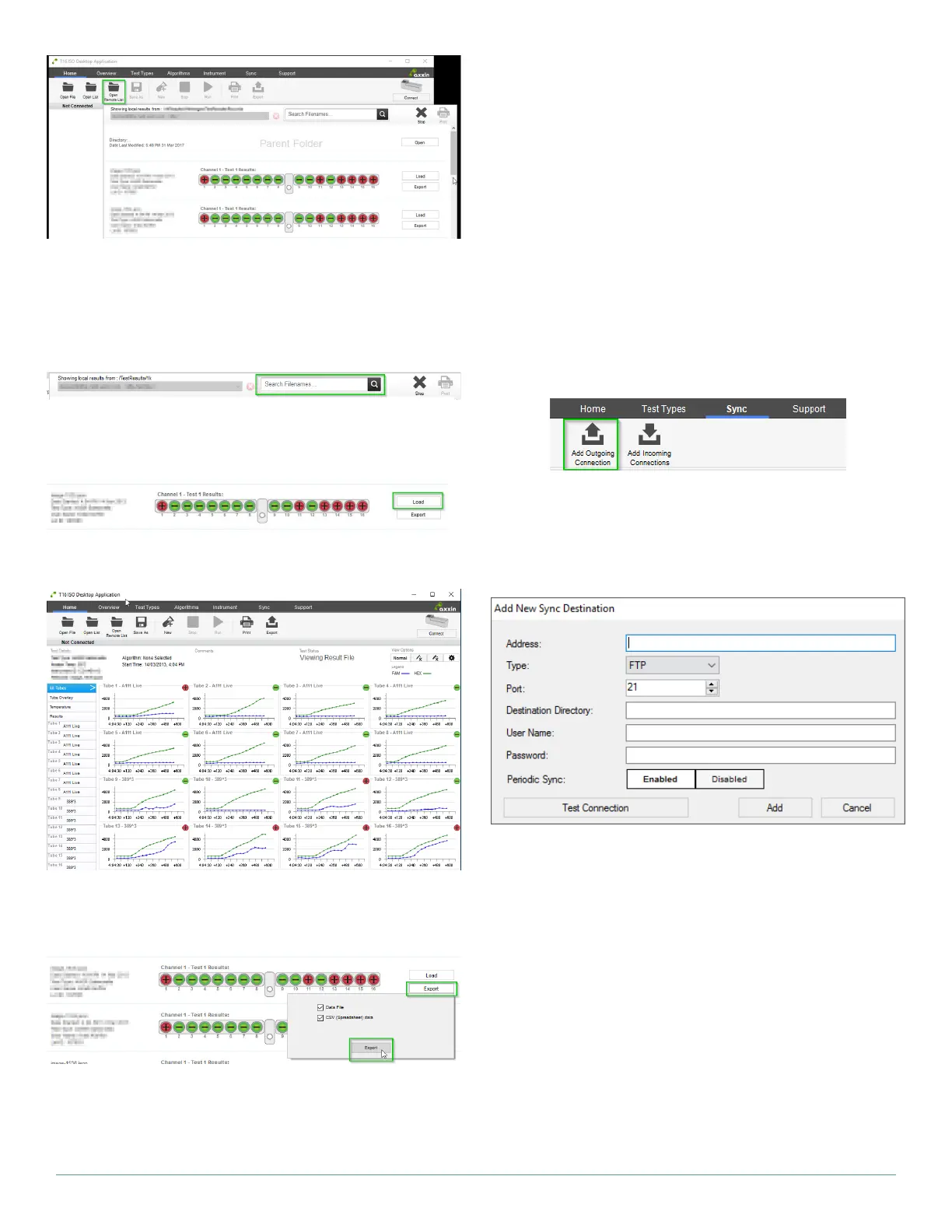
A collection of test result files on the remote server.
The user can navigate up a folder by clicking “Open” on the Parent
Folder. Similarly, clicking “Open” on a subfolder will display that sub-
folder’s contents.
A user can also search for test results using the search field.
The search field will look for matching filenames, and will return a list
of partial matches as well.
Once a relevant result has been located, click on the Load button:
View a result by clicking Load.
The result is loaded into the desktop view:
Viewing a result remotely does not automatically download it. To do
this, click on the “Export” button, and provide a local location for the
file to be saved to.
5.6 Sync Page NEW
The T16-ISO desktop now supports synchronizing test results saved
on the laptop to a remote server. This is known as the “Sync” func-
tion. This Sync is unidirectional; results can only be transmitted to
the server, and not retrieved. Up to two remote Sync profiles can be
configured for use.
A sync profile will look for test records to transfer to the server. It’s
important to note that only results that reside in the Records folder
will be synchronized. By default the records folder is created in C:\
Program Files (x86)\Axxin\Axxin 16 ISO Desktop\TestResults\Records
In addition, the software can also be configured to act as a server,
and receive test results when transmitted by another desktop sync
profile. This is convenient when several instruments are in use, and
it’s necessary to store a copy of all results in one centralized location.
5.6.1 Add an Outgoing Connection
Adding an ‘outgoing connection’ can be thought of as creating an
automatic backup. When an outgoing connection is configured, any
new results will be transmitted to the designated server.
To create a sync profile, click the ‘Add Outgoing Connection’ button.
When prompted, enter the required server details:
The following fields need to be set:
• Address – The address of the remote server. (E.g.: 192.168.10.10
or server.example.com)
• Type – Selected between SFTP and FTP
• Port – The server access port number
• Destination Directory – The location where files will be stored
on the server. (E.g.: MyT16Results will store the results in server.
example.com/MyT16Results)
• User Name/ Password – Authentication credentials for the
server
• Periodic Sync – If enabled, the software will transfer any un-
synced results every 10 minutes to the server. If disabled, the
user must manually initiate the Sync function.


 To Next Page