6
User Manual
•
Neogen ANSR reader and software
5.5 Open Remote List NEW
Open Remote List allows a user to access and download test files
saved on a remote server.
Users can navigate SFTP or FTP servers, and download relevant re-
sults for review. The T8 desktop software supports viewing (and list-
ing) of T8 results only (.csv files).
5.5.1 Add and Remove ‘Open Remote List’ Profiles
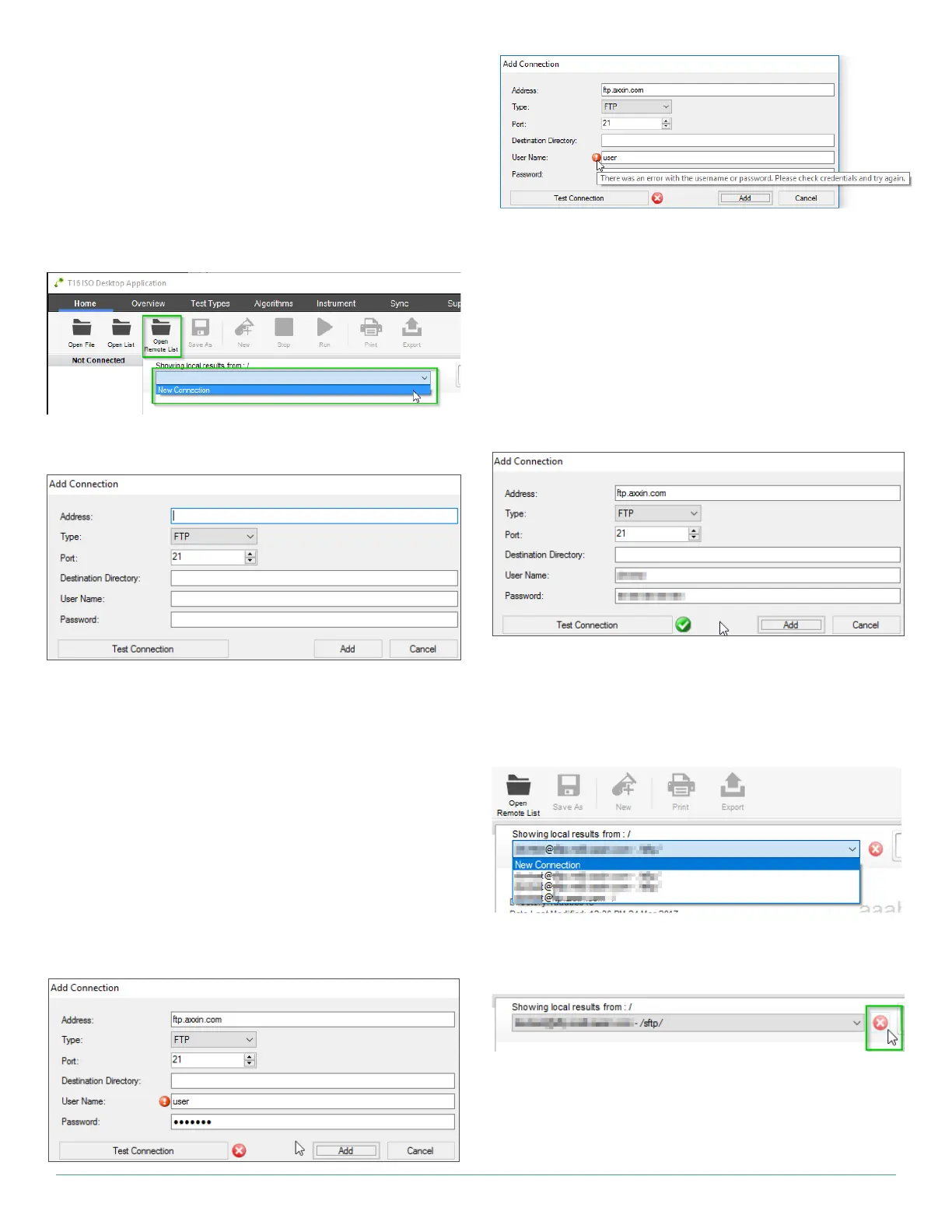
To set up a remote connection, click on the Open Remote List button.
From the drop-down list, select New Connection.
When prompted, fill in the remote server’s details in the Add Connec-
tion window.
The following fields must be filled in:
• Address – IP address or domain name of the remote server. eg:
118.168.4.75 or sftp.example.com
• Type – The type of server the user is connecting to. This can be
either SFTP or FTP.
• Port – The port number through which the server can be reached.
•
Destination Directory – The user can explicitly specify which
subdirectory (on the remote server) should be viewed. If this field
is left blank, the root directory of the server will be displayed.
• User Name/ Password – The user’s login credentials for the
remote server.
It’s useful to click on the Test Connection button to confirm the en-
tered details are valid. An error icon will be displayed if the connection
was unsuccessful, along with further details for troubleshooting.
Hovering over the error icon will provide helpful information for trou-
bleshooting
A few common connection errors are:
• Incorrect IP address
• Incorrect server type – the desktop software supports connect-
ing to SFTP/FTP servers
• Incorrect or invalid user login credentials – The user must have
access to the server for results to be listed.
If all fields are valid and correct, Test Connection will indicate that a
connection could be successfully made.
Test Connection was successful. The Open Remote List profile can
now be added.
The user can now add the profile, by clicking the Add button.
Once a profile has been created, the user can add other profiles too,
to browse other desktop servers.
A list of other valid Open Remote List profiles. Each will pull results
from a different server.
To delete a profile, click the red ‘X’ icon as shown below:
5.5.2 Browsing, Viewing and Downloading Results
Once a valid connection has been established, the user can now
browse results on the remote server.


 To Next Page