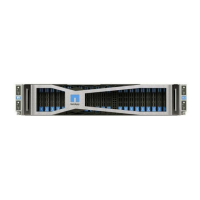
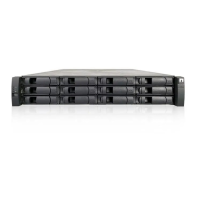
Each 24-drive controller shelf or drive shelf includes two power supplies with integrated fans. These are
referred to as power-fan canisters in SANtricity System Manager. If a power-fan canister fails, you must replace
it as soon as possible to ensure that the shelf has a redundant power source and adequate cooling.
You can replace a power supply while your storage array is powered on and performing host I/O operations, as
long as the second power supply in the shelf has an Optimal status and the OK to remove field in the Details
area of the Recovery Guru in SANtricity System Manager displays Yes.
Before you begin
• Review
Requirements for E5700 canister replacement.
• Review the details in the Recovery Guru to confirm that there is an issue with the power supply. Select
Recheck from the Recovery Guru to ensure no other items must be addressed first.
• Check that the amber Attention LED on the power supply is on, indicating that the power supply or its
integrated fan has a fault. Contact technical support for assistance if both power supplies in the shelf have
their amber Attention LEDs on.
What you’ll need
• A replacement power supply that is supported for your controller shelf or drive shelf model.
• An ESD wristband, or you have taken other antistatic precautions.
• A management station with a browser that can access SANtricity System Manager for the controller. (To
open the System Manager interface, point the browser to the controller’s domain name or IP address.)
Step 1: Prepare to replace power supply
Prepare to replace a power supply in a 24-drive controller shelf or drive shelf.
Steps
1. Collect support data for your storage array using SANtricity System Manager.
If a problem occurs during this procedure, you can use the saved file to troubleshoot the issue. The system
will save inventory, status, and performance data about your storage array in a single file.
a.
Select Support
› Support Center › Diagnostics.
b. Select Collect Support Data.
c. Click Collect.
The file is saved in the Downloads folder for your browser with the name, support-data.7z.
2. From SANtricity System Manager, determine which power supply has failed. You can find this information
in the Details area of the Recovery Guru, or you can review the information displayed for the shelf.
a. Select Hardware.
b. Look at the power
and fan icons to the right of the Shelf drop-down lists to determine which
shelf has the failed power supply.
If a component has failed, either or both icons are red.
c. When you find the shelf with a red icon, select Show back of shelf.
d. Select either power supply.
e. On the Power Supplies and Fans tabs, look at the statuses of the power-fan canisters, the power
supplies, and the fans to determine which power supply must be replaced.
35



 To Next Page