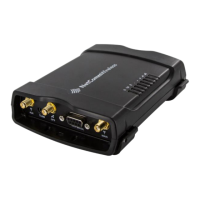
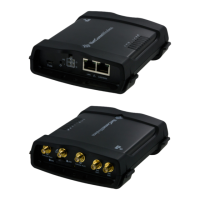
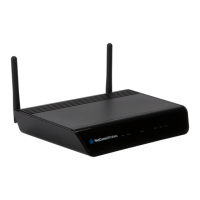
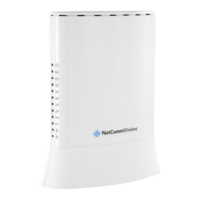
NTC-220 Series Router – Firmware Upgrade Guide
FI01138 v. 1.0 April 2019
Check and download most recent firmware
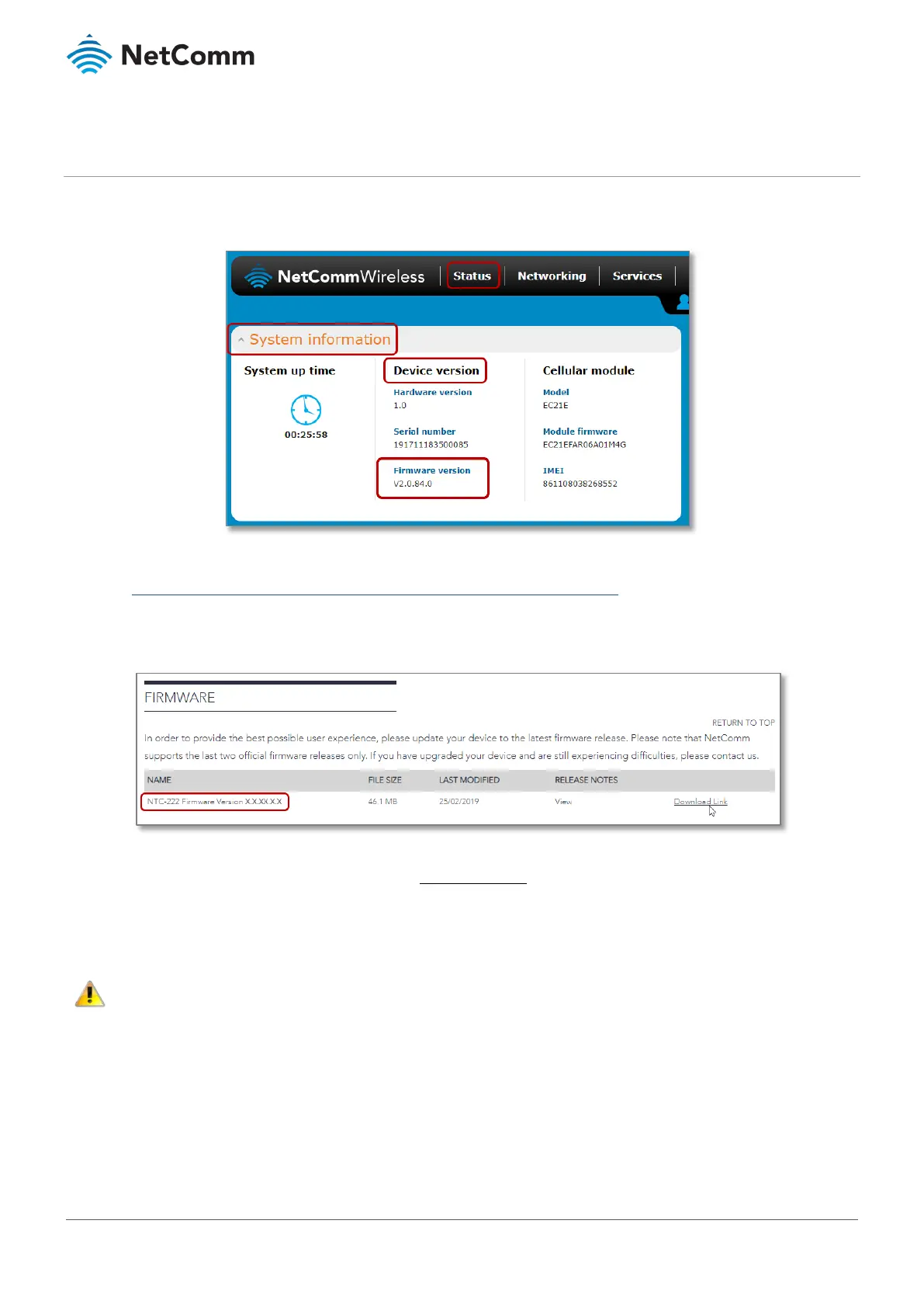
1 When the Status page is displayed, go to the System information section and note the Firmware version in
the
Device version section:
2 Open a new tab in your browser and go to the NetComm support website’s NTC-220 series page:
https://support.netcommwireless.com/product/ntc-220-series
3 Choose your model from the page and select it to open its support information page
4 Click its
Firmware link to jump to details of the latest firmware release.
5 If the Firmware version on the NetComm support site is more recent than that shown on the NTC-220’s
Status page (refer to step 1, above), click the Download Link and the following .zip file will be downloaded
into your browser’s download folder:
NTC-221-222-224_Firmware_Release_Notes_and_Upgrade_Guide_Vx.x.xx.x.zip
6 Unzip the folder and extract the file in the ntc_220_x.x.x.x.cdi format to a safe location.
– Do not change the file extension (
of the router firmware files as this can cause the firmware upgrade process to fail.


 To Next Page
 Loading...