EasyManua.ls Logo

NETGEAR C6300 - User Manual

NETGEAR C6300
98 pages
Print Icon
To Next Page IconTo Next Page
Loading...
350 East Plumeria Drive
San Jose, CA 95134
USA
July 2014
202-11238-01
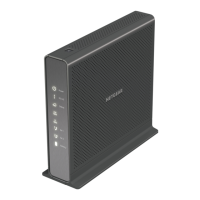
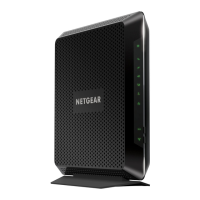
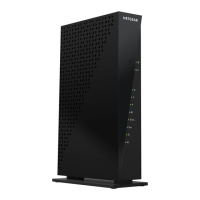
AC1750 WiFi Cable Modem Router
Model C6300
User Manual

Table of Contents

Other manuals for NETGEAR C6300

Questions and Answers

  • B
    brogersSep 3, 2025
    What to do if all LEDs are off on my NETGEAR Wireless Router?
    • W
      William NguyenSep 3, 2025
      If all the LEDs on your NETGEAR Wireless Router are off when it's plugged in, ensure the power cord is properly connected to both the router and a functioning power outlet. Also, confirm you're using the 12 VDC power adapter from NETGEAR specifically designed for this product. If the problem continues, it may indicate a hardware issue, and you should contact technical support.
  • J
    Jennifer HaleSep 18, 2025
    What to do if NETGEAR C6300 does not save changes I have made?
    • D
      Dawn GeorgeSep 18, 2025
      If your NETGEAR Network Router does not save the changes you've made: * When entering configuration settings, be sure to click the Apply button before moving to another screen, or your changes will be lost. * Click the Refresh or Reload button in the web browser. The changes might have occurred, but the web browser might be caching the old configuration.
  • C
    Cathy PonceSep 16, 2025
    What to do if I do not receive a reply during a remote device ping test on my NETGEAR C6300?
    • B
      Brandon CamachoSep 16, 2025
      If you do not receive a reply during a remote device ping test: * Make sure that the Internet LED is lit. * If your Internet provider assigned a host name to your computer, enter that host name as the account name in the Internet Setup screen. * Make sure that your computer has the IP address of your modem router listed as the default gateway. * Make sure that the network address of your computer is different from the network address of the remote device.
  • R
    Ruth SnowSep 15, 2025
    What to do if the path is not working correctly during a ping test on NETGEAR Network Router?
    • M
      Monica LeeSep 15, 2025
      If the path is not working correctly during a ping test: * Make sure that the LAN LED is lit. * Check that the corresponding link LEDs are on for your network interface card and the hub ports connected to your workstation and modem router. * Verify that the Ethernet card driver software and TCP/IP software are both installed and configured on your computer or workstation. * Verify that the IP address for your modem router and your workstation are correct and that the addresses are on the same subnet.
  • K
    Kimberly BrownSep 12, 2025
    Why my NETGEAR C6300 cannot access the Internet but the Internet LED is on?
    • D
      Dawn MoralesSep 12, 2025
      If your NETGEAR Network Router's Internet LED is on but you cannot access the internet, you might need to register the cable MAC address or device MAC address of your modem router with your cable Internet provider. Also, ensure your computer has the modem router configured as its TCP/IP gateway. If your computer uses DHCP, reboot it and verify the gateway address.
  • M
    mhouseSep 10, 2025
    Why do all LEDs stay on NETGEAR Wireless Router?
    • T
      Tom LuceroSep 10, 2025
      If all the LEDs on your NETGEAR Wireless Router stay on, clear the configuration of the modem router to its factory defaults. If the issue continues, it could indicate a hardware problem, and you should contact technical support.
  • T
    tashapetersonSep 8, 2025
    Why is LAN LED off for a port with an Ethernet connection on NETGEAR Wireless Router?
    • N
      nancy94Sep 8, 2025
      If the LAN LED is off for a port with an Ethernet connection on your NETGEAR Wireless Router, ensure that the Ethernet cable connections are secure at both the modem router and the connected hub or computer. Also, verify that power is turned on to the connected hub or computer and that you are using the correct cable.
  • L
    lindsay98Sep 6, 2025
    What to do if I do not receive a reply from NETGEAR Wireless Router?
    • E
      Edward MartinezSep 6, 2025
      If you are not receiving a reply, ensure that the Internet LED is lit. If your Internet provider assigned a host name to your computer, enter that host name as the account name on the Internet Setup page. Also, make sure that the IP address of your modem router is listed as the default gateway for your computer and that the network address of your computer is different from the network address of the remote device.
  • Y
    yanggeorgeSep 5, 2025
    What to do if my computer IP address is 169.254.x.x on NETGEAR Wireless Router?
    • N
      Nathan MartinezSep 5, 2025
      If your computer's IP address is showing as 169.254.x.x, check the connection from the computer to the NETGEAR Wireless Router and reboot your computer.
  • H
    hernandezkaitlinAug 21, 2025
    Why is my NETGEAR Wireless Router not accessing the internet even when the Internet LED is on?
    • E
      Eddie BurnsAug 21, 2025
      If your NETGEAR Wireless Router can't access the internet despite the Internet LED being on, it might be due to a few reasons. First, register the cable MAC address or device MAC address of your modem router with your cable Internet provider. Also, check your computer’s TCP/IP gateway setting to ensure it is set to use the modem router. If your computer uses DHCP, reboot it and verify the gateway address.

Summary

Hardware Setup

Unpack Your Modem Router

Details the contents of the modem router package.

Front Panel Overview

Describes the LEDs and buttons on the modem router's front panel.

Rear Panel Connections

Identifies the ports and buttons on the modem router's rear panel.

Positioning Your Modem Router

Provides guidelines for optimal placement of the modem router for wireless performance.

Product Label Information

Explains how to retrieve and understand the information on the product label.

Cabling Your Modem Router

Guides on connecting the modem router in simple or complex network setups.

Connect to the Network and Access the Modem Router

Connecting to the Network

Explains wired and WiFi connection methods to the modem router.

Understanding Login Types

Differentiates between Internet provider, WiFi, and modem router logins.

Logging into the Modem Router

Step-by-step instructions to access the modem router's interface via web browser.

Specify Initial Settings

Notify Your Internet Provider

Instructions on informing your ISP about the new modem router and setup process.

Cable Connection Frequency

Explains how to specify the cable connection starting frequency if needed.

Modem Router Initialization Status

How to track the modem router's initialization procedure and channel status.

Internet Connection Setup

Guides on configuring Internet connection settings like IP address and DNS.

Control Access to the Internet

Setting Up Parental Controls

How to enable and configure Live Parental Controls to filter web content.

Blocking Sites with Keywords

Method to block specific websites using keywords or domain names.

Blocking Internet Services

How to block specific Internet services based on type, port, or schedule.

Scheduling Internet Blocking

Setting up schedules for blocking keywords and services on the network.

Exempting Trusted Computers

How to exempt a specific computer from content blocking rules.

Security Event Email Notifications

Configuring the modem router to send email alerts for security events.

Share a USB Drive Attached to the Modem Router

USB Drive Requirements

Lists supported file systems and compatibility notes for USB drives.

Accessing USB Drive on Network

How to connect and access a USB drive from Mac and Windows computers.

Controlling USB Drive Access

Specifies device name, workgroup, and access methods for USB storage.

Using FTP for File Transfer

Setting up and using FTP to send and receive files from the USB drive.

Viewing;Changing Network Folders

Adjusting share names, permissions, and folder paths for USB storage.

Adding Network Folders

Steps to create new network folders on the connected USB drive.

Editing Network Folders

Modifying existing network folder settings on the USB storage device.

Approving USB Devices

Configuring the modem router to allow only specific approved USB devices.

Safely Removing USB Drive

Procedure for safely disconnecting a USB drive from the modem router.

Specify Network Settings

WAN Settings Configuration

How to view and change Wide Area Network settings like DMZ and MTU.

Changing MTU Size

Adjusting the Maximum Transmission Unit size for network performance.

Setting Up a Default DMZ Server

Configuring a DMZ server to bypass firewall for specific applications.

Modem Router Device Name

How to change the device name that appears on the network.

LAN TCP;IP Settings

Configuring the modem router's local area network IP address and subnet mask.

IP Address Assignment Pool

Defining the range of IP addresses the modem router assigns via DHCP.

Reserving LAN IP Addresses

Assigning static IP addresses to specific devices on the LAN for consistent access.

WPS Wizard for WiFi

Using Wi-Fi Protected Setup to easily add wireless devices to the network.

Basic WiFi Settings

Configuring the WiFi network name (SSID), security, and channel.

WiFi Security Options

Changing the WiFi encryption standard and network password (passphrase).

Setting Up a Guest WiFi Network

Creating a separate WiFi network for guests with limited access.

Controlling Wireless Radios

Enabling or disabling the modem router's 2.4GHz and 5GHz wireless radios.

Specifying WPS Settings

Configuring advanced Wi-Fi Protected Setup (WPS) options like PIN.

Wireless Access Control List

Restricting WiFi access to specific devices using MAC addresses.

Dynamic DNS Configuration

Setting up Dynamic DNS to access the network remotely using a domain name.

Universal Plug and Play (UPnP)

Enabling UPnP for automatic network device discovery and port management.

Manage Your Network

Viewing Modem Router Status

Displays overall status and usage information of the modem router.

Viewing Cable Information

Shows details about the cable modem connection and hardware status.

Viewing Internet Port Information

Displays WAN Internet port settings like IP address, gateway, and DNS.

Wireless Settings Overview

Details about WiFi network name (SSID), region, channel, mode, and AP status.

Rebooting the Modem Router

Instructions for restarting the modem router to resolve issues.

Changing the Router Mode

Switching between router and bridge modes for network configuration.

Viewing Modem Router Activity Logs

Accessing logs to monitor modem router activity and security events.

Viewing the Network Map

Visual representation of devices connected to the network.

Managing Configuration Files

Backing up, restoring, or erasing modem router configuration settings.

Changing the Admin Password

Securing the modem router by changing the administrator login password.

Viewing Event Logs

Accessing logs that capture important modem router events and status.

Running the Ping Utility

Using the ping utility to test network connectivity and latency to devices.

Running the Traceroute Utility

Using traceroute to display network routes and measure transit delays.

Viewing Local Wireless Access Points

Scanning and viewing nearby wireless networks and access points.

Changing Wireless Channel

Adjusting the WiFi channel to avoid interference and improve signal.

Remote Management Setup

Configuring the modem router for remote access and management over the Internet.

Specify Internet Port Settings

Port Forwarding Setup

Configuring rules to forward incoming Internet traffic to specific local servers.

Adding Custom Port Forwarding Services

Creating custom port forwarding rules for applications not in the default list.

Editing Port Forwarding Entries

Modifying existing port forwarding rules.

Deleting Port Forwarding Entries

Removing existing port forwarding rules.

Making a Local Web Server Public

Example of using port forwarding to expose a local web server to the Internet.

Port Triggering Setup

Configuring dynamic port forwarding that opens ports based on outbound traffic.

Specifying When to Use Port Triggering

Setting schedules or conditions for when port triggering is active.

Port Triggering for Internet Relay Chat

Example of using port triggering for IRC sessions with specific port rules.

Troubleshooting

Troubleshooting with LEDs

Interpreting modem router LED behavior to diagnose problems.

Cannot Log In to Modem Router

Steps to resolve issues preventing access to the modem router interface.

Troubleshooting Cable Internet Connection

Steps to diagnose and fix issues with the cable Internet service connection.

TCP;IP Network Troubleshooting with Ping

Using the ping utility to test network connectivity and diagnose TCP/IP issues.

Testing LAN Path to Modem Router

Using ping to verify the local network path to the modem router is correctly set up.

Testing Path to Remote Device

Using ping to test the path from a computer to a remote device on the Internet.

Supplemental Information

Factory Default Settings

Lists the default configuration settings of the modem router.

Technical Specifications

Provides detailed technical specifications for the modem router hardware.

NETGEAR C6300 Specifications

General IconGeneral
DSL WANYes
Ethernet WAN-
SIM card slotNo
Wi-Fi bandDual-band (2.4 GHz / 5 GHz)
Wi-Fi standards802.11a, Wi-Fi 5 (802.11ac), 802.11b, 802.11g, Wi-Fi 4 (802.11n)
Top Wi-Fi standardWi-Fi 5 (802.11ac)
WLAN data transfer rate (max)450 Mbit/s
Ethernet LAN data rates10, 100, 1000 Mbit/s
Ethernet LAN interface typeGigabit Ethernet
USB 2.0 ports quantity1
Ethernet LAN (RJ-45) ports4
Processor frequency600 MHz
Cables includedLAN (RJ-45)
Product typeTabletop router
Product colorBlack
Power source typeDC
Weight and Dimensions IconWeight and Dimensions
Depth174 mm
Width277.9 mm
Height75.18 mm
Weight690 g

Videos

How to Setup NETGEAR C6300

Related product manuals