We recommend using the following SFP modules or cables:
• For 10G ber connectivity:
- SFP modules: NETGEAR AXM761, AXM762, or AXM764
- Cables: NETGEAR AXC761 (1 m), AXC763 (3 m), AXC765 (5 m),
AXC767 (7 m), AXC7610 (10 m), AXC7615 (15 m), or AXC7620 (20
m)
• For 40G ber connectivity:
- SFP modules: NETGEAR AXLM761 or AXLM762
- Cables: NETGEAR AXLC761 (1m) or AXLC763 (3m)
• For 100G ber connectivity:
- SFP modules: NETGEAR ACM761 or ACM762
- Cables: NETGEAR ACC761 (1m) or ACC763 (3m)
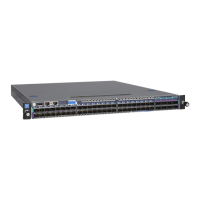
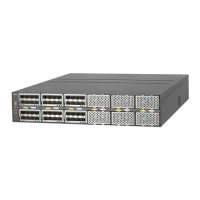
NOTE: The QSFP28 ports on models M4500-48XF8C and M4500-32C are
precongured for 100G speed. If you want to use a 40G SFP module in a QSFP28
port, you rst must congure the port for 40G speed. The SFP28 ports on model
M4500-48XF8C are precongured for 10G speed.
NOTE: If purchased, SFP modules and cables are shipped separately. For more
information about installing an SFP module, see the hardware installation guide.
After you congure or nd the IP address of the switch, you can congure the
features of the switch through the CLI.
Step 2: Log in and congure the switch
You can log in and congure the switch through the out-of-band (OOB) port
(which is also referred to as the service port), through any Ethernet network port,
or through a console port. By default, the switch functions as a DHCP client.
To log in and congure the switch, use one of the following methods:
• Audio-video user interface: Use the audio-video user interface,
abbreviated as AV UI, through the OOB port or any Ethernet network port
(see Access the AV UI to congure the switch).



 To Next Page