19
Short video clips—not recording to the length set.
• Check to make sure that the TF card is not full.
• Make sure that the camera has good batteries in it. Near the end of the battery
life, the camera may choose to record shorter video clips to conserve power.
Date/time stamp not appearing on images
Make sure that the “TIME STAMP” option in the PHOTO menu is set to “ON”.
Photos do not capture subject of interest
• Check the “PIR SENSITIVITY” parameter setting (SETUP menu). For warm tem-
perature conditions, set this to “HIGH” and for cold weather use, set the PIR
sensitivity to “LOW”. For variable weather, use “MEDIUM”.
• Try to set your camera up in an area where there is not a heat source in the cam-
era’s line of sight.
• In some cases, setting the camera near water will make the camera take images
with no subject in them. Try aiming the camera over ground.
• Try to avoid setting the camera up on small trees that are prone to being moved
by strong winds.
• Remove any limbs which are right in front of the camera lens.
PIR sensor led flashes/doesn’t flash
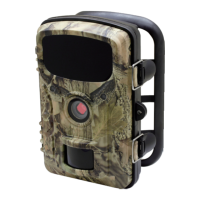
• When the camera is in the “Setup” mode, a special LED on the front of the camera
will flash when it senses motion. This is for setup purposes only and will help the
user aim the camera.
• During use, the LED will not visibly flash when the camera takes an image.
• The LED array uses infrared light to help keep the camera hidden from game.
Display screen comes on but then powers off
The display automatically turns off if no control keys are pressed for 30 seconds, to
conserve battery power.
Camera won’t retain settings
Make sure that you have been saving the changes to any settings that you made
while in the menu system, by pressing “OK” after changing the setting. If you don’t
save your new setting after changing it, the camera will continue to use the original
default setting for that parameter.


 To Next Page