8
Mobile apps
The camera will work with a mobile APP that is compatible with IOS and android
devices. SIMple download the free “Camera Trap Wireless” app from the APP store
or Google Play. The app allows you full control of all camera settings as well as the
ability to view pictures and video clips uploaded by your cameras.
Account set up
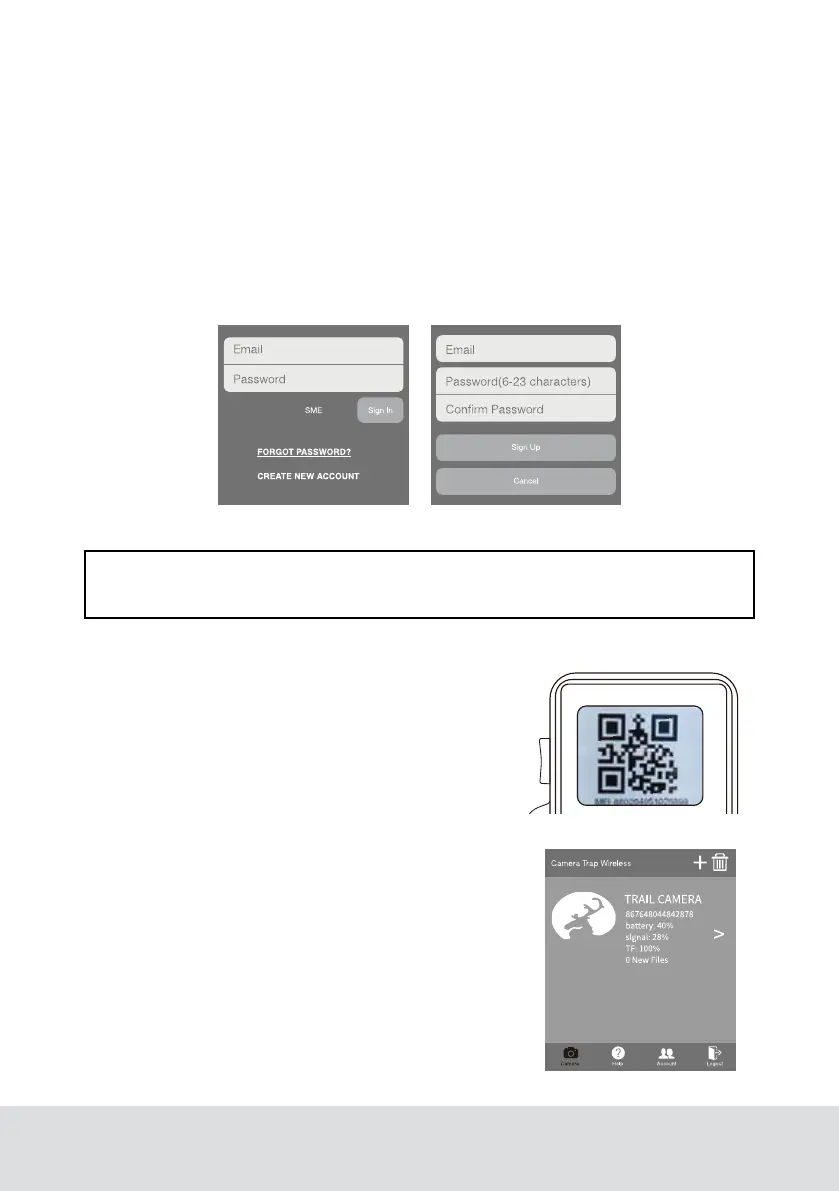
In order to start transmitting pictures from the camera, you will need to do a quick
account set up. Just simply follow the on screen menu to create a user account as
below.
Camera set up
Power on your camera and press the Mode switch
to the “SETUP” mode. Press the MENU button. The
camera setup menu will appear. Press the RIGHT
arrow key until the menu option “Cellular modem”
appears. And then use the Down button arrow go to
the option of “Status QR Code” and confirm it. A QR
code will appear on the camera display screen as
below.
Open the “Camera Trap Wireless” app on your
mobile device and log in to your account. On the
starting page click the Camera icon “+” on the top
of the screen (1st from right) and then A QR code
scanner will appear on your screen. Scan the QR
code displayed on the camera screen with your
mobile device. And then you would be successful to
get your camera connection with APP.
NOTE: The default server path of the system is SME type. please do not change it during
registration in case that app could not receive the server push information.


 To Next Page