9
NOTE: In some conditions, the GPS positioning would be inaccurate, this relates to
your mobile phone GPS function. You could check the battery power in the window
interface of the APP. When the battery power is lower than 35%, the system will turn
off the 4G upload function and the night time shooting would be stopped when the
power lower than 30%, but the daytime shooting can still be carried out. In view of
this condition, please replace the new batteries in time.
App Function
Upon opening the mobile app you will be at the Main Page. On the Main Page all
the apps functions can be accessed. Use the guide below to learn how to navigate
the Camera Trap Wireless app. There are several functions that can be performed
to pictures and videos with your account. you can select any of the thumbnails you
would like to perform the follow functions to:
Select: Click this thumbnail you could select one signal picture or all the pictures.
Favourite: On the top right side of each picture has a “heart” thumbnail, you could
press it and choice the favourite pictures or videos you like. And the pictures and
videos would be automatically sorted to favourite files.
Share: Using the Share function allows you to share what your camera has cap-
tured. (Remark: This does not delete the images and videos from the TF card in the
camera.)
Setting: Using the Setting function allows you for the functions data settings
based on your requirement. After change the data setting, please press the “SYNC”
thumbnail to save this change to cloud. (Remark: These changes will not go into
effect until this camera next scheduled upload time.)
Sync Button: Sync the data changes to cloud.
Reset Button: Reset the settings to the default parameters by confirm button.
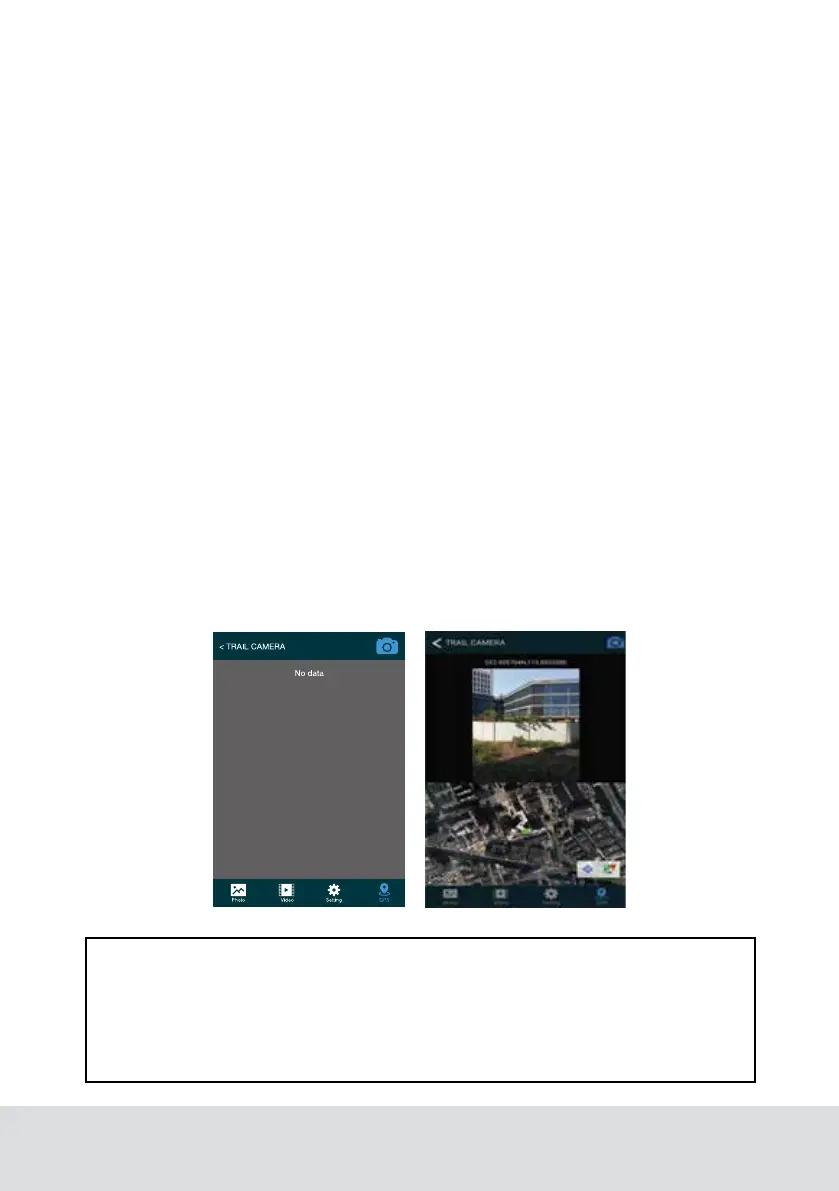
GPS: this function allows you to update image metadata with geolocation tags by
planning and zooming in a map window and then clicking on the location where a
photo was taken. It would help you to track and recall the camera location.


 To Next Page