JAN 2024 Page | 9
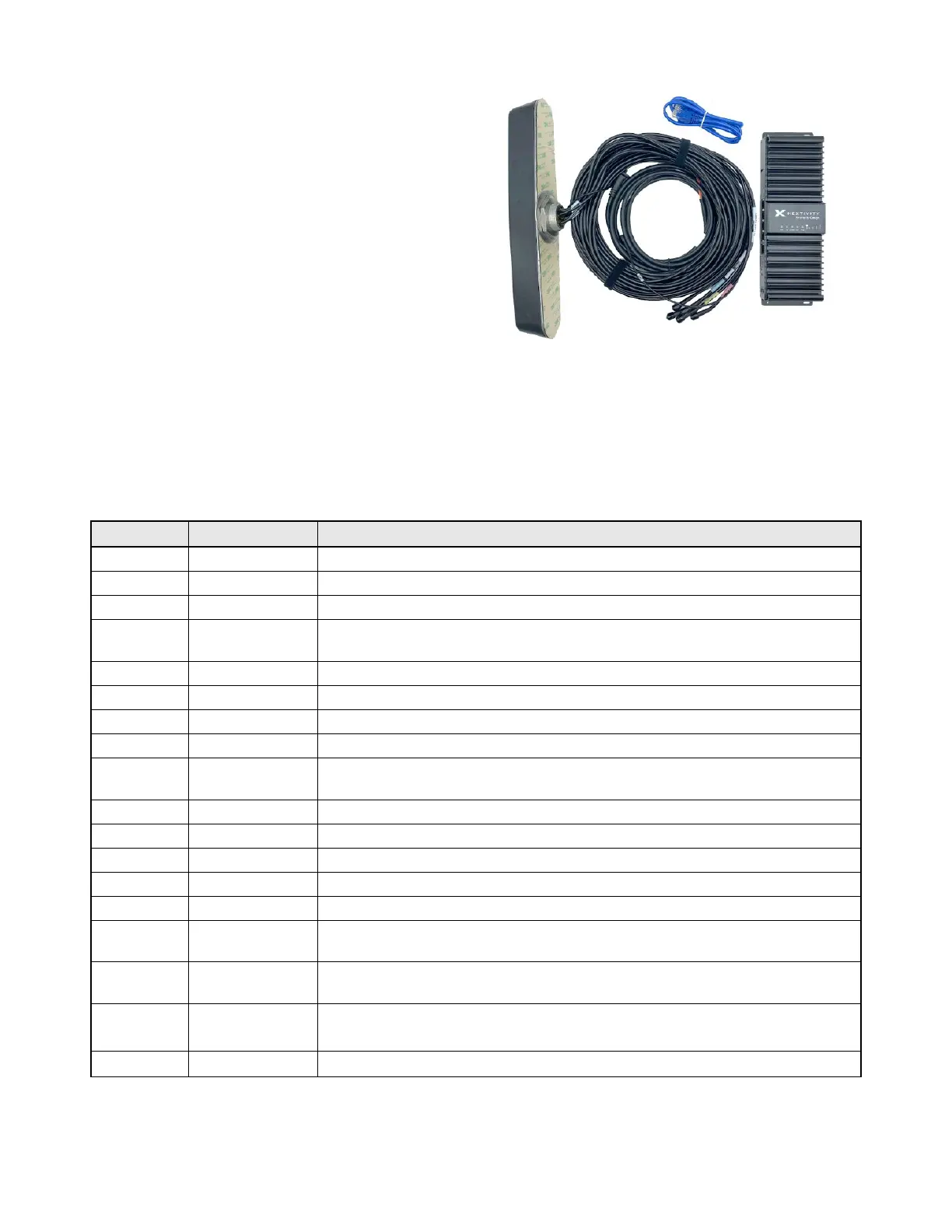
SHIELD MegaFi Mobile Kit:
• High Power MegaFi Router
• Locking DC power cable
• SIM Ejector Tool (not pictured)
• Roof mount 6-in-1 antenna includes 3x
cellular, 2x Wi-Fi and 1x GPS connections
• Ethernet cable
• Quick Start Guide for quick router
configuration and connection (not
pictured)
1.3 SHIELD MegaFi LEDs
The SHIELD MegaFi device will take about three to five minutes to boot up and the local management
interface, Mission Control, MegaFi’s Graphical User Interface (GUI), and an Internet connection will not be
available during boot up. More information about Mission Control will be discussed in a later section.
After the boot up process, the LEDs will turn ON and have the following indications:
No power or input voltage
No GPS resolution is possible
Searching for GPS
GPS location is available
No WAN or WWAN connection available
Connected to WAN only, and no WWAN connection is available
Attempting to connect to network
Connected to WWAN or both a WWAN and WAN connection
Off No signal strength available from the network
Green
Number of bars lit based on signal strength available from the
network
LAN/WAN
Port LEDs
Top Left
Off if no device connected. Solid Amber if connection detected and
blinking Amber if sending or receiving traffic.
Solid Green means port is enabled



 To Next Page