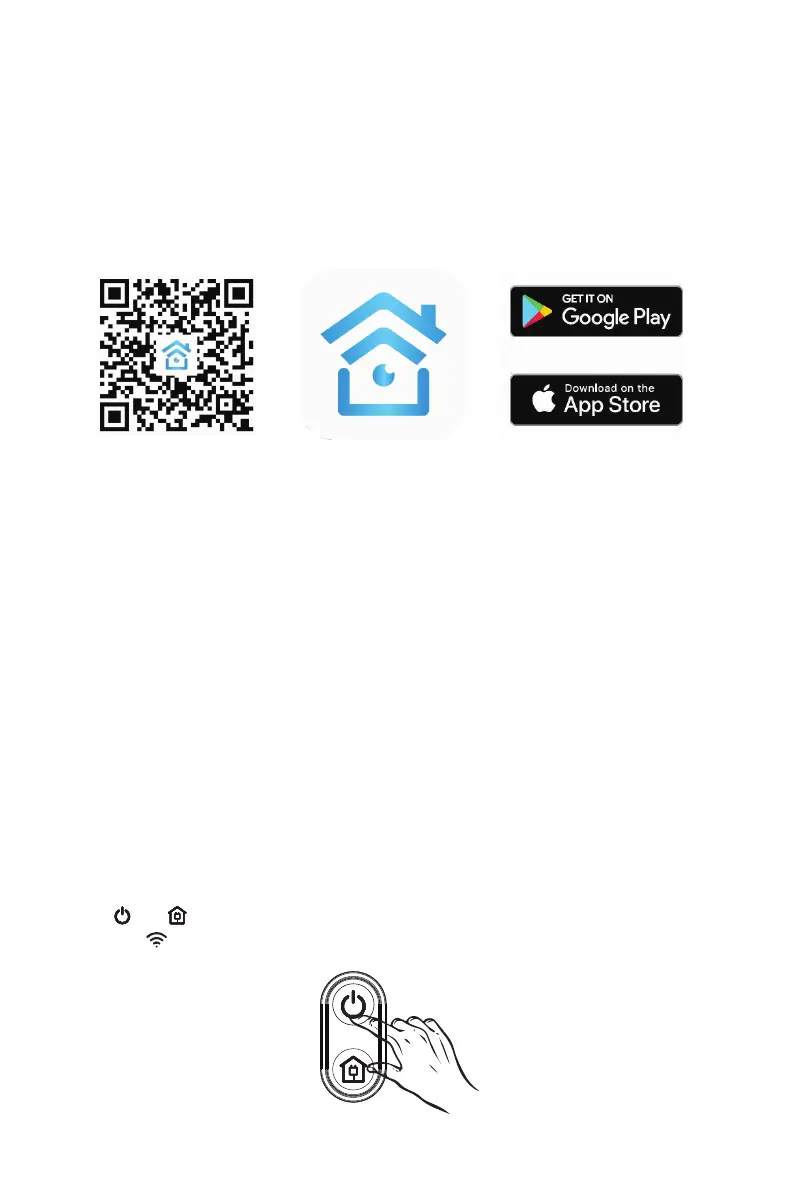
Step 1: Download the App and Register Your Account.
Search for the NGTeco Home App in Apple App Store or Google
Play Store and download the App to your mobile phone.
Open the NGTeco Home App and log in with your account. If you
do not have an account, create an account with your phone number
or Email ID.
Step 2: Adding Equipment.
After entering the firmware upgrade function through the mobile phone APP
and detecting the new firmware, follow the prompts to guide the upgrade.
Firmware upgrade requires power ≥50%. It is recommended to place the
device on the charging stand to upgrade.
Firmware Upgrade
Reset the Wifi
When the router's configuration, password or other reasons cause the
phone to fail to connect to the machine, please do the same:
Press And for 3 seconds, until hearing ”WiFi resetting” and WiFi
indicator turns white and flashes quickly, indicating that the reset
is successful.
Connecting to NGTeco Home App
17
Before initiating the connection, ensure that the unit is in standby mode. Press both
the Home button and On button simultaneously for more than 3 seconds until the
robot starts flashing and voice prompts “WiFi lost, please follow the App instruction
for re-connection”. Ensure your phone is connected to the same WiFi network you
wish to connect your robot to.
Open app and press “+” to add device, or use the add device button.


 To Next Page