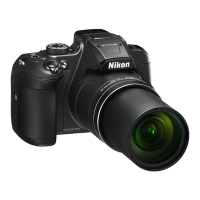
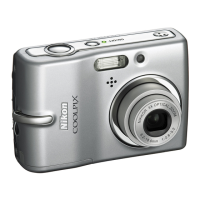
Why does my Nikon Coolpix B500 become hot?
- SSteven DanielSep 23, 2025
Your Nikon Digital Camera may become hot when used for extended periods, such as when shooting movies, or when used in a hot environment. This is not a malfunction.
Why does my Nikon Coolpix B500 become hot?
Your Nikon Digital Camera may become hot when used for extended periods, such as when shooting movies, or when used in a hot environment. This is not a malfunction.
Why can't my Nikon Coolpix B500 focus?
If your Nikon Digital Camera is unable to focus, it could be that the subject is too close. Try using scene auto selector mode, Close-up scene mode, or macro mode. The subject might also be difficult to focus on. You can also set AF assist in the setup menu to Auto, or try turning the camera off and then on again.
What to do if Nikon Digital Camera is on but not responding?
If your Nikon Digital Camera is on but not responding, try the following: Wait for any recording to finish. If the problem continues, turn the camera off. If it still doesn't turn off, remove and reinsert the battery or batteries. If you're using an AC adapter, disconnect and reconnect it. Note that while any data being recorded will be lost, data already recorded will remain unaffected.
How to fix a Nikon Coolpix B500 Digital Camera that cannot be turned on?
If your Nikon Digital Camera cannot be turned on, the batteries are likely exhausted. Replace the batteries.
How to fix blurred images on Nikon Coolpix B500 Digital Camera?
To fix blurred images on your Nikon Digital Camera: * Use the flash. * Increase the ISO sensitivity value. * Enable Photo VR for still images and Movie VR for videos. * Use a tripod to stabilize the camera; using the self-timer simultaneously can be more effective.
Why are my Nikon Digital Camera images too dark (underexposed)?
If your Nikon Digital Camera images are too dark, it could be due to the flash being lowered, a shooting mode restricting the flash, or the flash window being blocked. The subject might also be beyond the flash range, or it could be backlit. Try adjusting exposure compensation, increasing ISO sensitivity, selecting Backlighting scene mode, or raising the flash and setting the flash mode to fill flash.
Why does the flash not fire on my Nikon Coolpix B500?
The flash on your Nikon Digital Camera might not be firing because it is lowered, a scene mode that restricts the flash is selected, or a function that restricts the flash is enabled.
Why can't I use digital zoom on my Nikon Coolpix B500 Digital Camera?
You may not be able to use the digital zoom on your Nikon Digital Camera because it is set to Off in the setup menu. Additionally, digital zoom may not be available with certain shooting modes or when using specific settings in other functions.
How to improve monitor visibility on Nikon Coolpix B500 Digital Camera?
If the monitor of your Nikon Digital Camera is hard to see, try moving to a darker location if the surroundings are too bright. You can also adjust the screen brightness.
Why is the monitor blank on my Nikon Coolpix B500?
The monitor on your Nikon Digital Camera might be blank because the camera is off, or it's automatically turned off to save power. It could also be due to the flash lamp charging, a connection to a TV or computer, or shooting in Multiple exp. Lighten scene mode. Wait until charging is complete.
Download the reference manual and Nikon software from the Nikon Download Center.
Access online resources for product information, FAQs, and technical assistance.
Access Nikon's websites for product support, tips, FAQs, and general photography advice.
Use only Nikon brand accessories; take test shots before important events to ensure proper function.
Guidelines for manual reproduction, copyright compliance, and secure disposal of data storage devices.
Instructions to display conformity markings and ensure product compliance.
Identifies and explains the key buttons, dials, and indicators on the camera body.
Step-by-step guide on how to attach the camera strap and lens cap for protection and carrying.
Instructions for correctly inserting batteries and memory cards, including formatting.
Lists the types of batteries compatible with the camera.
Important notes on battery types, defects, and procedures for removing batteries and memory cards.
Information on saving images to memory cards or the camera's internal memory.
Guide on how to adjust the monitor angle and important precautions for its use.
Steps for initial camera setup, including language selection, smart device connection, and clock settings.
Instructions for setting the time zone, date, and time format on the camera.
Guide to basic image shooting, including rotating the mode dial and holding the camera steady.
Steps for framing shots, using zoom controls, and pressing the shutter button for capture.
Guidance on saving images and warnings about removing media during saving.
Explains auto-off, tripod recommendations, flash operation, and movie recording initiation.
Instructions on entering playback mode, navigating images, and zooming.
Procedures for deleting single images, sequences, and images captured in shooting mode.
Steps to download and install the SnapBridge app on a smart device.
Initial steps for connecting the camera to a smart device via network settings.
Detailed steps for pairing the camera and smart device using the SnapBridge app.
Finalizing the connection, learning more, and resolving connection issues.
Options for enabling/disabling wireless connections and methods for uploading images.
Using the app for remote photography and specific Wi-Fi connection steps for iOS devices.
How to rotate the mode dial to select various shooting modes like Auto, Scene, and Creative.
How to display and hide function descriptions on the camera screen.
Using the multi selector to adjust functions like flash mode, self-timer, macro, and exposure compensation.
Step-by-step guide on how to access and operate camera menus using the MENU button and multi selector.
Procedures for selecting menu options and applying specific settings within the camera menus.
Information for European users regarding electrical waste collection and product compliance.
Notes on wireless device restrictions, security risks, and personal information management.
Information on product export regulations and the EU declaration of conformity for radio equipment.
Guidelines for cleaning, avoiding damage, and notes regarding the camera's monitor.
Comprehensive guide on battery precautions, charging rechargeable batteries, and cold weather usage.
Guidance on responsible recycling of used batteries.
Instructions for cleaning camera components and proper storage to prevent damage.
Common problems and their solutions for camera malfunctions or unexpected behavior.
Information on compatible memory card types and a list of registered trademarks.
Details on software licenses and patent portfolio agreements related to the product.
Explains the terms and conditions of the Nikon Europe service warranty for the product.
Outlines what is not covered by the warranty and clarifies consumer rights.
| Sensor Type | CMOS |
|---|---|
| Effective Pixels | 16.0 million |
| Optical Zoom | 40x |
| Maximum Aperture | f/3.0-6.5 |
| Display Size | 3.0 inches |
| Storage Media | SD, SDHC, SDXC memory cards |
| Autofocus | Contrast-detect AF |
| Digital Zoom | 4x |
| Lens Focal Length | 4.0-160mm (35mm equivalent: 22.5-900mm) |
| Display Type | TFT LCD |
| Video Resolution | 1920 x 1080 (Full HD) |
| Battery Type | AA batteries |
| Battery Life | Approx. 600 shots with alkaline batteries |
| Dimensions | Approx. 113.5 x 78.3 x 94.9 mm (4.5 x 3.1 x 3.8 in.) |
| Weight | Approx. 542 g (1 lb 3.2 oz) (including batteries and SD memory card) |
| Connectivity | Wi-Fi, Bluetooth |
| Vibration Reduction | Lens-shift VR |
| Shutter Speed | 1/1500 to 1 s; 4 s (Fireworks show scene mode) |
| ISO Sensitivity | ISO 125-1600, ISO 3200, 6400 (available when using Auto mode) |
Loading...