EasyManua.ls Logo

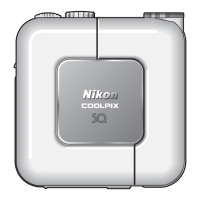
Nikon COOLPIX S4 - User Manual

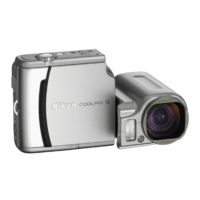
Nikon COOLPIX S4
108 pages
Print Icon
To Next Page IconTo Next Page
Loading...
En
The Nikon Guide to Digital Photography
with the
DIGITAL CAMERA

Table of Contents

Other manuals for Nikon COOLPIX S4

Questions and Answers

  • M
    Michaela JonesAug 14, 2025
    What to do if my Nikon COOLPIX S4 doesn't take pictures?
    • C
      Christopher HooperAug 14, 2025
      If your Nikon Digital Camera isn't taking pictures when you press the shutter-release button, here are a few things to check: * Ensure the camera isn't in playback mode; switch to shooting mode. * Replace exhausted batteries. * Wait for the flash to charge if it's blinking. * Format the memory card if the display shows “CARD IS NOT FORMATTED”. * Free up memory if the display shows “OUT OF MEMORY”. * Unlock the memory card if the display shows “MEMORY CARD IS WRITE PROTECTED”.
  • L
    Lee WhiteAug 17, 2025
    Why is the screen blank on my Nikon COOLPIX S4 Digital Camera?
    • K
      Kristy BeckerAug 17, 2025
      If the monitor on your Nikon Digital Camera is blank, consider the following possible causes: * The camera is off, so turn it on. * Batteries are not correctly inserted, so insert them correctly or latch the battery-chamber cover properly. * Batteries are exhausted, so replace them. * AC adapter is not properly connected, so connect it properly. * Camera is in standby mode, so press the shutter-release button halfway. * USB or audio / video cable is connected, so disconnect the cable. * Voice recording is in progress, so press the button to turn the monitor on. * Lens cap is closed, so open it.
  • T
    Taylor GonzalesAug 25, 2025
    How to improve the screen visibility on my Nikon COOLPIX S4 Digital Camera?
    • J
      Julie HayesAug 25, 2025
      If the monitor on your Nikon Digital Camera is hard to read, try these solutions: * Adjust the monitor brightness. * Press the shutter-release button halfway if the monitor has dimmed to save power. * Clean the monitor if it's dirty.
  • M
    Matthew HartAug 27, 2025
    What to do if Nikon Digital Camera batteries are low or cold?
    • L
      Linda ThomasAug 27, 2025
      If the batteries in your Nikon Digital Camera are low or cold, replace the batteries or warm them up.
  • C
    Casey ParkerAug 31, 2025
    What to do if my Nikon Digital Camera is unresponsive?
    • C
      conniecraigAug 31, 2025
      If your Nikon Digital Camera is unresponsive, here are some possible solutions: * Ensure the camera is turned on. * Check that the AC adapter is properly connected, or replace the batteries if they are exhausted. * Verify the USB cable connection, or ensure the card is properly inserted in the card reader or card slot. * Select the correct USB option.
  • K
    Kimberly ArellanoSep 3, 2025
    Why can't I zoom in on photos on my Nikon COOLPIX S4?
    • H
      howellstacySep 3, 2025
      If you cannot zoom in on a picture on your Nikon Digital Camera: * If the picture is a movie - no answer. * If the picture was created with small picture option - no answer. * If the picture has been cropped to below 320 × 240 - no answer.
  • T
    thomas66Sep 7, 2025
    What to do if pictures aren't transferring when pressing the multi selector on my Nikon Digital Camera?
    • D
      Danielle CookSep 7, 2025
      If pictures are not being transferred when you press the center of the multi selector on your Nikon Digital Camera, disconnect the USB cable.
  • M
    Melissa CunninghamSep 10, 2025
    What happens if USB is set to mass storage and no memory card is in my Nikon COOLPIX S4?
    • O
      ortizzacharySep 10, 2025
      If the USB option is set to Mass storage and no memory card is inserted into your Nikon Digital Camera, insert a memory card.
  • K
    Kelly FisherNov 19, 2025
    How to fix the flash on my Nikon Digital Camera?
    • W
      william84Nov 20, 2025
      If the flash on your Nikon Digital Camera isn't firing, here are some potential reasons and solutions: * The flash may be reflecting from particles in the air; turn the flash off. * The flash is off; activate it. * The shutter speed is too slow; use the flash or select a scene mode appropriate to the subject and lighting conditions. * The flash window is blocked; fully open the lens cap if it's blocking the flash. * The subject is outside the range of the flash; recompose the picture with the subject in range of the flash or use D-lighting. * Exposure compensation is too low or too high; adjust exposure compensation. * The subject is backlit; select the scene mode setting of Backlight, use fill flash, or use D-lighting. * The lens is dirty; clean the lens. * The white ba...

Summary

Introduction

Before Taking Important Pictures

Advice on taking test shots before important occasions to ensure camera functionality.

Life-Long Learning Resources

Information on accessing online resources for product support and updated information.

First Steps

Inserting the Batteries

Step-by-step guide on charging and inserting AA or rechargeable batteries.

Inserting Memory Cards

Instructions for confirming camera power-off, inserting, and locking SD memory cards.

Turning the Camera On

Guide on pressing the power switch and understanding the power-on lamp status.

Basic Setup Process

Process for selecting language and setting the camera's date and time.

Basic Photography

Step 1 - Select Mode

Instructions to slide the mode selector and turn on the camera for Auto mode.

Step 2 - Frame the Picture

Guidance on rotating the lens, holding the camera, and using zoom controls.

Step 3 - Focus and Shoot

Process for pressing the shutter-release button halfway to focus and fully to take the picture.

Step 4 - View the Results

Instructions on using the playback button to view captured pictures and delete unwanted ones.

More on Photography

Using the Flash

Explanation of available flash modes (Auto, Red-eye reduction, Cancel, Anytime, Slow sync) and their uses.

Taking Pictures with the Self-Timer

Guide on using the ten-second timer for portraits or to avoid camera movement.

Easy Close-ups: Macro Close-up Mode

Instructions for using macro mode for close-up shots of small objects at short distances.

Scene Mode

Scene Mode Overview

Explanation of scene mode's automatic optimization for different subjects and conditions.

Framing Assist Modes

Guidance on using assist modes like Portrait, Face-priority AF, Landscape, Sports, and Night Portrait.

Other Scene Modes

Description of specific scene modes like Beach/Snow, Sunset, Dusk/Dawn, and Night landscape.

Movies

Movie Mode Options

Overview of movie types (TV movie 640, Small size 320, Time-lapse) and their recording lengths.

Recording Movies

Instructions on selecting movie mode, starting, and ending recording.

Recording Time-Lapse Movies

Guide on setting intervals and AE lock for time-lapse sequences.

Viewing Movies

Instructions on playing back movies using playback controls and managing playback volume.

More on Playback

Viewing Pictures on the Camera

How to view pictures on the camera in full-frame and thumbnail playback modes.

Playback Zoom and Editing

Using playback zoom and the D-Lighting feature to enhance images.

Voice Memos

Recording, playing back, and managing voice memos appended to pictures.

Viewing on External Devices

Connecting to TV or computer for viewing and transferring pictures.

Transferring and Printing Pictures

Methods for transferring pictures to a computer and printing them.

Menu Guide

The Shooting Menu

Details on options like Image Mode, White Balance, Exposure Compensation, Continuous shooting.

The Playback Menu

Options for managing pictures like Slide Show, Delete, Protect, Copy, and Print Set.

The Setup Menu

Settings for date, time, language, interface, auto power off, and formatting.

Technical Notes

Optional Accessories

List of optional accessories like rechargeable batteries and AC adapter kits.

Caring for the Camera

Precautions for keeping the camera dry, handling parts, avoiding strong light, and powering off.

Cleaning Instructions

Instructions for cleaning the lens, monitor, and camera body using appropriate methods.

Camera Storage Guidelines

Guidelines for storing the camera when not in use, including environmental considerations.

Error Messages and Solutions

Table listing common display messages, their problems, and solutions.

Troubleshooting Common Problems

Common problems like blank monitor, no indicators, or pictures not taken, with their solutions.

Specifications

Camera Specifications

Technical details of the Nikon COOLPIX S4 camera, including CCD, lens, storage, and connectivity.

Nikon COOLPIX S4 Specifications

Camera Specifications IconCamera Specifications
effective pixels6.0 million
ccd1/2.5-inch type (6.4 million total pixels)
lens10x Zoom-Nikkor; 6.3-63.3mm (35mm [135] format equivalent to 38-380mm); f/3.5; 12 elements in 9 groups; Digital zoom: up to 4x (35mm [135] format equivalent to 1520mm)
focus range12 in.(30cm) to infinity (∞), approx. 2.5 in (4cm) to infinity (∞) in Macro mode
lcd monitor2.5-inch type, 110, 000-dot Amorphous silicon TFT LCD monitor with brightness adjustment
Image Modes IconImage Modes
image mode high2816 x 2112
image mode economy2048 x 1536
image mode pc screen1024 x 768
Battery and Power IconBattery and Power
power requirements2x AA-size(LR6) batteries (Alkaline [supplied] or EN-MH1-B2 with MH-71 [optional]), EH-62B AC adapter kit
battery life with rechargeable batteriesApprox. 290 images
battery life with alkaline batteriesApprox. 160 images
battery life with lithium batteriesApprox. 450 shots
Storage and Memory IconStorage and Memory
internal memoryapprox. 13.5MB
storage mediaSD memory card
number of frames with internal memory6M: High (2816*) approx. 4, Normal (2816) approx. 9
Weight and Dimensions IconWeight and Dimensions
dimensions4.4 x 2.7 x 1.4 in. (111.5 x 68.5 x 37mm)
weight7.2 oz. (205g)

Related product manuals