4
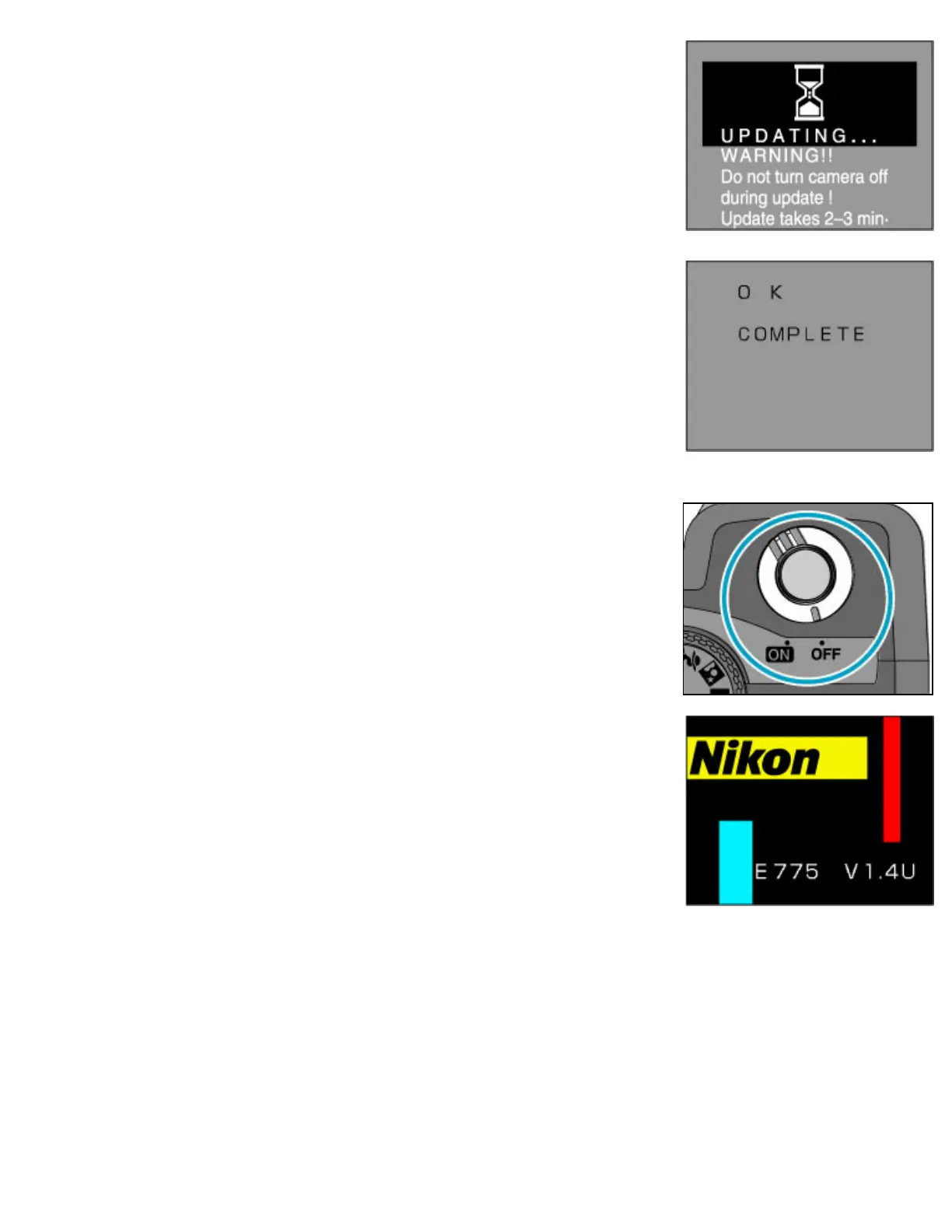
The message as shown at right will be displayed while the
update is in progress.
5
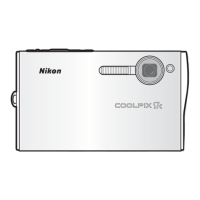
The message as shown at right will be displayed when the
update is complete. The monitor will go dark briefly before the
message is displayed; this does not indicate a malfunction.
6
Confirm that the update was completed successfully.
6-
1.
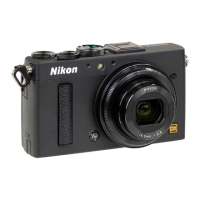
Turn the camera off.
6-
2.
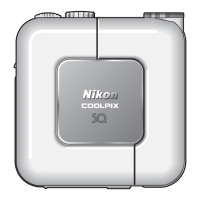
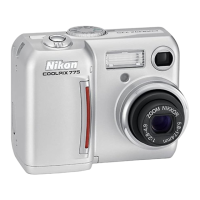
Check the camera firmware version as described in Step
2, “Check the current firmware version for the
COOLPIX775.”
6-
3.
If “E775 V1.4U” is displayed in the monitor, the update
was successful.
If the update was not successful, contact a Nikon service representative.
7
Format the memory card.
• Insert the memory card used to update the camera firmware.
•
For information on formatting memory cards, see the
Nikon
Guide to Digital
Photography with the
COOLPIX775
.
This completes the firmware update.


 To Previous Page