Copyright © 2019 Nortek Security & Control LLC
44
Navigate to the History Screen
To navigate to the History screen:
1. At the Home screen, tap the System Info and
Usage button.
2. At the System Info and Usage menu, tap History.
System Info and Usage Menu
This reveals the History screen. See “Filtering the
History Screen” in the section that follows.
Filtering the History Screen
You can fi lter the list in the History screen to show or hide
alarms, bypasses, or alerts.
History —Filter Check Boxes
At the History screen, tap one or more check boxes to add
or remove them:
»
Alarms: Add a check mark to show alarm events.
Remove the check mark to hide alarm events.
»
Bypasses: Add a check mark to show bypasses.
Remove the check mark to hide bypasses.
»
Alerts: Add a check mark to show alerts. Remove
the check mark to hide alerts.
System Info
The System History screen shows the following
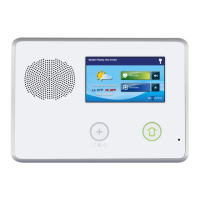
information about your GC3e Panel (depending on the
features that are active in your system):
»
Z-Wave Home ID
»
Serial Number
»
Firmware Version
»
Build Version
»
Radio Modem
»
Z-Wave Version
»
Open Source Licenses Information
Navigate to the System Info Screen
To navigate to the System Info screen:
1. At the Home screen, tap System Info and Usage.
Home screen > System Info and Usage Button


 To Next Page
 Loading...