Northstar Explorer 657 Installation and Operation Manual44
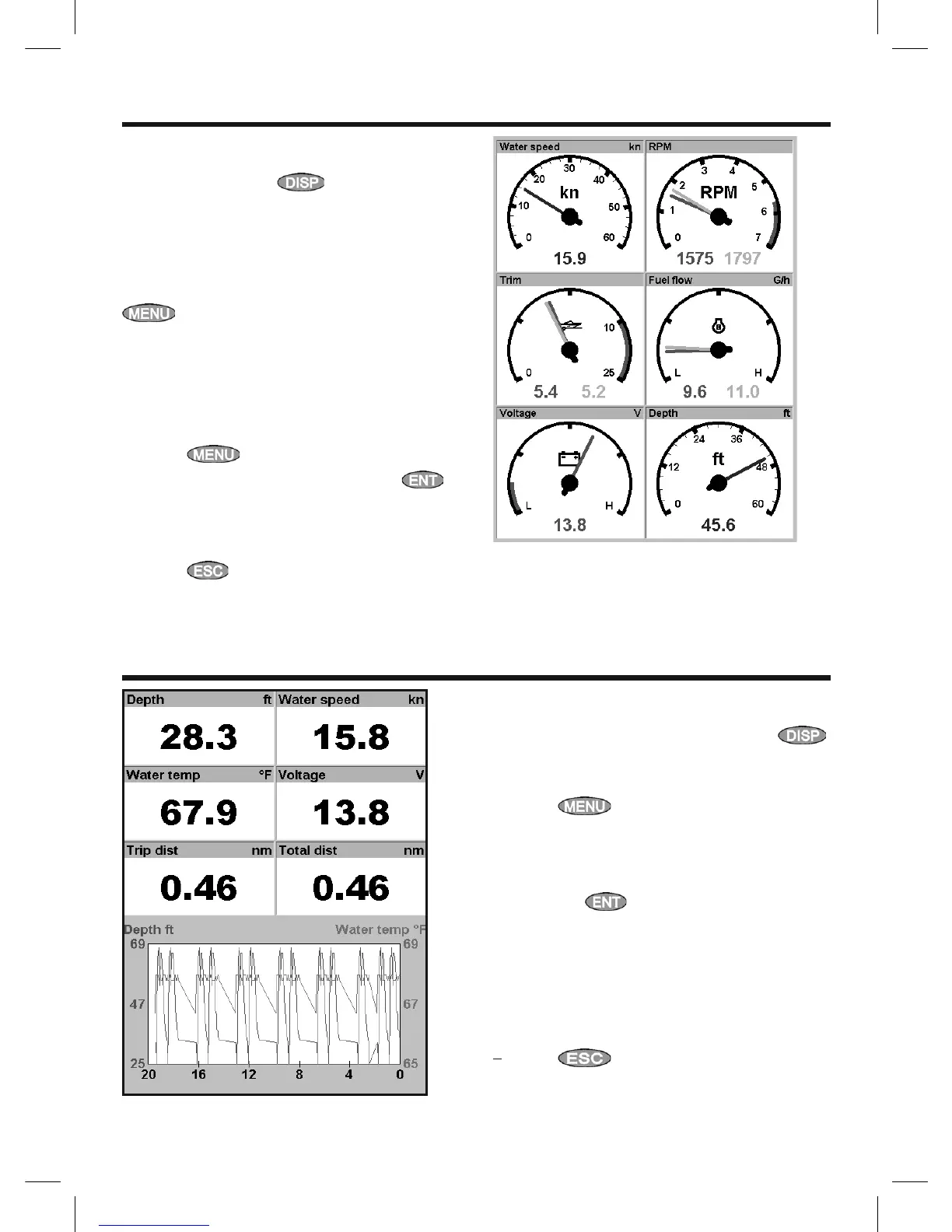
10 Gauges window
The Gauges window shows boat data, such as
water speed, as analog gauges. To select the
Gauges window, press , select More, then
select Gauges. Before using the Gauges window,
set Speed range, Max RPM and Max fuel flow (see
section 17-12).
Selecting a Gauges layout
To select a layout from the Gauges window, press
, select Layout, then select a layout from
the list.
Changing a gauge layout
You can change the data displayed on each
gauge in a layout.
1 Select the layout to change (see above).
2 Press
and select Gauge setup.
3 Highlight the gauge to change. Press
and select the data to display in the gauge.
4 Repeat the above step to change other
gauges.
5 Press
.
11 Data window
The data window has large numeric data fields
and a graph of depth and water temperature if
available. To go to the data window, press ,
select More, then select Data.
To select what data is displayed:
1 Press
and select Data setup.
2 Change a data field:
i Press the cursor keys to highlight the
field.
ii Press
to display a menu of data
items.
iii Select a data item that is available on your
system or select None to leave the field
empty.
3 Repeat the above step to set the other data
fields.
4
Press .


 To Next Page