8 | nuwavenow.com
THE NUWAVE
®
CONNECT APP
MONITOR AND CONTROL THE OXYPURE REMOTELY
Download the Nuwave
®
Connect App
This is an optional feature that is not required to operate your OxyPure.
Auto Scan Mode
1. Once you download the Nuwave®
Connect app, ensure your phone is
connected to your home Wi-Fi network
and that your phone’s Bluetooth is on.
2. Turn on the OxyPure and activate Wi-Fi
Pairing Mode by pressing and holding
AUTO until the light next to the Wi-Fi
symbol begins to blink rapidly.
3. In the Nuwave® Connect app, tap the +
symbol, then tap Auto Scan and select
your device.
4. Enter your Wi-Fi network’s password
and tap Conrm. If the connection is
successful, the app will display “Added
Successfully” on the screen.
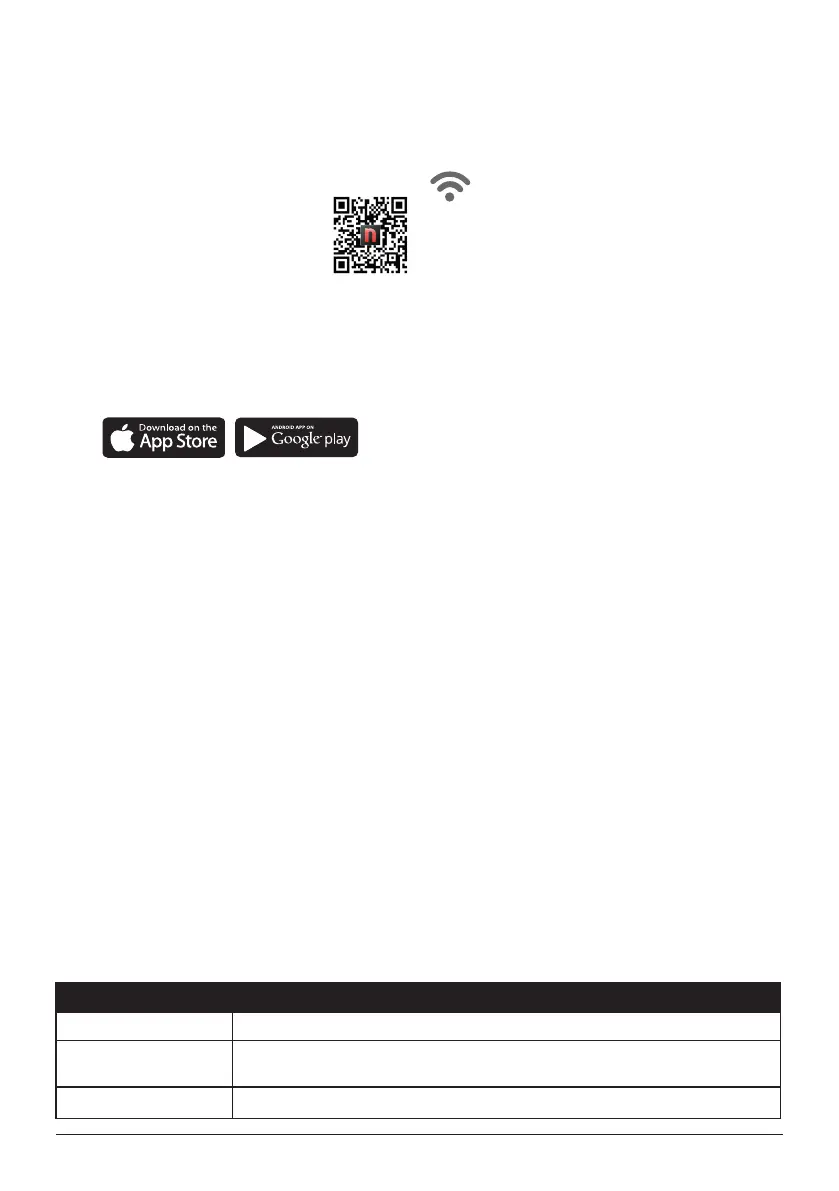
Using the QR reader in your Camera App:
1. Scan the QR code.
2. It will take you to the App’s
download page on either
Google Play Store or the Apple
App Store, then just follow the
download and installation instructions.
Download a QR reader App:
1. Open your mobile app store (Apple App
Store or the Google Play Store).
2. Search for “QR code readers.”
3. Simply download the QR code reader to
your phone, open it and scan the code.
Wi-Fi
Wi-Fi LED Status Light Pairing Mode & Standby Mode
Solid Light. The OxyPure is paired with the Wi-Fi network and ready to be used.
Rapid Blinking Light. The OxyPure is in Pairing Mode. The OxyPure will stay in Pairing Mode for up to 10
minutes or until your device is paired.
Slowly Blinking Light. The OxyPure is in AP Pairing Mode.
AP Mode
1. If you can’t connect your OxyPure using Auto Scan, follow the instructions in the app to
reset the connection process.
2. Press and hold AUTO until the Wi-Fi light begins blinking slowly to enable AP Mode.
3. Tap the + symbol, then select the OxyPure unit you want to add to the network.
4. Conrm that the Wi-Fi light on your OxyPure is blinking slowly and tap AP Mode on your
phone screen.
5. Connect your phone to the available hotspot following the instructions on the screen.
6. Once connected, return to the Nuwave® Connect app and the unit will begin connect-
ing automatically.
7. Once your OxyPure is successfully connected, tap Done.
EZ Mode
1. Tap the + symbol, then select the OxyPure unit you want to add to the network.
2. Enter and conrm your Wi-Fi network password.
3. Tap AP Mode in the top right of your screen, then select EZ Mode to switch pairing modes.
4. Conrm that the Wi-Fi light on your OxyPure is blinking rapidly.
5. Once your OxyPure is connected, tap Done.



 To Next Page