62 Chapter 2 Prepare and print
Use Océ DPconvert and Océ Doc Works to print Xerox RDO files
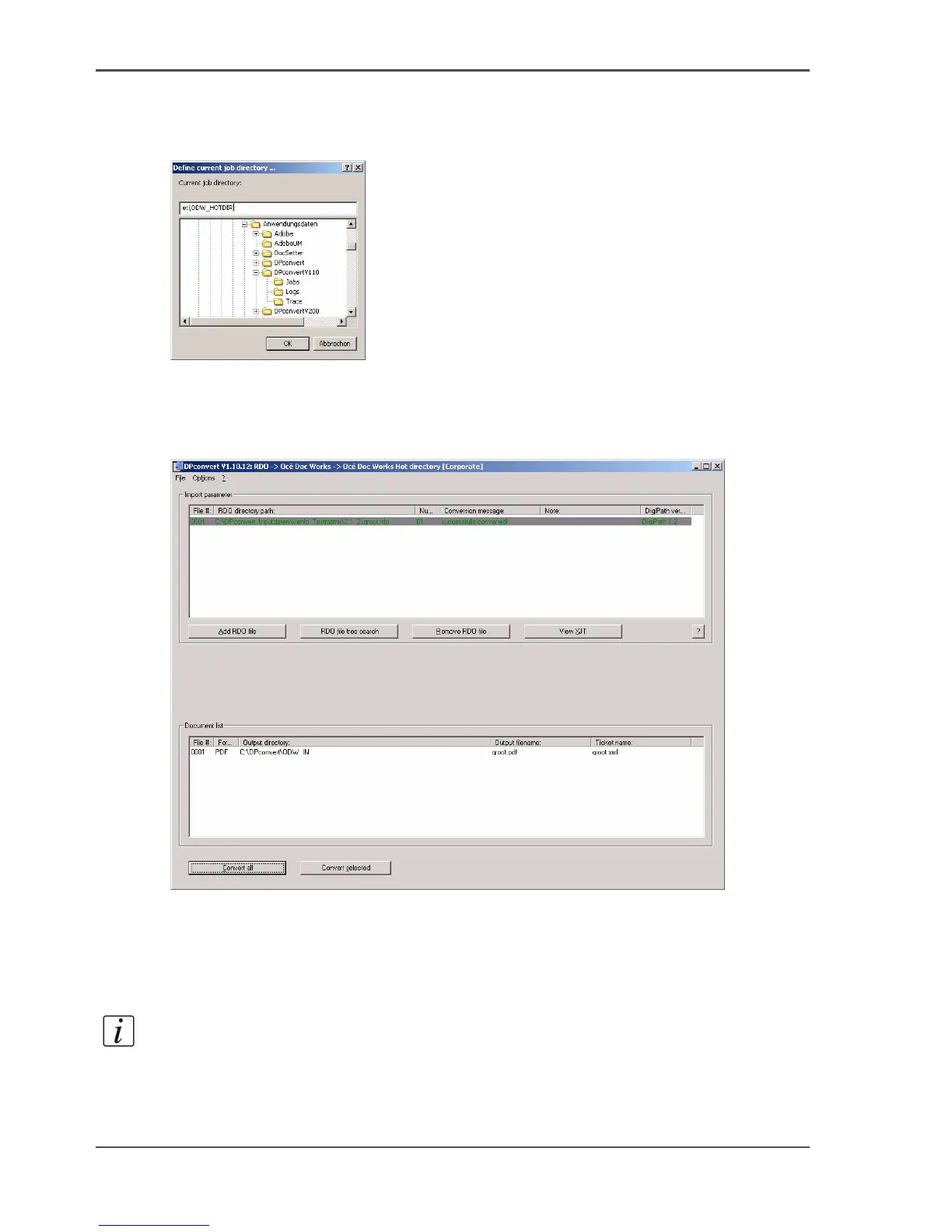
5. Click 'File' --> 'Destination directory'.
6. Make sure that the Océ Doc Works
®
hot directory is defined as the 'Destination
directory'.
[48]
7. Select the required RDO file and click the 'Insert RDO file' button.
8. Click the 'Convert all' or 'Convert Selection' button to start the conversion.
9. The files are now converted and saved to the target directory as Océ Doc Works
®
files.
[49]
Print the document
1. Check whether the job has arrived in the Océ Doc Works
®
operator console.
2. Check the job ticket and the other properties.
Note: Océ DPconvert 1.1 creates a PDF file in the Océ Doc Works
™
format. This
format can also be read by Océ PRISMAprepare.
3. Start the print job.














 To Next Page