EasyManua.ls Logo

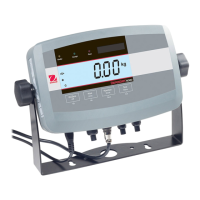
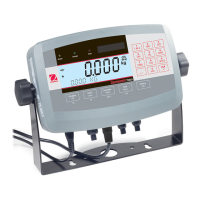
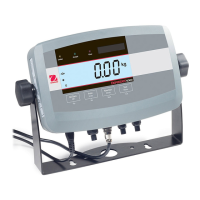
OHAUS T51P - User Manual

OHAUS T51P
61 pages
Print Icon
To Next Page IconTo Next Page
Loading...
i
5000 Series Indicators
Instruction Manual
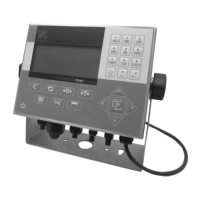
T51XW Indicator
T51P Indicator
www.GlobalTestSupply.com
Find Quality Products Online at: sales@GlobalTestSupply.com

Table of Contents

Other manuals for OHAUS T51P

Questions and Answers

  • D
    danielletateJul 31, 2025
    Why can't I zero my OHAUS T51P Touch Panel scale?
    • S
      Samuel Hernandez Jr.Jul 31, 2025
      If you cannot zero your OHAUS Touch Panel scale, or it won't zero when turned on, it could be due to several reasons. First, check if the load on the scale exceeds the allowable limits and remove any excess load. Second, ensure the load on the scale is stable and wait for it to stabilize. If these steps don't work, there may be load cell damage, requiring professional service.
  • K
    kennethmartinezAug 4, 2025
    What to do if my OHAUS T51P Touch Panel unit will not turn on?
    • J
      Joyce CherryAug 4, 2025
      If your OHAUS Touch Panel unit doesn't turn on, check the following: * Ensure the power cord is properly plugged into both the unit and the power outlet. * Verify the power outlet is supplying electricity. * If using a T51P model, replace the batteries. * If none of these steps work, service may be required.
  • A
    Andrea GordonAug 9, 2025
    Why does my OHAUS T51P Touch Panel show Error 8.3?
    • M
      michaelzimmermanAug 9, 2025
      Error 8.3 on your OHAUS Touch Panel indicates that the weight reading exceeds the overload limit. Reduce the load on the scale to resolve this issue.
  • C
    cperezAug 13, 2025
    What to do if my OHAUS Touch Panel shows Error 8.6?
    • R
      Richard WrightAug 14, 2025
      Error 8.6 on your OHAUS Touch Panel means the weight exceeds six digits, causing a display overflow. To fix this, reduce the load on the scale.
  • B
    brittany00Aug 17, 2025
    What to do if my OHAUS T51P Touch Panel shows Error 8.1?
    • B
      Beth MartinAug 17, 2025
      Error 8.1 on your OHAUS Touch Panel indicates that the weight reading exceeds the Power On Zero limit. Remove the load from the scale and then recalibrate the scale.
  • J
    Joseph BlackAug 22, 2025
    Why does my OHAUS T51P Touch Panel show Error 8.4?
    • A
      Adam WallerAug 22, 2025
      Error 8.4 on your OHAUS Touch Panel means the weight reading is below the Underload limit. To resolve this, add load to the scale and recalibrate it.
  • M
    Michele SimmonsAug 26, 2025
    Why does my OHAUS Touch Panel show Error 8.2?
    • U
      ulucasAug 27, 2025
      Error 8.2 on your OHAUS Touch Panel indicates that the weight reading is below the Power On Zero limit. Add a load to the scale and then recalibrate the scale.

Summary

1. INTRODUCTION

1.1 Safety Precautions

General safety precautions for operating the equipment.

1.3 Control Functions

Explains the functions of the indicator's buttons and their operations.

2. INSTALLATION

3. SETTINGS

3.2 Menu Navigation

Explains how to navigate through the indicator's menus and settings.

3.3 Calibration Menu

Accesses calibration options like Zero, Span, and Linearity.

3.3.1 Zero Calibration

Details the procedure for performing zero calibration on the scale.

3.3.2 Span Calibration

Details the procedure for performing span calibration on the scale.

3.3.3 Linearity Calibration

Details the procedure for performing linearity calibration on the scale.

3.3.4 SPAN Adjust

Explains how to adjust the span range of the scale.

3.3.5 Calibration Test

Describes how to perform a test to compare calibration data.

3.4 Setup Menu

Allows setting core parameters like Range, Capacity, and Graduation.

3.4.3 Capacity

Sets the scale capacity and primary unit of measure.

3.4.4 Graduation

Sets the scale readability or minimum weight increment.

3.4.7 Auto-Tare

Configures automatic tare functionality for weighing operations.

3.4.9 Legal for Trade

Sets the indicator for compliance with trade regulations.

3.5 Readout Menu

Customizes display functionality, including stability and backlight.

3.6 Mode Menu

Activates desired application modes like Weighing, Counting, or Dynamic.

3.6.3 Parts Counting Mode

Enables or disables the parts counting application mode.

3.6.5 Percent Weighing Mode

Enables or disables the percent weighing application mode.

3.6.6 Dynamic Weighing Mode

Enables or disables dynamic weighing for moving objects.

3.6.7 Check Weighing Mode

Enables or disables the check weighing application mode.

3.7 Unit Menu

Activates desired units of measure, e.g., Kilogram, Pound, Gram.

3.8 GMP Menu

Sets data for Good Manufacturing Practice, including Date and Time.

3.9 Print1 and Print2 Menus

Defines printing parameters like content, layout, and format.

3.10 COM1 and COM2 Menus

Defines serial communication parameters like Baud, Parity, and Stop Bit.

3.10.2 Baud

Sets the serial communication baud rate.

3.11 I-O Menu

Configures optional input and output device parameters.

3.11.2 External Input

Sets functions controlled by optional external input devices.

3.12 Menu Lock Menu

Prevents unauthorized changes to menu settings by locking menus.

3.12.2 Lock Calibration

Locks or unlocks the Calibration menu settings.

3.12.3 Lock Setup

Locks or unlocks the Setup menu settings.

3.12.4 Lock Readout

Locks or unlocks the Readout menu settings.

3.12.5 Lock Mode

Locks or unlocks the Mode menu settings.

3.12.6 Lock Unit

Locks or unlocks the Unit menu settings.

3.12.7 Lock Print1

Locks or unlocks the Print1 menu settings.

3.12.8 Lock Print2

Locks or unlocks the Print2 menu settings.

3.12.9 Lock COM1

Locks or unlocks the COM1 menu settings.

3.12.10 Lock COM2

Locks or unlocks the COM2 menu settings.

3.12.11 Lock GMP

Locks or unlocks the GMP menu settings.

3.12.12 Lock I-O

Locks or unlocks the I-O menu settings.

3.13 Key Lock Menu

Prevents unauthorized access to button functions by locking buttons.

3.13.2 Lock All Buttons

Locks or unlocks all buttons on the indicator.

3.14 Security Switch

Explains the function of the security switch on the PCB.

4. OPERATION

4.8 Application Modes

Accesses and explains different application modes.

5. SERIAL COMMUNICATION

6. LEGAL FOR TRADE

6.1 Settings

Steps to perform before verification and sealing for trade use.

7. MAINTENANCE

7.3 Troubleshooting

Lists common symptoms, probable causes, and remedies.

8. TECHNICAL DATA

8.1 Specifications

Detailed technical specifications for T51P and T51XW indicators.

OHAUS T51P Specifications

General IconGeneral
BrandOHAUS
ModelT51P
CategoryTouch Panel
LanguageEnglish

Related product manuals