EasyManua.ls Logo

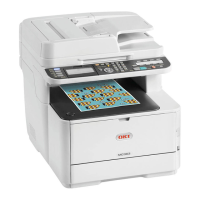
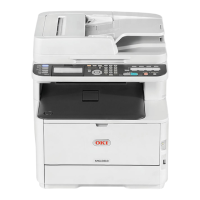
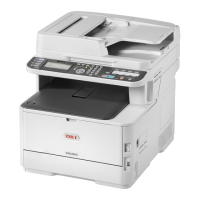
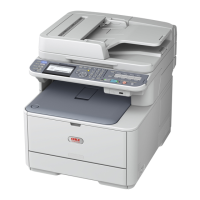
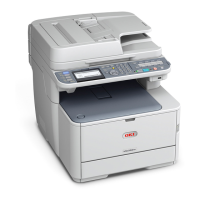
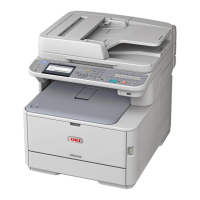
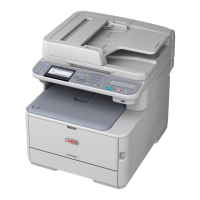
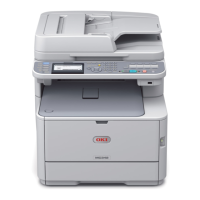
Oki MC363DN - User Manual

Oki MC363DN
152 pages
Print Icon
To Next Page IconTo Next Page
Loading...
MC363dn
User’s Guide

Table of Contents

Other manuals for Oki MC363DN

Questions and Answers

  • A
    Alicia ShawSep 10, 2025
    How to improve poor fax image from Oki MC363DN?
    • J
      Jerry ClarkSep 10, 2025
      If faxing is possible with your Oki All in One Printer, but the image of the document printed by the remote machine is very poor, try changing the fax density settings. Copy the document on the machine to determine how it will transmit.
  • T
    Thomas FloresAug 23, 2025
    What to do if my Oki MC363DN All in One Printer has vertical white lines on the printed page?
    • R
      robertevansAug 23, 2025
      If you're seeing vertical white lines on the printed pages from your Oki All in One Printer, here's what you can do: The LED head might be dirty, so wipe it with a soft, lint-free cloth. The toner could be low; open the output tray and tap the cartridge a few times to evenly distribute any remaining toner. If the problem continues, replace the toner cartridge. Foreign materials may be present in the image drum, so replace the image drum cartridge. The light-shielding film of the image drum cartridge might be dirty; wipe the film with a soft, lint-free cloth.
  • T
    tiffany48Aug 25, 2025
    What causes horizontal lines and spots to appear periodically on Oki All in One Printer?
    • R
      raymond15Aug 25, 2025
      Horizontal lines and spots appearing periodically on your Oki All in One Printer can be caused by several factors: * If the interval is about 94mm (4in), the image drum (the green tube) may be damaged or dirty. Wipe it lightly with a soft cloth. Replace the image drum cartridge when it is damaged. * If the interval is about 30mm (1.2in), there may be foreign particles in the image drum cartridge. Open/close the output tray, and print again. * If the interval is about 86mm (3.4in), the fuser unit may be damaged. Replace the fuser unit. * The image drum cartridge may have been exposed to light. Replace the image drum cartridge if the problem is not resolved.
  • M
    Michelle BurkeAug 27, 2025
    Why are printed images fading vertically on my Oki MC363DN?
    • J
      Jason ThomasAug 27, 2025
      If the printed images from your Oki All in One Printer are fading vertically, it could be because the LED head is dirty; try wiping it with a soft, lint-free cloth. Another reason could be that the toner is low; open the output tray and tap the cartridge a few times to evenly distribute any remaining toner, and if it continues, replace the toner cartridge. Also, the paper might not be suitable for the printer, so use recommended paper.
  • P
    Patricia JohnstonAug 27, 2025
    What to do if toner comes off when rubbed on Oki MC363DN prints?
    • P
      Patrick DickersonAug 27, 2025
      If the toner comes off when rubbed on prints from your Oki All in One Printer, the thickness and type of the paper may be incorrectly set. Set the correct value of media type and media weight in the Media menu or set one value lighter for media weight. Also, if you're using recycled paper, set one value thicker for media weight in the Media menu.
  • G
    Gabriela PowersAug 29, 2025
    What causes partially faded images on Oki All in One Printer?
    • J
      John SnyderAug 29, 2025
      Partially faded images, with white spots and lines appearing in solid printing on your Oki All in One Printer, can be caused by paper that is either too moist or too dry. Make sure to use paper stored in proper temperature and humidity conditions.
  • A
    Austin OrozcoSep 18, 2025
    What to check if Oki MC363DN will not poll a remote machine?
    • W
      wendy50Sep 18, 2025
      If your Oki All in One Printer will not poll a remote machine, call the person at the remote machine and make sure that they have loaded documents and that their machine is set to polling transmission mode.
  • K
    Kristin ObrienSep 22, 2025
    How to enable dial out on Oki MC363DN All in One Printer connected to a PBX?
    • S
      Shelley FoxSep 22, 2025
      If your Oki All in One Printer is connected to a PBX but it is not possible to dial out, be certain that the dial prefix is entered before the telephone number for each number dialled or programmed into the machine. Additionally, the machine must be programmed for PBX operation before it will work with a PBX.
  • M
    Mrs. Dawn CampbellSep 7, 2025
    What to check if Oki All in One Printer will not dial a telephone number?
    • P
      Paul ArnoldSep 7, 2025
      If your Oki All in One Printer will not dial a telephone number, check the power cable and wall outlet. Make sure that the telephone line (not external telephone or handset) is connected to the LINE socket on the back of the machine. If an external telephone is installed, lift the handset and check for a dial tone.
  • J
    jjohnsonSep 4, 2025
    What to do if my Oki All in One Printer doesn't print all pages?
    • M
      Martha RosalesSep 4, 2025
      If your Oki All in One Printer is not printing all pages, it might be because a WSD port is being used. Change the port to the standard TCP/IP port.

Summary

Notes, Cautions and Warnings

Overview

Control Panel

Explains the buttons and display on the machine's control panel.

Getting Started

Turning On Your Machine

Instructions for powering on the machine.

Turning Off Your Machine

Instructions for powering off the machine.

Installing Drivers and Utilities

Windows - Scanner and Printer Drivers

Guide for installing drivers on Windows operating systems.

Mac - Printer Driver

Guide for installing printer drivers on macOS.

Fax Driver

Instructions for installing the fax driver.

Paper Recommendations

Loading Paper

Cassette Trays

Step-by-step guide for loading paper into the cassette trays.

Multi Purpose Tray

Instructions for loading paper into the multi-purpose tray.

User Authentication and Access Control

PIN Authentication

Steps for logging into the machine using a PIN.

User Name and Password Authentication

Steps for logging into the machine using a username and password.

Operation from the Computer

Printing from Windows

How to print documents from Windows PCs.

Printing from Mac

How to print documents from Mac computers.

Faxing (Windows only)

How to send faxes from Windows PCs.

Loading Document(s)

Placing Document(s) in the ADF

Instructions for placing documents in the Automatic Document Feeder.

Placing Document(s) on the Glass

Instructions for placing documents on the document glass.

Copying

Basic Operation

Fundamental steps for performing copying tasks.

Scanning

Installing Scanner Drivers (TWAIN;WIA;ICA Driver)

Procedure for installing scanner drivers for various operating systems.

Managing Profiles

Managing the Address Book

Creating E-mail Templates

Adding an E-mail Address Entry to the Address Book

Deleting an E-mail Address Entry from the Address Book

Modifying an E-mail Address Entry from the Address Book

Adding a Group Entry to the Address Book

Deleting a Group Address Entry from the Address Book

Modifying a Group Address Entry from the Address Book

Printing

Faxing

Sending a Fax from the MFP

Basic steps for sending faxes directly from the machine.

Internet Fax

Instructions for sending faxes from a PC via the internet.

Maintenance

Replacing Consumable Items

General information on replacing consumables.

Toner Cartridge Replacement

Detailed steps for replacing toner cartridges.

Image Drum Replacement

Instructions for replacing the image drum assembly.

Replacing the Transfer Belt Unit

Steps to replace the transfer belt unit.

Fuser Replacement

Instructions for replacing the fuser unit.

Cleaning

Installing Upgrades

Wireless LAN Module

Instructions for installing the wireless LAN module.

Troubleshooting

Clearing Paper Jams

Instructions for clearing paper jams.

Dealing with Unsatisfactory Printing

Dealing with Unsatisfactory Copying

Fax Problem Checklist

Oki MC363DN Specifications

General IconGeneral
Duplex printingYes
Print technologyLED
Time to first page (black, normal)8.5 s
Time to first page (color, normal)9 s
Print speed (black, normal quality, A4/US Letter)30 ppm
Print speed (color, normal quality, A4/US Letter)26 ppm
Copier resize25 - 400 %
Maximum copy resolution600 x 600 DPI
Maximum number of copies99 copies
Time to first copy (black, normal)12 s
Time to first copy (color, normal)14 s
Copy speed (black, normal quality, A4)30 cpm
Copy speed (color, normal quality, A4)26 cpm
Scan toCIFS, E-mail, FTP, HTTP, PC, USB
Scan driversICA, TWAIN, WIA
Scanner type-
Scan speed (black)30 inch/min
Image formats supportedJPG, MMR, RAW
Document formats supportedPDF
Fax memory8000 pages
Modem speed33.6 Kbit/s
Fax transmission speed2 sec/page
Fax speed dialing (max numbers)300
Printing colorsBlack, Cyan, Magenta, Yellow
Maximum duty cycle45000 pages per month
Recommended duty cycle0 - 5000 pages per month
Number of print cartridges4
Page description languagesEpson FX, IBM ProPrinter, Microsoft XPS, PCL 5c, PCL 6, PDF 1.7, PostScript 3, SIDM
Paper input typePaper tray
Total input capacity250 sheets
Total output capacity150 sheets
Maximum input capacity880 sheets
Total number of input trays1
Maximum number of input trays2
Multi-Purpose tray input capacity100 sheets
Auto document feeder (ADF) input capacity50 sheets
Envelopes sizes9, 10, C5, DL, Monarch
Photo paper sizes10x15, 12.5x17.5 cm
Custom media width64 - 216 mm
Custom media length90 - 356 mm
Paper tray media weight64 - 176 g/m²
Non-ISO print media sizes16K, Executive (184 x 267mm), Folio (media size), Index card, Statement (140 x 216mm)
ISO A-series sizes (A0...A9)A4, A5, A6
ISO B-series sizes (B0...B9)B5, B6
Photo paper sizes (imperial)4x6, 5x7 \
Multi-purpose tray media typesEnvelopes
Maximum ISO A-series paper sizeA4
Multi-Purpose Tray media weight64 - 220 g/m²
Auto Document Feeder (ADF) media weight60 - 105 g/m²
DisplayLCD
Product colorBlack, White
Display resolution320 x 128 pixels
Market positioningBusiness
Wi-FiNo
Cabling technology10/100/1000Base-T(X)
Ethernet LAN data rates10, 100, 1000 Mbit/s
Mobile printing technologiesApple AirPrint, Google Cloud Print
Standard interfacesEthernet, RJ-11, USB 2.0
Optional connectivityWireless LAN
AC input voltage220 - 240 V
AC input frequency50 - 60 Hz
Power consumption (max)1170 W
Power consumption (off)0.5 W
Power consumption (sleep)1.5 W
Power consumption (PowerSave)20 W
Power consumption (average operating)570 W
Mac operating systems supportedMac OS X 10.10 Yosemite, Mac OS X 10.11 El Capitan, Mac OS X 10.9 Mavericks
Server operating systems supportedWindows Server 2008, Windows Server 2008 R2, Windows Server 2008 R2 x64, Windows Server 2008 x64, Windows Server 2012, Windows Server 2012 R2, Windows Server 2012 R2 x64, Windows Server 2012 x64
Windows operating systems supportedWindows 10 Education, Windows 10 Education x64, Windows 10 Enterprise, Windows 10 Enterprise x64, Windows 10 Home, Windows 10 Pro, Windows 10 Pro x64, Windows 7 Enterprise, Windows 7 Enterprise x64, Windows 7 Home Basic, Windows 7 Home Basic x64, Windows 7 Home Premium, Windows 7 Home Premium x64, Windows 7 Professional, Windows 7 Professional x64, Windows 7 Starter, Windows 7 Starter x64, Windows 7 Ultimate, Windows 7 Ultimate x64, Windows 8, Windows 8 Enterprise, Windows 8 Enterprise x64, Windows 8 Pro, Windows 8 Pro x64, Windows 8 x64, Windows 8.1, Windows 8.1 Enterprise, Windows 8.1 Enterprise x64, Windows 8.1 Pro, Windows 8.1 Pro x64, Windows 8.1 x64, Windows Vista Business, Windows Vista Business x64, Windows Vista Enterprise, Windows Vista Enterprise x64, Windows Vista Home Basic, Windows Vista Home Basic x64, Windows Vista Home Premium, Windows Vista Home Premium x64, Windows Vista Ultimate, Windows Vista Ultimate x64
Storage temperature (T-T)0 - 43 °C
Operating temperature (T-T)10 - 32 °C
Storage relative humidity (H-H)10 - 90 %
Operating relative humidity (H-H)20 - 80 %
Weight and Dimensions IconWeight and Dimensions
Depth509 mm
Width427 mm
Height444 mm

Videos

How to refill OKI C332, C332dn, C332dnw, MC363, MC363dn and MC363dnw laser printers

Related product manuals