EasyManua.ls Logo

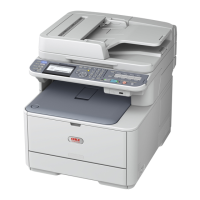
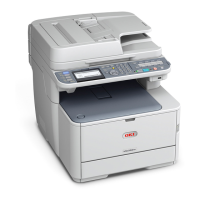
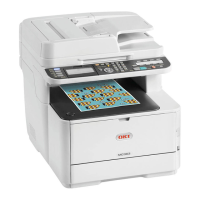
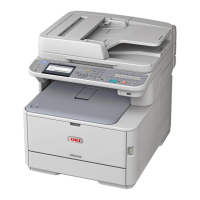
Oki MC363 - User Manual

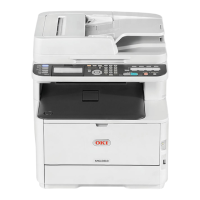
Oki MC363
153 pages
Print Icon
To Next Page IconTo Next Page
Loading...
MC363dn/MC363dnw
User’s Guide

Table of Contents

Other manuals for Oki MC363

Questions and Answers

  • S
    Seth KellyAug 21, 2025
    What to do if the copied output size is different from the original document size on my Oki All in One Printer?
    • Y
      ywrightAug 21, 2025
      If the copied output size differs from the original document size on your Oki All in One Printer, ensure that the proper size paper for the document is loaded in the paper tray. Also, verify that the zoom rate is properly set and that [Repeat] is set to [OFF].
  • J
    Joshua WestAug 25, 2025
    What to do if a copy job is cancelled on Oki All in One Printer?
    • B
      bushwesleyAug 25, 2025
      If a copy job is cancelled on your Oki All in One Printer, it may be due to an error. Clear the error and try copying again. If you're using the MP tray, ensure enough paper is loaded before starting. Press the (SETTING) button, select [Paper Setup] > [Select Tray] > [Copy] > [MP Tray], and check that [ON] or [ON(Prior)] is selected.
  • N
    Nicole TuckerAug 26, 2025
    How to fix incorrect network connection settings while printing with my Oki All in One Printer?
    • A
      Andrew GrantAug 26, 2025
      To fix incorrect network connection settings while printing with your Oki All in One Printer: * If you are using a cross cable, use a straight cable instead. * Ensure cables are connected before turning the machine on. * If there is a problem with hub compatibility, press the (SETTING) button, select [Admin Setup] > [Network Menu] > [Network Setup] > [Network Setting] > [HUB Link Setting], and then change the setting. * To connect to a wired network, set [Wired] for the network connection to [Enable].
  • M
    Margaret ReyesAug 28, 2025
    How to fix the IP address if it is incorrect while printing from my Oki All in One Printer?
    • J
      Jonathan GreenAug 28, 2025
      To resolve an incorrect IP address while printing from your Oki All in One Printer: * Check that the same IP address is set for the machine and the machine's port setting on the computer. * Ensure the IP address is not duplicated by another device. * Verify that the correct IP address, subnet mask, and gateway address are set. * If using OKI LPR Utility, check the IP address setting with OKI LPR Utility.
  • M
    Mr. Douglas FrenchAug 30, 2025
    Why is the copied output different from the original document on my Oki All in One Printer?
    • K
      Kirsten DawsonAug 30, 2025
      If the copied output differs from the original document on your Oki All in One Printer, check if [Duplex Copy] is set to [OFF(Simplex)] and [Mixed Size] is set to [OFF].
  • M
    Mark WilsonSep 1, 2025
    What to do if a part of the document image is missing on the copied output from my Oki All in One Printer?
    • J
      Joshua PaceSep 1, 2025
      If a part of the document image is missing on the copied output from your Oki All in One Printer, ensure that [Edge Erase], [Margin], and [N-in-1] are all set to [OFF].
  • M
    Michael FarleySep 3, 2025
    Why is my Oki All in One Printer taking a long time to start copying?
    • A
      adam54Sep 3, 2025
      If your Oki All in One Printer is taking a long time to start copying, it might be in the process of preparing. If [Warming Up] or [Preparing] is displayed on the screen, wait until the process is complete and the copy starts.
  • D
    Deborah ClarkSep 5, 2025
    How to resolve 'Connect to PC failed' message on my Oki All in One Printer?
    • J
      Jennifer TorresSep 5, 2025
      If you see the message "Connect to PC failed" on your Oki All in One Printer, it could be due to a changed IP address on the computer, the computer not being turned on, or the computer not being connected to a network. To resolve this, re-register the computer to the machine, ensure the computer is turned on, and verify the network connection.
  • H
    Heidi WilliamsSep 7, 2025
    How to fix 'unable to send or receive a fax' on my Oki All in One Printer?
    • J
      Justin DavisSep 7, 2025
      If you are unable to send or receive a fax on your Oki All in One Printer and have installed an IP phone in a broadband environment, press the (SETTING) button on the operator panel, and then select [Admin Setup] > [User Install] > [Super G3] > [OFF].
  • J
    Jared WilliamsSep 10, 2025
    Why is the received fax not printed on the appropriate paper on my Oki All in One Printer?
    • R
      Robin BarrettSep 10, 2025
      If the received fax is not printed on the appropriate paper on your Oki All in One Printer, check if you specified any paper type other than [Plain] or [Recycled] in [Media Type]. If so, specify [Plain] or [Recycled] in [Media Type] for the paper type in the tray.

Oki MC363 Specifications

General IconGeneral
FunctionsPrint, Copy, Scan, Fax
Print TechnologyLED
Fax Modem Speed33.6 kbps
Monthly Duty CycleUp to 45, 000 pages
Duplex PrintingYes
Weight29 kg
Print Resolution1200 x 1200 dpi
Scan ResolutionUp to 600 x 600 dpi
ConnectivityUSB 2.0, Ethernet, Wireless
Paper Capacity250 sheets (standard tray)

Related product manuals