EasyManua.ls Logo

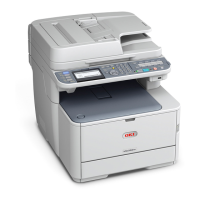
Oki MC342dn - User Manual

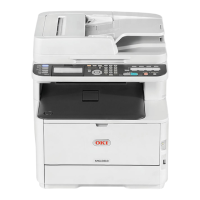
Oki MC342dn
194 pages
Print Icon
To Next Page IconTo Next Page
Loading...
MC332dn, MC342dn, MC342dw, MC352dn,
MC362dn, MC362w, MC562dn, MC562w,
MC562dw, ES3452 MFP, ES5462 MFP,
ES5462dw MFP, MPS2731mc
User’s Guide

Table of Contents

Other manuals for Oki MC342dn

Questions and Answers

  • E
    Elizabeth AndersonAug 19, 2025
    Why is my Oki MC342dn All in One Printer printing so light?
    • S
      Sandra FriedmanSep 12, 2025
      Light printing on your Oki All in One Printer can occur for several reasons. The toner cartridge might not be correctly installed—try reinstalling it. The toner could also be low; open the top cover and gently tap the cartridge to redistribute the toner. If the issue continues, replace the toner cartridge. The paper could be moist, so use paper stored in proper temperature and humidity. Also, ensure you are using recommended paper and that the media type and weight settings are correct in the Media menu. If you're using recycled paper, try setting a thicker media weight in the Media menu.
  • P
    Patricia MasonAug 21, 2025
    How to fix vertical white lines on Oki MC342dn All in One Printer?
    • C
      Christopher OlsonAug 21, 2025
      Vertical white lines on printed pages from your Oki All in One Printer can be due to several factors. The LED head might be dirty, so wipe it with a soft, lint-free cloth. The toner could be low; open the top cover and tap the cartridge to evenly distribute the remaining toner, and if the problem persists, replace the cartridge. Foreign materials in the image drum or a dirty light-shielding film on the image drum cartridge can also cause this issue. In these cases, replace the image drum cartridge or wipe the film with a soft, lint-free cloth.
  • U
    uwoodAug 23, 2025
    What to do if my Oki MC342dn All in One Printer prints vertical lines?
    • A
      alexiswatkinsAug 23, 2025
      If your Oki All in One Printer is producing vertical lines, it could be due to a damaged image drum cartridge; if so, replace it. Another cause could be low toner. Try opening the top cover and tapping the toner cartridge a few times to evenly distribute the toner. If the lines persist, replace the toner cartridge.
  • J
    Judith FuentesAug 26, 2025
    Why are printed images fading vertically on my Oki MC342dn?
    • H
      huynhalexandriaAug 26, 2025
      Vertical fading in printed images from your Oki All in One Printer may be caused by a dirty LED head; clean it with a soft, lint-free cloth. Another possibility is low toner. Try opening the top cover and tapping the cartridge a few times to redistribute the toner. If the fading continues, replace the toner cartridge. Also, ensure that you are using paper recommended for the printer.
  • B
    Brian MejiaAug 27, 2025
    How do I resolve horizontal lines and spots on my Oki All in One Printer prints?
    • M
      Matthew CruzAug 28, 2025
      Periodic horizontal lines and spots on your Oki All in One Printer output can indicate several issues. If the interval is about 94mm, the image drum may be damaged or dirty; try wiping it lightly with a soft cloth, and replace it if damaged. If the interval is about 30mm, there might be foreign particles in the image drum cartridge; try opening and closing the top cover and printing again. If the interval is about 86mm, the fuser unit may be damaged and require replacement. Also, if the image drum cartridge has been exposed to light, replacing it might resolve the issue.
  • N
    Nathan HammondAug 29, 2025
    Why is the white area of paper lightly stained when printing with my Oki MC342dn?
    • B
      Brian WashingtonAug 29, 2025
      Light staining in the white areas of paper from your Oki All in One Printer can occur if the paper contains static; use paper stored in proper temperature and humidity conditions. It can also happen if the paper is too thick; try using thinner paper. Low toner can also cause this; open the top cover, tap the cartridge to distribute the toner, and replace it if needed.
  • M
    Mary CooleySep 1, 2025
    Why does the toner come off when rubbed on prints from my Oki MC342dn All in One Printer?
    • M
      Michelle ParkerSep 1, 2025
      If toner is easily rubbed off prints from your Oki All in One Printer, the paper's thickness and type might be incorrectly set. Adjust the media type and weight in the Media menu, setting one value lighter for media weight. This issue can also arise when using recycled paper; in this case, set one value thicker for media weight in the Media menu.
  • B
    Brenda SnyderSep 3, 2025
    What causes partially faded images with white spots and lines on my Oki MC342dn All in One Printer?
    • A
      Ashley VillaSep 3, 2025
      Partially faded images with white spots and lines appearing in solid prints from your Oki All in One Printer can be due to paper that is either too moist or too dry. Ensure you are using paper stored in proper temperature and humidity conditions to resolve this issue.
  • E
    Edward CarrSep 5, 2025
    Why is the periphery of the letters smudged when printing with my Oki MC342dn All in One Printer?
    • J
      Jennifer TranSep 5, 2025
      If the periphery of letters is smudged when printing with your Oki All in One Printer, the LED head may be dirty. Wipe the LED head with a soft, lint-free cloth to resolve this issue.
  • A
    Ashley SheltonSep 7, 2025
    Why is the glossiness not uniform on prints from my Oki MC342dn All in One Printer?
    • R
      Ryan MendozaSep 7, 2025
      Non-uniform glossiness on prints from your Oki All in One Printer can occur if the paper's thickness and type are incorrectly set. Adjust the media type and weight in the Media menu, setting one value lighter for media weight to correct this.

Oki MC342dn Specifications

General IconGeneral
Print technologyLED
Maximum resolution- DPI
Time to first page (black, normal)8.5 s
Time to first page (color, normal)9 s
Print speed (black, normal quality, A4/US Letter)22 ppm
Print speed (color, normal quality, A4/US Letter)20 ppm
Copier resize20 - 400 %
Maximum copy resolution600 x 600 DPI
Maximum number of copies99 copies
Time to first copy (black, normal)12 s
Time to first copy (color, normal)14 s
Copy speed (black, normal quality, A4)19 cpm
Scan toCIFS, E-mail, FTP, USB
Input color depth48 bit
Output color depth24 bit
Scan speed (black)30 ppm
Image formats supportedJPEG XR
Document formats supportedPDF
Optical scanning resolution1200 x 1200 DPI
FaxingMono faxing
Fax memory4 MB
Modem speed33.6 Kbit/s
Fax transmission speed3 sec/page
Digital sender-
Maximum duty cycle30000 pages per month
Page description languagesEpson FX, PCL 5c, PCL 6, PostScript 3, SIDM
Total input capacity250 sheets
Total output capacity150 sheets
Maximum input capacity350 sheets
Multi-Purpose tray input capacity100 sheets
Paper tray media typesEnvelopes
ISO A-series sizes (A0...A9)A4, A5, A6
ISO B-series sizes (B0...B9)B5
ISO C-series sizes (C0...C9)C5
Maximum ISO A-series paper sizeA4
Control typeTouch
Product colorGray
Display resolution320 x 128 pixels
Market positioningBusiness
Standard interfacesUSB 2.0
USB 2.0 ports quantity2
Wi-FiNo
Supported network protocols (IPv4)SMTP, POP3, HTTP, SNMPv1&v3, DHCP, DNS, LPR, Port9100, BOOTP, ARP, FTP, CIFS, LDAP, SLP, Bonjour, NetWare, EtherTalk, NetBEUI, LLTD, Web Service on Devices
Internal memory256 MB
Maximum internal memory768 MB
Sound power level (standby)33 dB
Sound pressure level (copying)52 dB
AC input voltage220 - 240 V
AC input frequency50 - 60 Hz
Power consumption (off)0.5 W
Power consumption (standby)1.5 W
Power consumption (PowerSave)20 W
Power consumption (average operating)500 W
Mac operating systems supportedMac OS X 10.3 Panther, Mac OS X 10.4 Tiger, Mac OS X 10.5 Leopard, Mac OS X 10.6 Snow Leopard, Mac OS X 10.7 Lion, Mac OS X 10.8 Mountain Lion
Server operating systems supportedWindows Server 2003, Windows Server 2003 x64, Windows Server 2008, Windows Server 2008 x64
Windows operating systems supportedWindows 7 Home Basic, Windows 7 Home Basic x64, Windows 7 Home Premium, Windows 7 Home Premium x64, Windows 7 Professional, Windows 7 Professional x64, Windows 7 Starter, Windows 7 Starter x64, Windows 7 Ultimate, Windows 7 Ultimate x64, Windows 8, Windows 8 Enterprise, Windows 8 Enterprise x64, Windows 8 Pro, Windows 8 Pro x64, Windows 8 x64, Windows Vista Business, Windows Vista Business x64, Windows Vista Enterprise, Windows Vista Enterprise x64, Windows Vista Home Basic, Windows Vista Home Basic x64, Windows Vista Home Premium, Windows Vista Home Premium x64, Windows Vista Ultimate, Windows Vista Ultimate x64, Windows XP Home, Windows XP Home x64, Windows XP Professional, Windows XP Professional x64
Weight and Dimensions IconWeight and Dimensions
Depth509 mm
Width427 mm
Height444 mm

Related product manuals