OFX 9700
- 51 -
11 - PC Features
Send a fax
Send a fax from the hard disk or the terminal
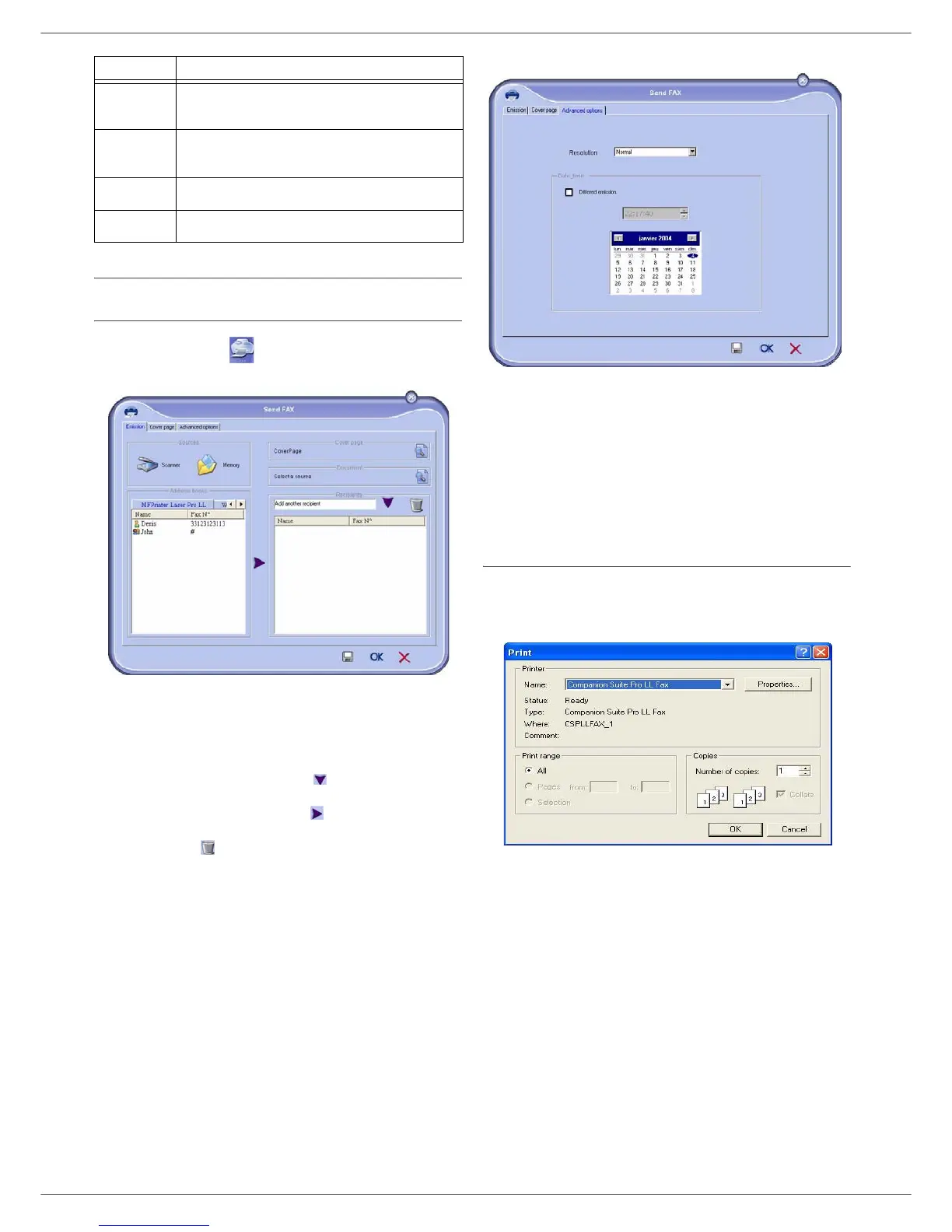
1 Click the icon of the window MF DIRECTOR.
2 Click N
EW then click FAX.
3 Select in zone S
OURCES:
- S
CANNER if your document is in paper format.
- MEMORY if the document is a computer file located on
your hard disk (this file must be in TIFF or FAX format)
.
4
To send your fax to a contact, enter his number in the
field
RECIPIENTS and click on or select a contact (or
group) from one of the directories in the field
ADDRESS
BOOK and click on the button .
Repeat this operation as many times as necessary (use
the button
to delete a contact from the list of
contacts).
5 If necessary, adjust the advanced options (send later and
resolution) in the tab
ADVANCED OPTIONS.
6
To add a cover sheet, select the tab COVER PAGE then
click the box W
ITH THE COVER PAGE. Select the cover
sheet you want to add from the pop-down menu, or
create a new one. For more information
, refer to
paragraph Cover sheet, page 54.
7
Click OK to send your fax to all contacts in your list of
contacts.
Your send request can then be checked, if necessary, in the
outbox
.
Send a fax from application
This method is used to directly send a document you have
created using a desktop software without printing it beforehand
.
1
From your desktop software, select FILE > PRINT.
6
Stop sending a fax (only enabled for the
outbox)
.
7
Display all faxes in the selected directory in the
Fax manager.
8 Fax preview.
9
Fax manager directories.
Item Action












 To Next Page