
 Need help?
Do you have a question about the Olivetti SIMPLE_WAY and is the answer not in the manual?
Overview of the multi-functional ink jet printer's functions, including printing, scanning, and copying.
Instructions on how to access the comprehensive online help feature for detailed printer information.
Crucial safety guidelines for operating the printer to prevent hazards and ensure proper usage.
Information on using original ink cartridges for optimal print quality and warranty validity.
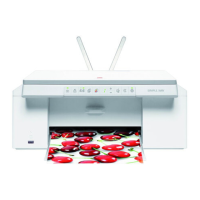
Diagram and identification of the various components of the printer for user familiarity.
Detailed explanation of the printer's front panel buttons, icons, and status indicators for operation.
Step-by-step guide on how to properly place documents or photos on the scanner glass for scanning.
Guide on how to load paper into the printer, including proper orientation and guide adjustment.
Procedure for connecting the power supply unit and turning the printer on for the first time.
Information on the status lights and indicators on the printer's front panel and their meanings.
Steps for connecting a digital camera directly to the printer for photo printing via USB.
Guide for installing and setting up the printer for wireless printing using Bluetooth technology.
Instructions for installing and printing via Bluetooth from Windows and Macintosh computers.
Steps to install and configure the printer for wireless network (Wi-Fi) connectivity.
Details on connecting the printer via Wi-Fi using Ad Hoc or Infrastructure modes.
Guide on how to perform copying operations using the printer's control panel or software.
Steps for creating and printing a photo index from connected digital cameras.
Instructions for printing photos directly from a PictBridge-compatible digital camera.
How to print photos from digital cameras using DPOF (Digital Print Order Format) information.
Procedure for printing photos from digital cameras not supporting PictBridge or DPOF standards.
Guide for printing photos wirelessly from Bluetooth-enabled devices like mobile phones.
Initial checks and prerequisites for connecting and using the printer with a computer.
Introduction to the Olivetti Toolbox application for managing printer functions and settings.
Explanation of the Printer Status Monitor software for tracking print jobs and ink levels.
Detailed functions of the Toolbox for printing photos, copying, and scanning documents.
How to print documents from applications using printer driver properties and settings.
Guide to scanning documents or photos from within your computer applications using the printer driver.
Instructions for initiating scans directly from the printer's front panel.
Steps to adjust settings for optimizing photo print quality through the Toolbox.
Configuration steps for connecting the printer to a wireless network (Wi-Fi).
Explanation of network address parameters (IP, subnet mask, gateway) for printer network recognition.
Guide to managing the printer via its web server interface for network configuration and status checks.
Configuration steps for enabling and managing Bluetooth connectivity for printing.
Methods to check the current ink levels in the printer cartridges via software or status monitor.
Step-by-step guide for safely removing and installing new ink cartridges into the printer.
Procedure for aligning ink cartridges to ensure optimal print quality after replacement.
Instructions for swapping black and photo ink cartridges using the dedicated cartridge garage.
Guidelines for cleaning the printer's exterior casing, scanner cover, and glass.
Steps to clean printer nozzles to resolve print quality issues like streaks or faded colors.
Comprehensive troubleshooting section addressing common printer problems and their solutions.
Solutions for common issues encountered during the initial printer setup and installation process.
Troubleshooting steps for common printing issues like no print, incomplete jobs, or incorrect output.
Solutions for problems related to copying and scanning operations, including noise and output quality.
Explanation of the printer's front panel LEDs, error codes, and status indications.
Instructions on how to safely remove jammed paper from the printer to resume operation.
Overview of the printer's general specifications, including dimensions, weight, power, and system requirements.
Detailed specifications related to the printer's technology, resolution, functions, and printing modes.
Technical details regarding the printer's copying capabilities, resolution, and modes.
Technical details regarding the printer's scanning capabilities, type, resolution, and functions.
Technical specifications for the printer's wireless (Wi-Fi) system, including interface, speed, and security.
Information on supported paper types, weights, and maximum feed capacities for printing.
Details on the various paper formats and their corresponding dimensions supported by the printer.
 General
| Print technology | Inkjet |
|---|---|
| Maximum resolution | 4800 x 1200 DPI |
| Print speed (black, normal quality, A4/US Letter) | 20 ppm |
| Print speed (color, normal quality, A4/US Letter) | 18 ppm |
| Digital sender | No |
| Number of print cartridges | 6 |
| Input color depth | 24 bit |
| PC free copying | Yes |
| Maximum copy resolution | 1200 x 1200 DPI |
| Copy speed (black, normal quality, A4) | 20 cpm |
| Copy speed (color, normal quality, A4) | 18 cpm |
| Display | LCD |
| Display diagonal | 2.4 \ |
| Market positioning | Home & office |
| Maximum print size | 100 x 150 mm |
| Paper tray media types | Envelopes, Iron-On Transfers, Labels, Photo paper |
| ISO A-series sizes (A0...A9) | A4 |
| Compatibility | IN502, IN501, IN504, IN503, IN506, IN505 |
| Dimensions (WxDxH) | 332 x 433 x 186 mm |
| All-in-one functions | Copy, Scan |
| Color all-in-one functions | copy, print |
| Compatible operating systems | Microsoft Windows 98 SE, ME, 2000, XP MAC OSX 10.2 |
| USB 2.0 ports quantity | 1 |










 To Next Page
