Alt–Tab to switch to another open activity, in the same order the activities appear in the Home circle
Alt–1 to save a snapshot of the screen into the Journal
F1 Neighborhood View Key
F2 Group View Key
F3 Home View Key
F4 Activities View Key
Alt–r to rotate the screen
Ctrl–Alt–F1 to open console 1
Ctrl–Alt–F2 to open console 2
Ctrl–Alt–F3 to open X Windows (Sugar)
Related links
Keyboard Shortcuts
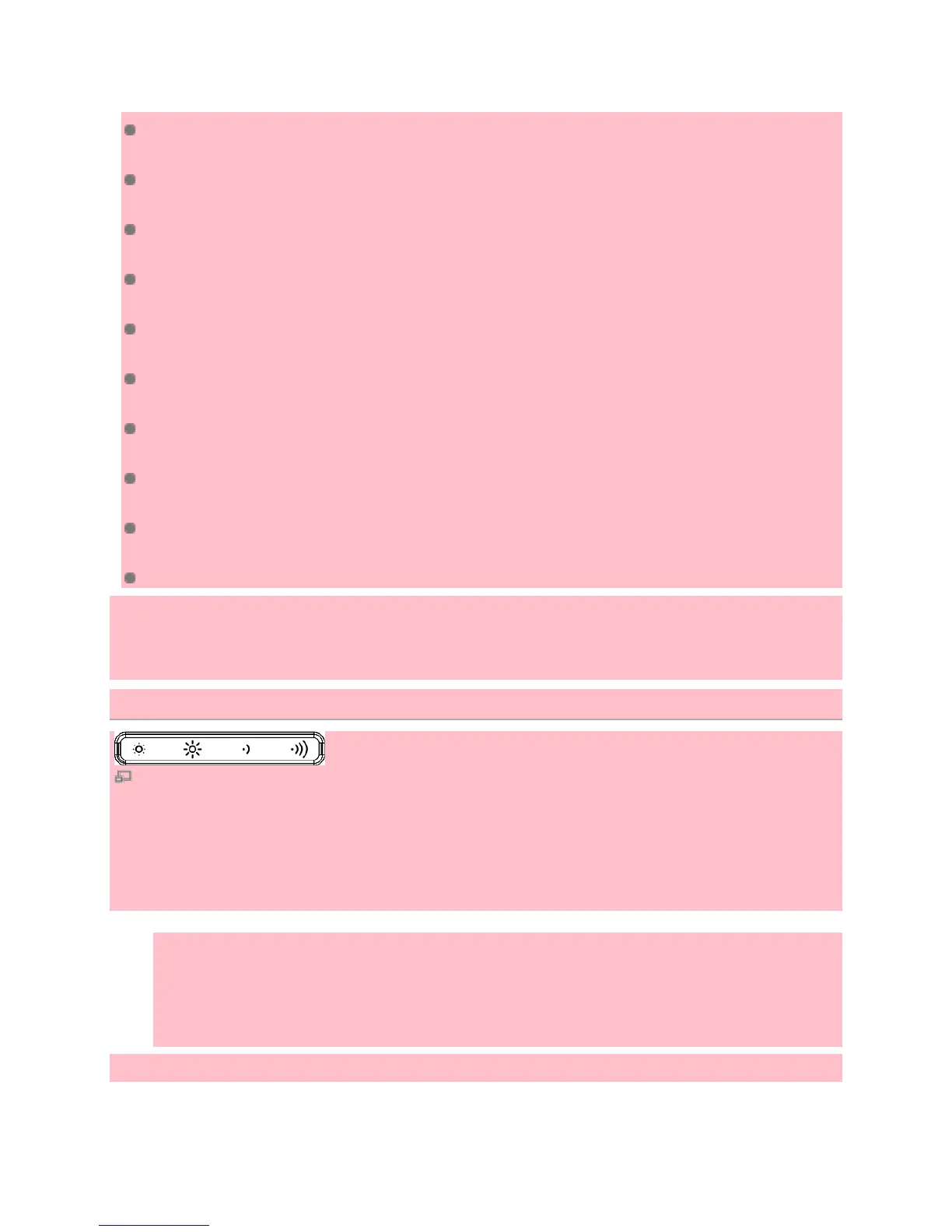
Viewing the XO screen in sunlight and adjusting the volume
Brightness & volume keys
The top row of the XO keyboard has three long buttons.
The long button on the far right controls the lighting and sound on the display.
The left two keys control the lighting.
1. Press the small sun key to dim the backlight; press this key repeatedly to put the display into
black and white mode, which saves power.
2. Press the large sun key to increase the brightness of the backlight; press this key repeatedly to
go to color mode.
The two keys on the right of this long button control the sound.


 To Next Page