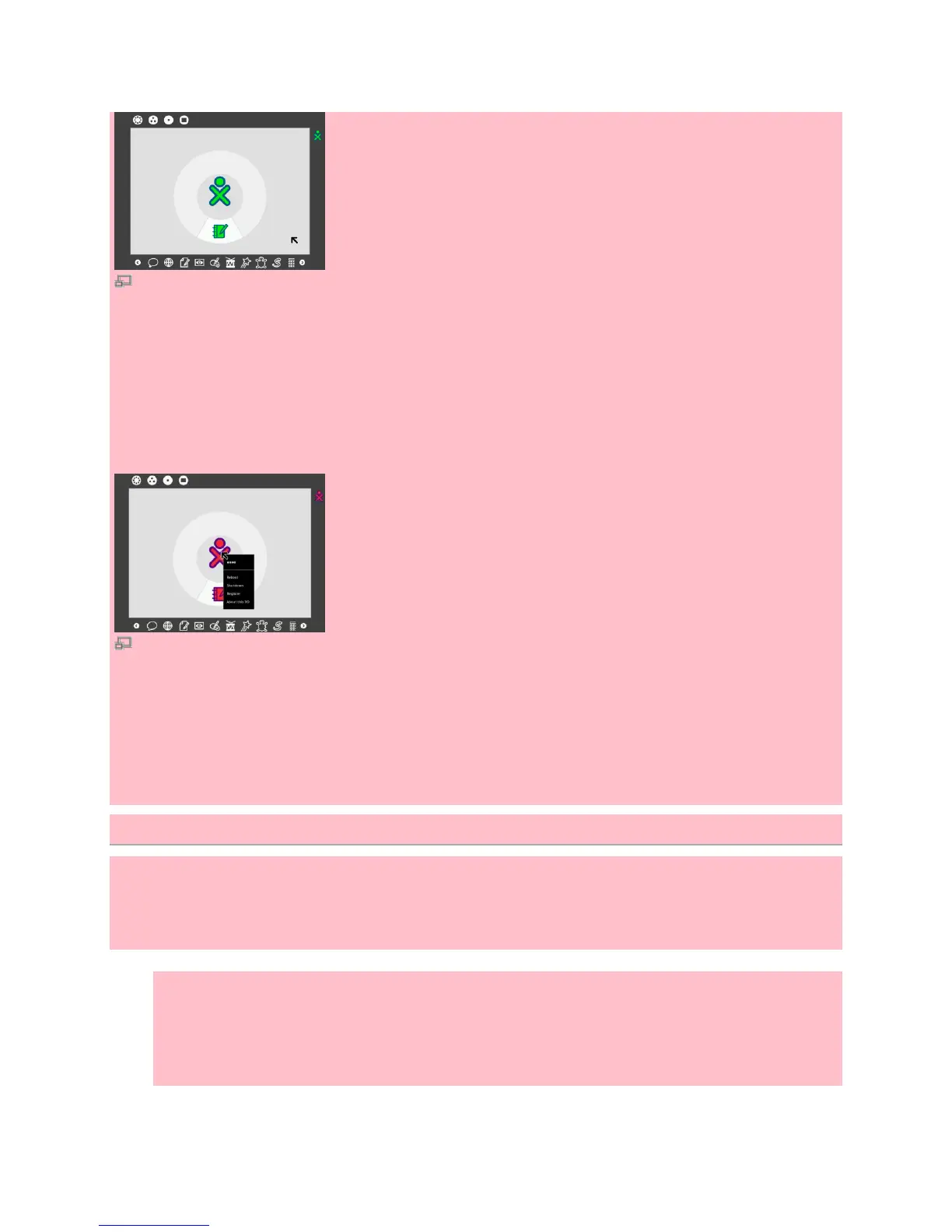
Your screen looks like this when the laptop is ready to begin.
Shutting down
When you're done using the computer, go to the Home view, and then hover the pointer over the middle
XO icon until you see a menu. Next, choose to Shutdown to ensure your laptop stops properly.
The Reboot and Shutdown options appear when you hover your mouse over the XO icon in the Home
view.
You can also shut down by pressing and holding the power button for a few seconds, but it's better for the
computer to shut down from the Home view. Be careful that your power button does not get "stuck" in the
down position.
Connecting your XO to the network
Thanks to network connections, you can use your XO to explore distant places while you stay at home.
Your XO connects to and works with with other XOs. To get a wireless network connection, follow these
steps:
1. Press fn 1 or the Neighborhood button at the top of the keyboard to go to the Neighborhood
View.
2. Roll the pointer over one of the network access circles until you recognize the name of the
wireless network. A circle with a lock icon requires a wireless key (a password.)


 To Next Page