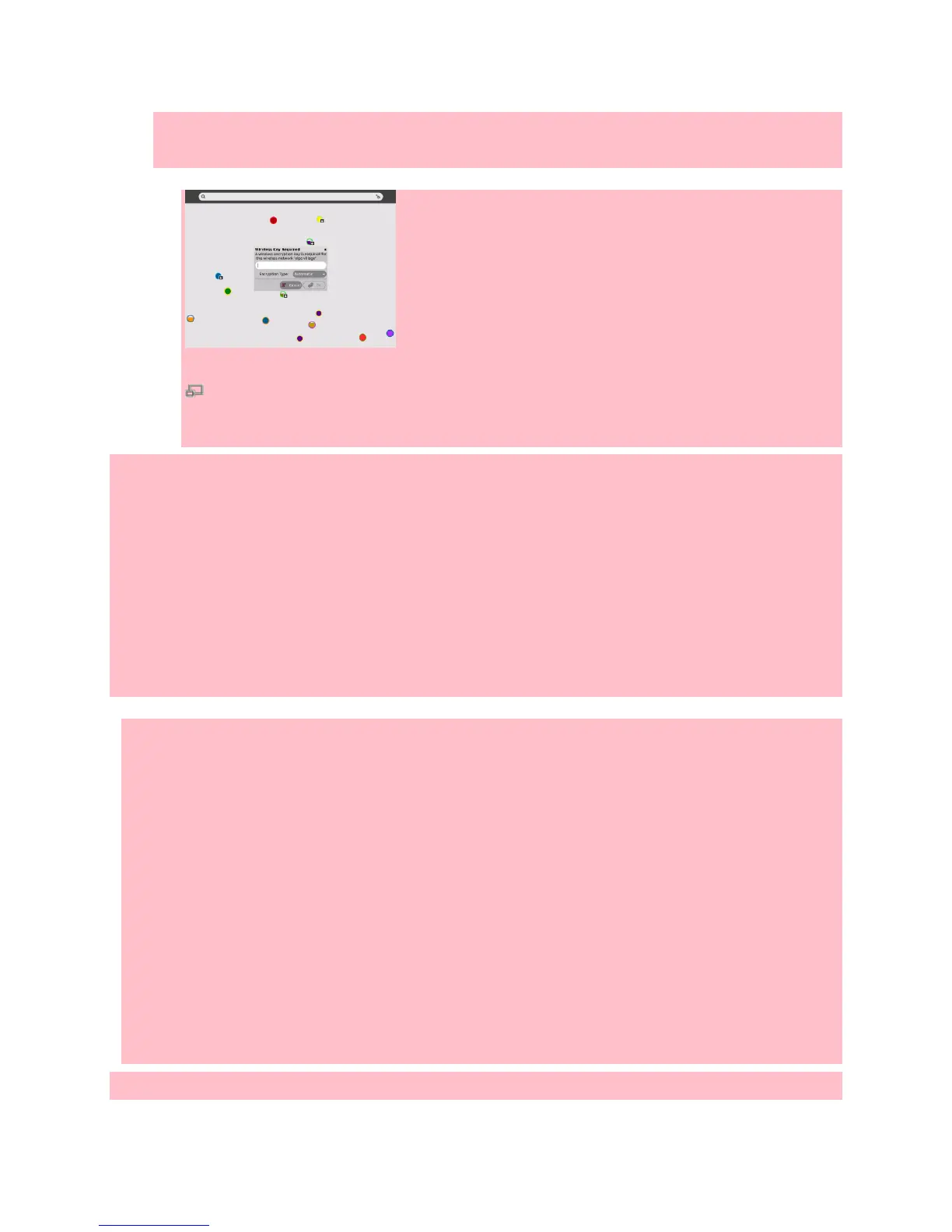
3. To connect, click a network access circle, and enter the wireless key if prompted. You might
need to ask your teacher or parent for the wireless key.
Wireless key requested
While the XO is connecting to the network, the access point blinks. A white outline indicates that your XO
is connected. To disconnect from the network, hover the pointer over the access point and click
Disconnect on the menu.Once your XO is connected, you can use the Browse Activity to access the
Internet.
If you cannot see an access point with a name that you recognize, the wireless network might be hidden.
For more information or if you have difficulties getting a network connection, refer to to
Wifi_Troubleshooting_Guide or Wifi_Connectivity.
More information about your XO's connection:
Your wireless access point has a network name, also called an SSID, that displays in the
Neighborhood View. The XO cannot recognize network names that contain spaces.
When you connect the XO to a wireless network, the XO becomes a network point; other XO
laptops within about 100 meters can connect to the Internet through your XO laptop.
Similarly, if a nearby XO is connected to the Internet, you can connect to that XO laptop and the
Internet through the other XO when using the mesh network.
With the Give 1 Get 1 (G1G1) release, if you are connected to the Internet, your XO laptop cannot
be on the mesh network, and if your XO is on a mesh network, it cannot simultaneously connect
wirelessly to the Internet.
If the XO cannot find an available Internet network point after five minutes of searching, it defaults to
Mesh Network 1, which enables your XO laptop to connect to other nearby XO laptops.
Please be patient; it can take your XO up to five minutes to find a good connection.
Related links


 To Next Page