1
Set the mode dial to and turn the power
switch so that ON is aligned with the white
line.
2
Position the AF target mark in the
viewfinder on the subject.
3
Press the shutter button gently (halfway) to adjust the
focus.
• When the focus and exposure are locked, the green lamp lights.
• If the orange lamp lights, the flash fires automatically.
4
Press the shutter button all the way (fully).
• The camera takes the picture.
• The card access lamp blinks while the picture is stored on the
card.
• When the green lamp stops blinking, you can take the next
picture.
To turn off the camera
Turn the power switch so that OFF is aligned with the white line.
1
Set the mode dial to and turn the power
switch so that ON is aligned with the white
line.
• The monitor turns on and displays the last picture
taken. (Single-frame playback)
2
Use the arrow pad or jog dial to play back other pictures.
1
Set the mode dial to and turn the power switch so that ON is aligned
with the white line.
• The monitor turns on and the available recording time on the card that you are using
is displayed.
2
Decide the composition while looking at the image on the monitor.
3
Press the shutter button fully to start recording.
• The orange lamp on the right of the viewfinder lights.
• During movie recording, lights red.
4
Press the shutter button again to stop recording.
1
Set the mode dial to and turn the power switch so that ON is aligned
with the white line.
• The monitor turns on.
2
Use the arrow pad or jog dial to display the picture with you want to
play back.
3
Press .
• The top menu is displayed.
4
Press to select MOVIE PLAY.
5
Press to select MOVIE PLAYBACK, then
press .
• The movie is played back. When playback ends, the
display automatically returns to the beginning of the
movie.
6
Press again after playback ends to display
the menu.
Press to select the desired operation, then press .
PLAYBACK : Plays back the entire movie again.
FRAME BY FRAME : Plays back the movie manually one frame at a time.
EXIT : Leaves the movie playback mode.
You are recommended to protect important pictures to avoid accidentally erasing
them.
1
Use the arrow pad or jog dial to display
the picture you want to protect.
“Viewing still pictures”
2
Press .
• The mark appears on protected
pictures.
• To cancel protection, press again.
1
Use the arrow pad or jog dial to display
the picture you want to erase.
“Viewing still pictures”
2
Press .
• The ERASE screen is displayed.
3
Press to select YES, then press .
• The picture is erased and the menu is closed.
Taking still pictures
Orange
lamp
Green
lamp
AF target mark
Viewing still pictures
Pictures can be played back by pressing
twice quickly (double-click) even
when the mode dial is set to a mode other
than .
Quick View
Displays the next
picture.
Displays the previous
picture.
Jumps to the picture 10 frames back.
Jumps to the picture 10 frames ahead.
Arrow pad
Displays the next
picture.
Displays the previous
picture.
Jog dial
Recording movies
Viewing movies
MOVIE PLAY
INFO
MODE MENU
Protecting pictures
Erasing pictures (Single-frame erase)
YES
NO
SELECt
GO
ERASE
We’ve included this convenient Quick start guide to show you basic functions and
techniques that will help you quickly master your new camera. For more detailed
descriptions of procedures, as well as for additional information on more sophisticated
features not covered here, please refer to the printed “Basic Manual”, or the primary
“Reference Manual” on the CD-ROM.
1
Pass the lens cap string through the hole in
the lens cap.
2
Fasten the strap to the strap eyelet as shown
in the diagram.
3
Adjust the strap to the desired length. Pull
the strap through the stopper ( ) and make
sure it is fastened securely.
4
Attach the strap to the other eyelet in the same way.
When you want to take pictures, be sure to remove the
lens cap before turning on the camera.
1
Make sure the power switch is set to OFF.
2
Slide the battery compartment lock from to .
3
Place your finger on the mark and slide the
battery compartment cover in the direction of ,
then lift in the direction of .
• Use the ball of your finger to slide the cover. Do not use
your fingernail as this could result in injury.
4
Insert the batteries, making sure that they are correctly oriented as shown
in the illustration.
5
Close the battery compartment cover,
then press it down and slide it in the
direction shown .
• Press the center of the cover, as it may be difficult to
close properly by pressing the edge.
• Make sure the cover is closed securely.
6
Slide the battery compartment lock from to
.
1
Make sure the power switch is set to OFF.
2
Open the card cover.
3
Insert a card.
• Hold the card straight and insert it correctly into the xD-Picture
Card/SmartMedia slot, as shown.
• An illustration showing the position for inserting the xD-Picture
Card is next to the slot.
4
Close the card cover securely until it clicks.
Ejecting the card
1
Push the card all the way in to unlock it, then let it return
slowly.
The card is ejected a short way and then stops. Hold the
card straight and pull it out.
• The xD-Picture Card and SmartMedia use the same slot, as do Compact Flash and
Microdrive. Two cards cannot be inserted in the one slot at the same time.
• Never open the card cover, or remove the card or the batteries while the
camera is turned on. Doing so could destroy the data stored on the card.
Once destroyed, data cannot be restored.
Package contents
Quick start guide
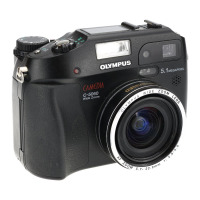
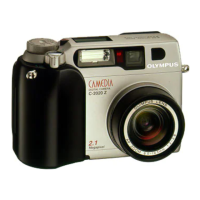
C-5050ZOOM
DIGITAL CAMERA
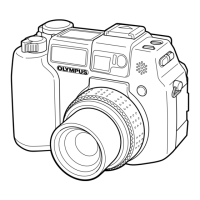
Camera
Strap
Lens cap/String
NiMH batteries (rechargeable)/
Battery charger/instruction (Olympus
America and Olympus Europa only)
USB cable
AV cable
Basic manual
;
Quick start guide
Software installation guide (included in
the CD-ROM package)
CD-ROM with Windows 98 USB driver
software, Reference manual, and more.
Warranty card/Registration card (not
provided in some areas)
Safety Precautions (booklet)
xD-Picture Card
xD-Picture Card instructions
Remote control (Olympus America only)
Remote control instruction (Olympus
America only)
OLYMPUS AMERICA INC.
Two Corporate Center Drive, Melville, NY 11747-3157, U.S.A. Tel. 631-844-5000
24/7 online automated help: http://support.olympusamerica.com/
Phone customer support: Tel. 1-888-553-4448 (Toll-free)
Our phone customer support is available from 8 am to 10 pm (Monday to Friday) ET
E-Mail: distec@olympus.com
Olympus software updates can be obtained at: http://olympus.com/digital/
OLYMPUS OPTICAL CO. (EUROPA) GMBH.
Premises/Goods delivery: Wendenstrasse 14-18, 20097 Hamburg, Germany
Tel. 040-237730
Letters: Postfach 10 49 08, 20034 Hamburg, Germany
http://www.olympus.com/
Printed in Japan
1AG6P1P1441-- VT406901
1. Attaching the strap and lens cap
2. Taking off the lens cap
3. Loading the batteries
When using AA (R6) batteries
When using CR-V3 lithium battery packs
Battery
alignment
The correct way to insert the AA batteries
is indicated on the bottom of the camera.
4. Inserting an xD-Picture Card
Releasing your finger quickly after pushing the
card all the way in may cause it to eject forcefully
out of the slot.
Note
qsge_pquick.fm Page 1 Tuesday, September 17, 2002 1:43 PM


 To Next Page


 General