EasyManua.ls Logo

Olympus CAMEDIA C-2 ZOOM - User Manual

Olympus CAMEDIA C-2 ZOOM
140 pages
Print Icon
To Next Page IconTo Next Page
Loading...
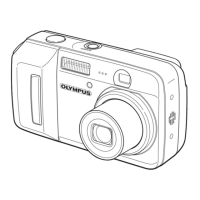
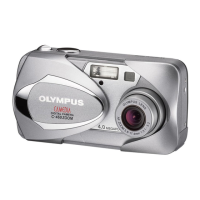
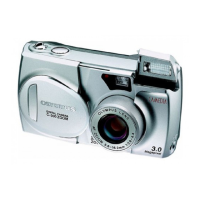
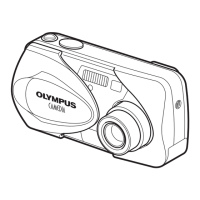
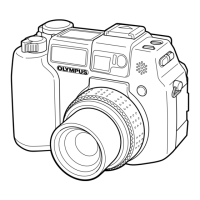
DIGITAL CAMERA
C-2 Zoom
D-520 ZOOM
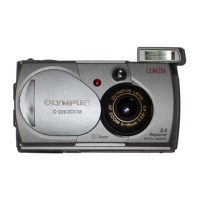
C-220 ZOOM
REFERENCE MANUAL
<Click Here>
CONNECTING THE CAMERA TO A PC
CAMERA OPERATION

Table of Contents

Other manuals for Olympus CAMEDIA C-2 ZOOM

Questions and Answers

  • M
    Matthew WeberSep 8, 2025
    Why does the flash not fire on my Olympus CAMEDIA C-2 ZOOM?
    • S
      Sarah WeaverSep 8, 2025
      If your Olympus Digital Camera flash doesn't fire, ensure the flash has popped up fully and that you're not pressing it down. Also, check that the flash is not set to the flash off mode. If the subject is already well-lit, set the flash to fill-in mode. Note that the flash doesn't fire in sequential shooting or movie mode, or panorama mode, so adjust settings in the DRIVE menu or close and reopen the lens barrier, respectively.
  • T
    Tanya LeeAug 23, 2025
    How to fix 'NO CARD' error on my Olympus CAMEDIA C-2 ZOOM Digital Camera?
    • S
      scottkathyAug 23, 2025
      If your Olympus Digital Camera displays 'NO CARD', it means that the card is either not inserted or cannot be recognized by the camera. Try inserting a card or reinserting the card correctly.
  • L
    Laura Miller DDSAug 25, 2025
    What to do if I get a 'CARD ERROR' message on my Olympus CAMEDIA C-2 ZOOM Digital Camera?
    • K
      kayla09Aug 25, 2025
      If your Olympus Digital Camera displays 'CARD ERROR', it means the camera cannot record, play back, or erase pictures on the card. First, try wiping the gold contacts with a piece of cleaning paper and reinserting the card. If the problem continues, format the card. If the card cannot be formatted, it means the card cannot be used.
  • A
    Angela OliverAug 27, 2025
    Why my Olympus Digital Camera does not turn on?
    • S
      swintersAug 27, 2025
      If your Olympus Digital Camera doesn't turn on or the function buttons aren't responding, here's what you can check: 1. Ensure the lens barrier is open to turn on the camera. 2. Make sure the batteries are loaded correctly. 3. Replace exhausted batteries with new ones. 4. Warm up cold batteries before use. 5. Operate the camera if it is in sleep mode by pressing the shutter button or zoom lever. 6. Wait until the camera dries if there's condensation inside. 7. Disconnect the camera from the PC, as it won't operate while connected.
  • B
    barnesamandaAug 27, 2025
    What does 'WRItE-PROtECt' mean on my Olympus CAMEDIA C-2 ZOOM?
    • K
      Kevin FloresAug 27, 2025
      If your Olympus Digital Camera displays 'WRItE-PROtECt', it means writing to the card is prohibited. If you are trying to take pictures, remove the write-protect seal attached to the card.
  • J
    John BurnsSep 22, 2025
    Why do the settings on my Olympus Digital Camera revert to factory defaults?
    • B
      Brittany BarrSep 22, 2025
      If the settings on your Olympus Digital Camera return to the factory default settings, it's likely because 'All Reset' was set to ON. To prevent this, set 'All Reset' in the mode menu to OFF.
  • K
    Kelsey LopezSep 16, 2025
    Why do the colors of pictures taken indoors look unnatural with my Olympus CAMEDIA C-2 ZOOM?
    • J
      John WangSep 16, 2025
      If your Olympus Digital Camera colors of pictures taken indoors look unnatural, set the white balance according to the lighting. Try to include something white in the picture, or shoot using the fill-in flash mode. Adjust the white balance to the light source.
  • S
    stanleylaurenSep 18, 2025
    Why can't I erase, protect, print, or format the card on my Olympus Digital Camera?
    • B
      Brandi GillespieSep 18, 2025
      If you can't perform erasure, protection, print reservation, or card formatting on your Olympus Digital Camera, it's likely because a write-protect seal is attached to the card. Remove the seal before using the card, and don't reuse it.
  • G
    Grace HamiltonSep 7, 2025
    Why doesn't my Olympus CAMEDIA C-2 ZOOM take a picture when I press the shutter button?
    • T
      tyler58Sep 7, 2025
      If your Olympus Digital Camera isn't taking pictures when you press the shutter button, check the following: * Ensure the lens barrier is open. * Make sure the flash has finished charging (wait for the orange lamp to stop blinking). * Wait for the movie to finish writing to the card (orange lamp stops blinking). * If the card is full, erase unwanted pictures or insert a new card.
  • S
    susan12Sep 4, 2025
    Why is my Olympus CAMEDIA C-2 ZOOM Digital Camera picture out of focus?
    • R
      ramirezrobertSep 4, 2025
      If your Olympus Digital Camera picture is out of focus, hold the camera correctly and press the shutter button gently to avoid camera movement. When using macro mode, ensure the subject is within the shooting range. If using the self-timer, look into the viewfinder while pressing the shutter. In low light, avoid the flash off mode, and use a tripod or hold the camera firmly. Cancel the self-portrait mode if you don't want to use it.

Summary

Getting started

Names of parts

Identifies the physical components of the digital camera and their functions.

Monitor indications

Explains the various icons and symbols displayed on the camera's monitor.

Memory gauge and Battery check

Details how to interpret memory gauge and battery status indicators on the camera.

Attaching the strap

Provides instructions on how to securely attach the camera strap.

Loading the batteries

Guides users on how to insert batteries into the camera correctly.

Battery and AC adapter options

Discusses compatible battery types and the optional AC adapter for camera power.

Inserting and removing the card

Explains how to insert and remove the SmartMedia card and handling precautions.

Turning the power on;off

Covers the procedures for powering the camera on and off in shooting mode.

CARD SETUP screen handling

Explains actions required when the CARD SETUP screen appears upon powering on.

Setting the date and time

Details the steps to set the camera's date and time accurately.

Using menus and tabs

Introduces the camera's menu system and navigation with tabs.

Shooting basics

Holding the camera

Demonstrates proper techniques for holding the camera to ensure stable shots.

Taking still pictures

Explains how to capture still images using the viewfinder or monitor.

Focus lock procedures

Guides on using focus lock when proper focus is difficult to obtain.

Subjects difficult to focus on

Identifies subjects that may pose challenges for the camera's autofocus system.

Recording movies

Details the process of recording video clips with the camera.

Zooming features

Explains how to use optical and digital zoom for magnification.

Macro mode for close-ups

Covers how to use the macro mode for capturing subjects at close distances.

Using the camera flash

Explains different flash modes and their usage for various shooting conditions.

Advanced shooting

Using the self-timer

Describes how to use the self-timer for taking self-portraits or group shots.

Sequential shooting

Explains how to capture a rapid succession of still pictures.

Exposure compensation

Details how to adjust image brightness manually to fine-tune exposure.

Metering area selection

Explains how to select different metering modes like spot metering for accurate exposure.

White balance adjustment

Guides on setting white balance to achieve natural color reproduction under different lighting.

Image quality and size

Explains how to choose the optimal record mode for image quality, resolution, and file size.

Panorama shooting

Details how to capture multiple images to create a panoramic view.

Two-in-one picture mode

Explains how to combine two photos into a single image.

Self-portrait shooting

Guides on taking pictures of oneself using the camera's self-portrait mode.

Playback

Playing back still pictures

Covers methods for viewing still images, including single-frame, quick view, and index display.

Playing back movies

Explains how to play back recorded movie clips.

Erasing pictures

Details how to erase individual or all pictures from the memory card.

Protecting pictures

Guides on how to protect important pictures from accidental deletion.

Editing still pictures

Explains how to edit images, such as creating B&W or sepia tones, resizing, and rotating.

Creating an index (movie editing)

Covers editing movie files, specifically creating an index.

Camera settings

Beep sound settings

Explains how to turn the camera's beep sound on or off.

Formatting the card

Guides on formatting the memory card to prepare it for use.

Rec View settings

Details how to enable or disable viewing pictures immediately after shooting.

Saving settings (All Reset)

Explains how to configure whether camera settings are saved when power is off.

Displaying shooting information

Describes how to display detailed shooting information on the monitor.

Adjusting monitor brightness

Guides on how to adjust the monitor's brightness for better visibility.

Pixel Mapping feature

Explains the feature for checking the camera's CCD and image processing circuit.

Print settings

How to print pictures

Outlines various methods for printing photos, including DPOF and PC printing.

Making a print reservation

Details how to set print reservations for specific images and print dates/times.

Troubleshooting

Error codes and messages

Lists common error codes, their possible causes, and corrective actions.

Operation issues

Addresses problems like the camera not responding, no picture taken, or flash not firing.

Image quality problems

Covers issues related to picture quality, such as images being too bright, too dark, or out of focus.

Specifications

Olympus CAMEDIA C-2 ZOOM Specifications

General IconGeneral
Image Resolution1600 x 1200 pixels
Optical Zoom3x
Digital Zoom2.5x
DisplayLCD
Camera TypeCompact
Effective Pixels2.0 million
Maximum Aperturef/2.8
Aperture Rangef/2.8 - f/8
ISO Sensitivity100, 200
Storage MediaSmartMedia
File FormatsJPEG, AVI
Image Sensor1/2.7 inch CCD
LCD Screen1.5-inch, 110, 000 pixels

Related product manuals