EasyManua.ls Logo

Olympus CAMEDIA C-55 ZOOM - User Manual

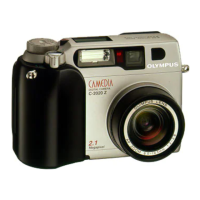
Olympus CAMEDIA C-55 ZOOM
199 pages
Print Icon
To Next Page IconTo Next Page
Loading...
Thank you for purchasing an Olympus digital camera. Before you start to use your
new camera, please read these instructions carefully to enjoy optimum performance
and a longer service life. Keep this manual in a safe place for future reference.
We recommend that you take test shots to get accustomed to your camera before
taking important photographs.
In the interest of continually improving products, Olympus reserves the right to update
or modify information contained in this manual.
DIGITAL CAMERA
Advanced
Manual
C-5500 ZOOM
C-55 ZOOM
Detailed explanations of all the
functions for getting the most out
of your camera.
Online Pictures
Basic Operation
Basic Shooting
Advanced Shooting
Playing Back
Printing
Camera Settings
d4250_e_00_0_bookfile.book Page 1 Friday, December 24, 2004 11:45 AM

Table of Contents

Other manuals for Olympus CAMEDIA C-55 ZOOM

Questions and Answers

  • K
    Kelly OconnorAug 12, 2025
    What to do if my Olympus CAMEDIA C-55 ZOOM Digital Camera says 'CARD FULL'?
    • J
      Jackie HendersonAug 12, 2025
      If your Olympus Digital Camera displays 'CARD FULL', it means the card has reached its maximum image or recording capacity. To resolve this, either replace the card with a new one or erase unwanted pictures from the current card. Before erasing, it's recommended to download any important images to a computer.
  • T
    Todd SchultzAug 16, 2025
    Why does my Olympus CAMEDIA C-55 ZOOM say 'NO CARD'?
    • S
      shaneroachAug 16, 2025
      If your Olympus Digital Camera displays 'NO CARD', it indicates that either the card is not inserted properly or the camera cannot recognize it. First, ensure that a card is inserted correctly. If it is, try removing the card and re-inserting it. If the problem continues, format the card. If the card still cannot be formatted, you will need to use a new card.
  • A
    Amy ShepardAug 19, 2025
    What to do if I get a 'CARD ERROR' on my Olympus Digital Camera?
    • A
      Angela BurnsAug 20, 2025
      If your Olympus Digital Camera displays 'CARD ERROR', it means there is a problem with the card. The solution is to insert a new card, as the current card cannot be used.
  • T
    Tasha PorterAug 25, 2025
    What does 'CARD SETUP POWER OFF FORMAT SELECT GO OK' mean on my Olympus Digital Camera?
    • C
      Connor JonesAug 25, 2025
      If your Olympus Digital Camera displays 'CARD SETUP POWER OFF FORMAT SELECT GO OK', it means that either the card is not compatible with the camera or the card is not formatted. You can either use a different card or format the card. To do this, select '[POWER OFF]' and press N, then insert a new card, or select '[FORMAT]' and press N to erase all data on the card.
  • C
    Courtney ColeAug 27, 2025
    How to remove write protection from Olympus Digital Camera images?
    • E
      Ernest CarrollAug 27, 2025
      If your Olympus Digital Camera displays 'WRITE-PROTECT', it indicates that the recorded image has been protected (read-only) on a computer. To resolve this, download the image to a computer and cancel the read-only setting.
  • M
    Matthew ThomasAug 31, 2025
    Why does my Olympus CAMEDIA C-55 ZOOM Digital Camera say 'L NO PICTURE'?
    • J
      jaimezamoraAug 31, 2025
      If your Olympus Digital Camera displays 'L NO PICTURE', it means there are no pictures on the card. To resolve this, simply record pictures onto the card.
  • E
    Edward PowersSep 3, 2025
    What to do if my Olympus CAMEDIA C-55 ZOOM shows 'PICTURE ERROR'?
    • J
      Joseph ThomasSep 3, 2025
      If your Olympus Digital Camera displays 'PICTURE ERROR', it indicates that there is a problem with the selected picture, and it cannot be played back on the camera. Try using image processing software to view the picture on a computer. If you still cannot view the picture, the image file may be damaged.
  • B
    boltonhenrySep 7, 2025
    What to do if my Olympus Digital Camera displays 'CARD-COVER OPEN'?
    • S
      Stephen SmithSep 7, 2025
      The Olympus Digital Camera displays 'CARD-COVER OPEN' when the card cover is open. To resolve this, simply close the card cover.

Summary

Olympus C-5500 Zoom Advanced Manual

Basic Operation

Mode Dial

Selects camera mode for shooting or playback.

Direct Buttons

Buttons with immediate functions in shooting and playback modes.

Menus

Used to set functions, differing based on the selected camera mode.

Tips Before You Start Taking Pictures

Holding the Camera

Proper grip to prevent camera shake for clearer photos.

If Correct Focus Cannot Be Obtained

Troubleshooting focus issues and using the focus lock function.

Record Mode

Selects image size and compression for desired picture quality.

Basic Shooting Functions

Selecting a Shooting Mode According to the Situation

Camera automatically sets optimal settings based on the scene.

Zooming In on a Distant Subject

Using optical and digital zoom to enlarge subjects.

Flash Shooting

Selecting flash modes for different lighting conditions.

Advanced Shooting Functions

Aperture Priority Shooting

Manually set aperture; camera sets shutter speed for depth of field control.

Shutter Priority Shooting

Manually set shutter speed; camera sets aperture for motion blur control.

Manual Shooting

Manually set both aperture and shutter speed for full creative control.

Focusing Applications

Choosing methods like iESP or SPOT for focusing on subjects.

Metering

Selecting methods to measure subject brightness for exposure.

White Balance

Adjusting colors for accurate reproduction under various light sources.

More Useful Functions

Recording Movies

Capturing video clips with sound.

Sequential Shooting

Captures multiple shots rapidly, with or without exposure changes.

Panorama Shooting

Captures multiple images to create a single panoramic view.

Playback

Single-Frame Playback

Displays one picture at a time, with navigation options.

Index Display

Shows multiple pictures on screen simultaneously for quick selection.

Editing Still Pictures

Performs basic edits like resizing, trimming, and red-eye correction.

Formatting

Prepares memory cards for use by erasing all data.

Settings

All Reset

Resets camera settings to factory defaults.

My Mode Setup

Configures and saves custom shooting settings.

File Name

Sets how file and folder names are created.

Setting the Date and Time

Sets the camera's internal clock and date.

Printing Pictures

Direct Printing (PictBridge)

Prints pictures directly from camera to PictBridge printer.

Print Settings (DPOF)

Saves print data like number of copies, date/time.

Connecting the Camera to a Computer

Using OLYMPUS Master

Software for editing, managing, and printing images.

Installing OLYMPUS Master

System requirements and installation steps for the software.

Viewing Still Pictures and Movies

Browsing and viewing downloaded images and videos.

Appendix

Troubleshooting

Solutions for error codes and common camera problems.

Safety Precautions

Important warnings for safe camera operation and handling.

Glossary of Terms

Definitions of technical terms used in the manual.

Miscellaneous

Menu List

Lists available menu items and their settings for different modes.

Names of Parts

Identifies camera components and their locations.

Monitor Indications

Explains icons and information displayed on the camera monitor.

Olympus CAMEDIA C-55 ZOOM Specifications

General IconGeneral
TypeCompact
Sensor TypeCCD
Effective Pixels5.0 MP
Optical Zoom3x
Digital Zoom4x
DisplayLCD
Screen Size1.8 inches
Storage MediaxD-Picture Card
Supported Flash MemoryxD-Picture Card
BatteryLI-10B
Image Sensor1/2.5-inch CCD
Image Resolution2560 x 1920
Battery TypeLi-ion
Lens38-114mm (35mm equiv.)

Related product manuals