2
Recording
26
EN
Recording
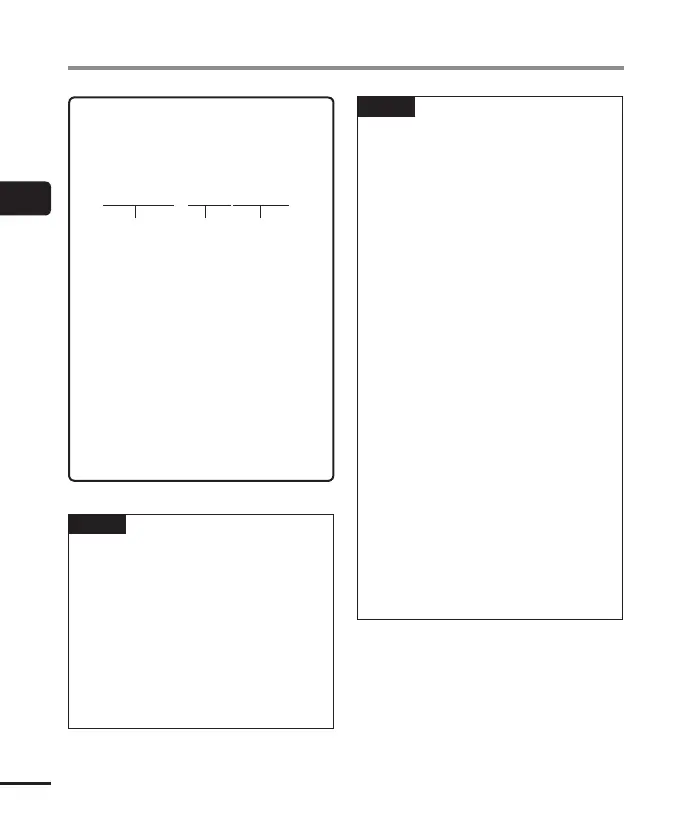
Sound files recorded with the voice
recorder are automatically given a file
name in the format below.
151001
_
0001.MP3
1 Date recorded
Indicates the year, month and day the
recording was made.
2 File number
Appended file numbers are
consecutive regardless of whether the
recording media has been switched.
3 Extension
A file extension indicating the
recording format the file was recorded
in by the voice recorder.
• Linear PCM format: “.WAV”
• MP3 format: “.MP3”
TIP
• [Rec Mode] must be set with the voice
recorder stopped (☞P.55).
• Pressing the REC (s) button starts
recording even in [Music] or [Calendar
Search] mode.
So you will be able
to respond quickly in the event of a
sudden recording opportunity. The
recorded file will be saved to
[Folder A].
• You can adjust the recording level
manually to match your application
(☞P. 54).
NOTE
• To prevent the beginning of the
recording being cut off, start recording
after the LED indicator light has lit or
mode indicator has appeared in the
display.
• When the remaining possible recording
time is 60 seconds, the LED indicator
light starts flashing. It flashes more
rapidly as the remaining time decreases
(at the 30- and 10-second points).
• When [Folder full] appears, no more
recording can be done. To record more,
you will need to select a different folder
or delete unneeded files (☞P.47).
• If [Memory full] appears, the voice
recorder has no more available
memory space. You will need to
delete unneeded files to record more
(☞P.47).
• When using a microSD card in the voice
recorder, be sure the desired recording
media setting ([Internal memory]
or [microSD card]) has been selected
(☞P. 67).
• Processing performance may
be reduced when data has been
repeatedly written to or deleted from
the recording media. Please initialize
the recording media in this case
(☞P. 88).



 To Next Page