EasyManua.ls Logo

Olympus VP-10 - User Manual

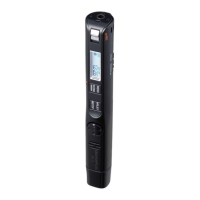
Olympus VP-10
82 pages
Print Icon
To Next Page IconTo Next Page
Loading...
DIGITAL VOICE
RECORDER
USER MANUAL
Thank you for purchasing an Olympus digital voice recorder.
Please read these instructions for information about using the product
correctly and safely.
Keep the instructions handy for future reference.
To ensure successful recording, we recommend that you test the record
function and volume before use.
Getting started
Recording
Playback
Menu
Use with a PC
Other information
EN
1
2
3
4
5
6
VP-10

Table of Contents

Other manuals for Olympus VP-10

Questions and Answers

  • O
    okelleySep 8, 2025
    Why is there noise when monitoring a recording on my Olympus VP-10?
    • K
      kimberlymaySep 8, 2025
      If you are experiencing noise when monitoring a recording on your Olympus Voice Recorder, it could be due to feedback. Connecting a speaker with a built-in amplifier may cause feedback during recording, so it is recommended that you use earphones before starting recording. Also, adjust the recording setup such as by moving the earphones and microphone farther apart, or ensuring the microphone is not facing the earphones.
  • B
    Brittney ClineSep 10, 2025
    What to do if unable to write index marks/temp marks on Olympus Voice Recorder?
    • I
      igordonSep 10, 2025
      If you're unable to write index marks/temp marks on your Olympus Voice Recorder, it could be because the maximum number of marks (99) has been reached (erase unneeded marks), the file is locked (unlock the file before you can erase it), or the file is a read-only file (unlock the file, or undo the read-only setting on a PC).
  • M
    Michael OneillSep 12, 2025
    Why are button operations abnormal on my Olympus Voice Recorder?
    • C
      Charles KerrSep 12, 2025
      If button operations are abnormal on your Olympus Voice Recorder, the [Play Scene] function might be enabled. Set the [Play Scene] setting to [OFF].
  • M
    Mark ThompsonSep 13, 2025
    Why can't files be played consecutively on my Olympus VP-10 Voice Recorder?
    • T
      Tracie JosephSep 13, 2025
      If files cannot be played consecutively on your Olympus Voice Recorder, it may be because [File] has been selected for [Playback Range]. Set the [Playback Range] setting to [Folder]. Also, check if [ON] has been selected for [Repeat]; if so, set the [Repeat] setting to [OFF].
  • J
    Jennifer GarciaSep 15, 2025
    Why can't I skip to the next or previous file during playback on my Olympus Voice Recorder?
    • S
      Shane DavidSep 15, 2025
      If you're unable to skip to the next or previous file during playback on your Olympus Voice Recorder, it could be because [File] has been selected for [Playback Range] (set the [Playback Range] setting to [Folder]), [ON] has been selected for [Repeat] (set the [Repeat] setting to [OFF]), or the [Skip Space] is set to other than [File Skip] (set the [Skip Space] setting to [File Skip]).
  • S
    Sandra JonesSep 18, 2025
    Why does playback start automatically when files are switched on my Olympus Voice Recorder?
    • R
      Richard SanchezSep 18, 2025
      If playback starts automatically when files are switched on your Olympus Voice Recorder, it's likely because [ON] has been selected for [Intro Play]. Set the [Intro Play] setting to [OFF].

Summary

Getting Started

Initial Setup Guide

Prepare the voice recorder for use by inserting the battery and setting the date/time.

Recording Audio Files

Basic Recording Procedure

How to start, stop, and manage basic recording functions and indicators.

Recording Settings and Options

Adjust sensitivity, quality, noise reduction, and voice-activated recording.

Using Earphones for Monitoring

Connect earphones to monitor audio during recording and playback.

Automatic Recording Scenes [Rec Scene]

Utilize preset templates for optimal recording in different environments.

Playback Operations

Basic Playback Procedure

Select, play, pause, adjust volume, and stop audio playback.

Navigating Audio Files

Fast-forward, rewind, and skip to the beginning of files for efficient navigation.

Playback Settings and Modes

Customize playback with noise cancellation, speed, repeat, and skip functions.

Automatic Playback Scenes [Play Scene]

Select preset playback modes for transcription and language study.

Adjusting Playback Speed

Change the playback speed to suit listening needs, such as for language learning.

Menu and Settings Configuration

General Menu Navigation

General steps to navigate and change settings across all menus.

File Menu Options

Manage files with locking, dividing, and property viewing options.

Recording Menu Options

Configure recording sensitivity, quality, and noise reduction features.

Playback Menu Options

Adjust noise cancellation, playback range, and repeat playback settings.

LCD and Sound Settings

Configure display backlight, contrast, button beeps, and speaker output.

Device Settings Management

Manage power settings, battery type, standby duration, and system information.

PC Connectivity and Management

PC Operating Environment Requirements

Essential operating system and hardware requirements for PC connectivity.

Connecting and Disconnecting from PC

Step-by-step instructions for safely linking and unlinking the recorder from a PC.

File Transfer and Management

Copying recorder files to PC and transferring PC files to the recorder.

Using as External Storage

Employ the voice recorder as a removable drive for data transfer.

Other Information and Support

Alarm Message List

Understand error messages and the actions required to resolve them.

Troubleshooting Common Issues

Resolve issues with display, operation, recording, playback, and audio quality.

Recorder Care and Optional Accessories

Guidelines for maintaining the recorder and listing optional accessories.

Copyright and Trademark Information

Legal information regarding the manual, copyright, and trademarks.

Safety Precautions and Warnings

Critical safety information to prevent injury, damage, or hazards during use.

Olympus VP-10 Specifications

General IconGeneral
Sample rate22.05 kHz
Audio quality16 bit
Product colorBlack
Weight and Dimensions IconWeight and Dimensions
Weight37.5 g
Dimensions (WxDxH)130 x 17 x 17 mm

Related product manuals