9
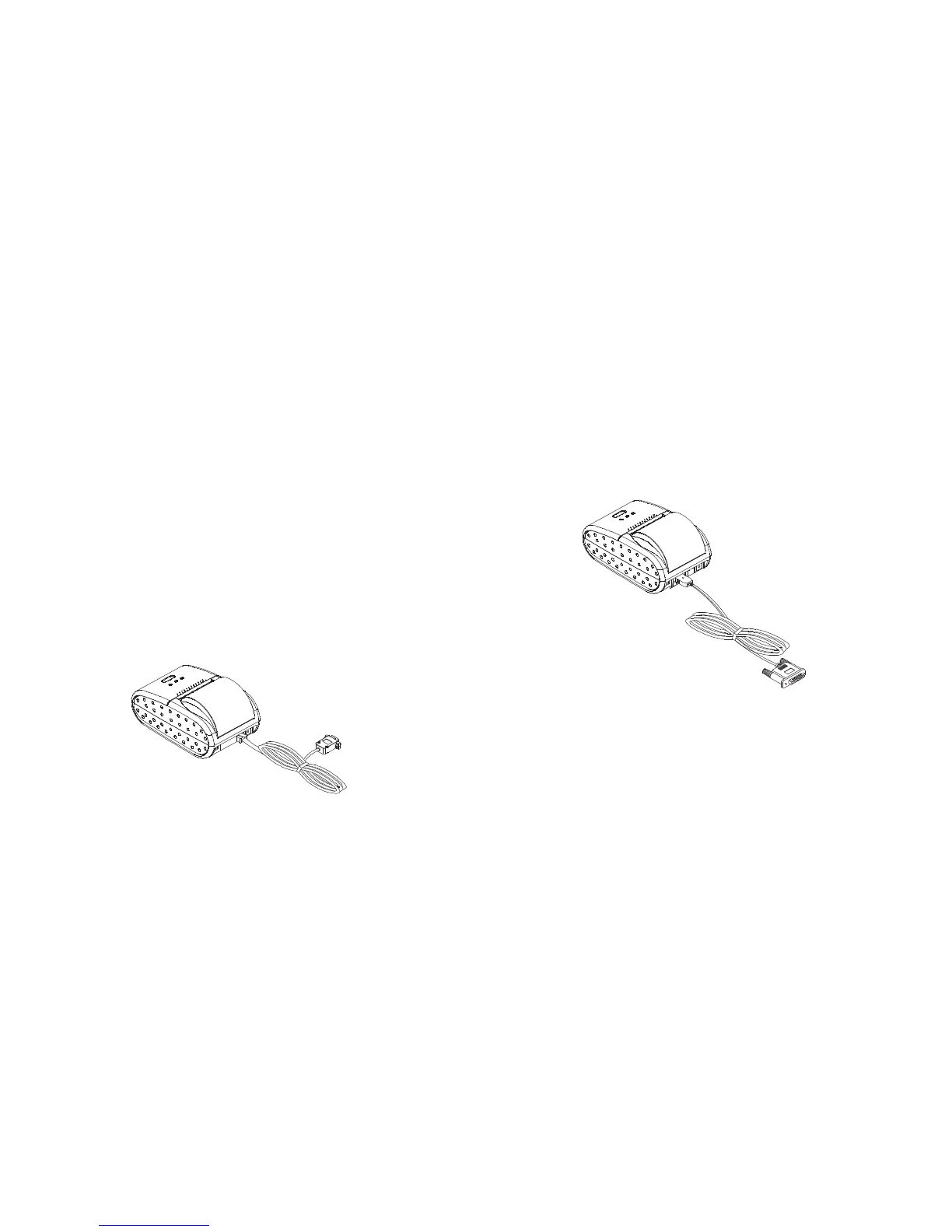
You need an appropriate parallel interface cable to connect your computer to the printer's
built-in interface.
1. Make sure that both the printer and computer are turned off;
then plug the cable connector securely into the printer's interface connector.
2. Tighten the screws on both sides of the cable connector.
3. Plug the other end of the cable into the computer.
OM7212P
This printer supports serial transmission through an interface cable and infrared
transmission based on IrDA (SIR1.0). The printer checks whether the interface cable is
connected to the printer when it is turned on. If the interface cable is connected, the printer
uses serial transmission. If not, the printer uses infrared transmission.
An interface cable is required to perform serial transmission. An interface cable that fits into
the host computer must be selected.
3. Plug the other end of the cable into the computer.
You need an appropriate serial interface cable to connect your computer to the printer's
built-in interface.
1. Make sure that both the printer and computer are turned off;
then plug the cable connector securely into the printer's interface connector.
2. Tighten the screws on both sides of the cable connector.
OM7212S
3-1. Serial transmission with an interface cable
10
Chapter 3. Connecting the Printer to Your Computer



 To Next Page